How to request a review of a decision in MyService
On this page
- Before you start
- Step 1 – Select Request review of decision
- Step 2 – Start your request
- Step 3 – Select a decision
- Step 4 – Enter your reasons for requesting a review and upload supporting evidence
- Step 5 – Enter representative details (optional)
- Step 6 – Review and submit
- Step 7 – Upload a document after you’ve submitted your request (if needed)
If you are not satisfied with the outcome of an application or claim, you can request a review.
This feature allows you to appeal a recent decision. It is not a way to have an existing benefit reassessed.
Back to topBefore you start
Check the determination letter of the decision you would like to have reviewed to confirm the review process.
Only requests for review of decisions relating to the following may be submitted through MyService:
- Income support claims and payments
- Allowances
All compensation claim decisions will need to be submitted directly to the Veterans’ Review Board (VRB).
For more information, go to Lodge an appeal.
This guide includes images of sample screens. The screens do not contain information about any real DVA clients.
Back to topStep 1 – Select Request review of decision
Sign in to MyService.
From the home page find the Services and benefits section and select Request review of decision.
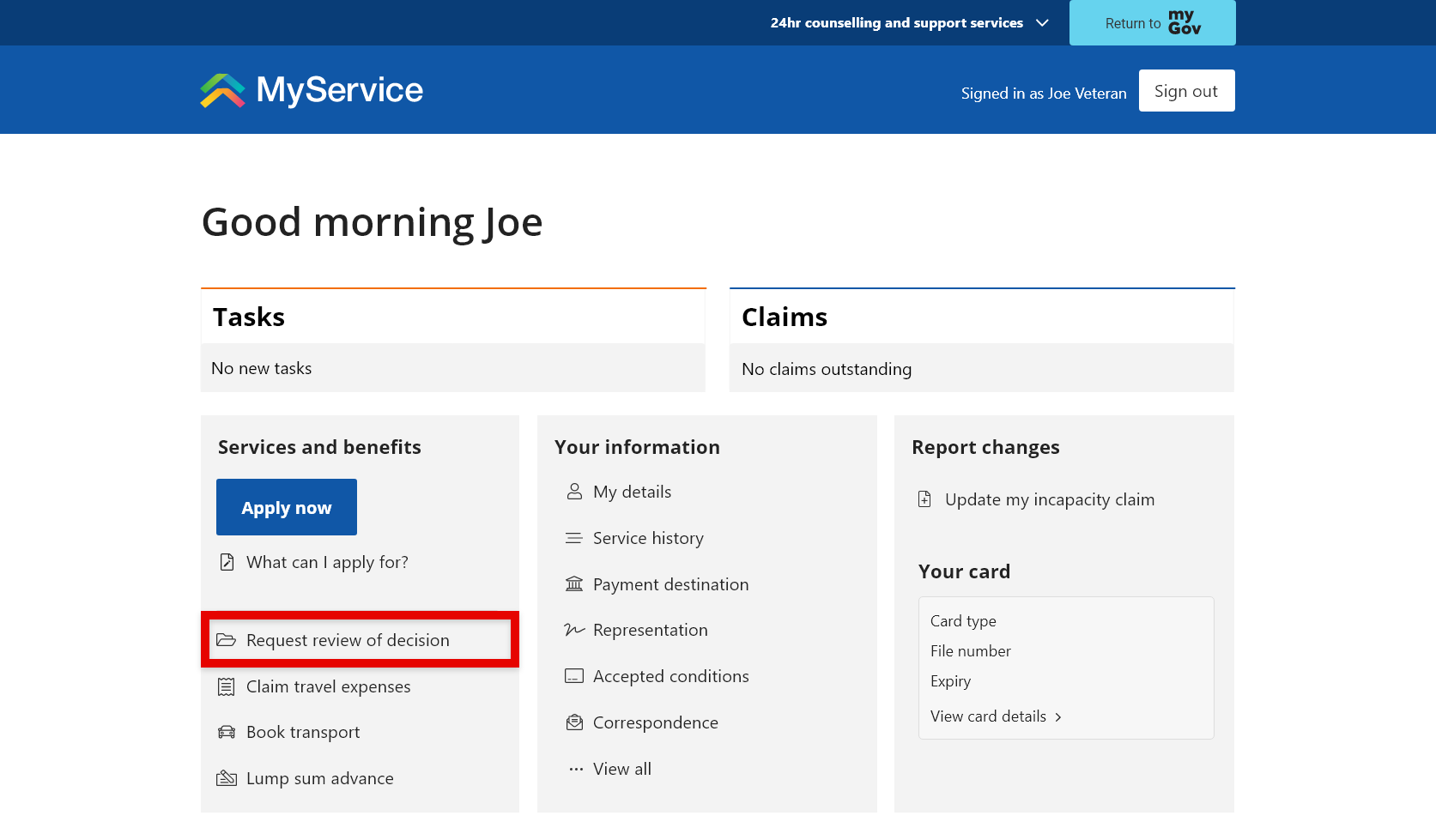
You can also select Request review of decision from the Claims screen.
Back to topStep 2 – Start your request
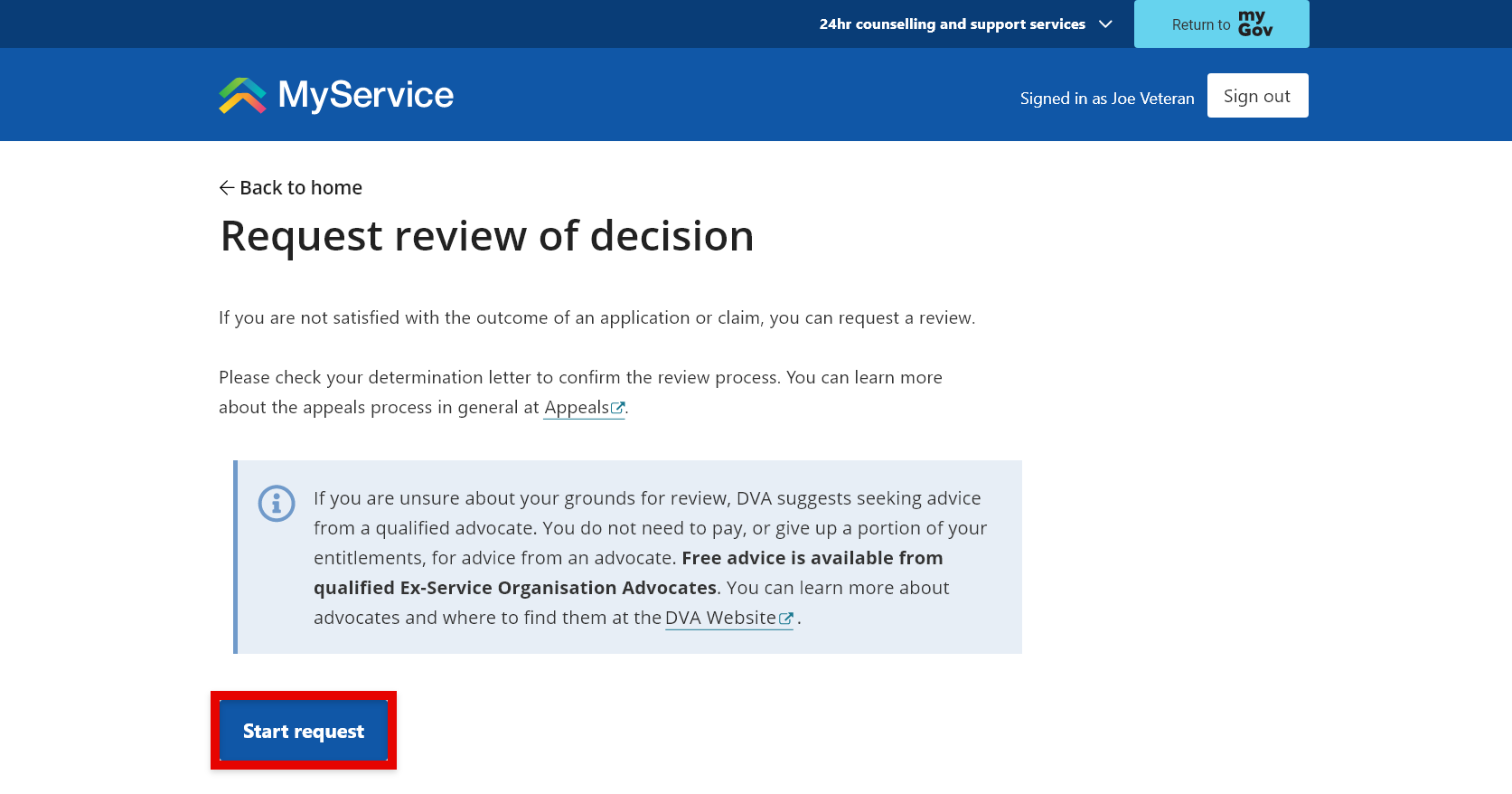
On the Request review of decision screen, you can:
- start new requests
- resume or delete your incomplete requests
- view details of submitted requests
- in some instances, add documents.
Before you begin, check your determination letter to confirm the review process.
To begin a new request, select Start request.
Step 3 – Select a decision
Choose the option below that is relevant to you:
- If your decision is listed, follow Option A.
- If your decision is not listed, follow Option B.
Option A: Select a specific decision
Only decisions that fall within the reviewable timeframe are available in MyService for you to submit a review request.
Select the decision you would like reviewed, for example, ‘Service Pension’.
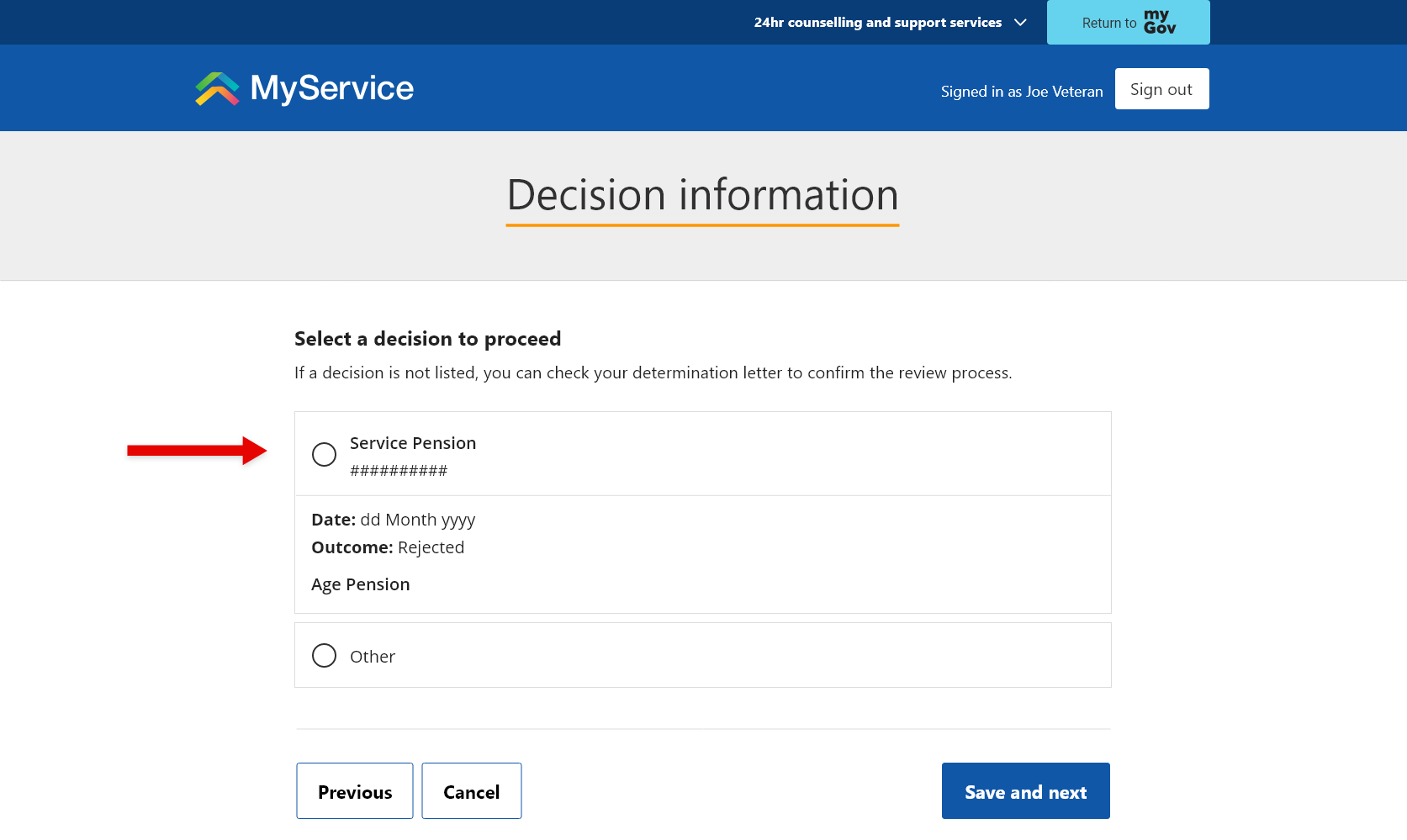
Select Save and next, then go to Step 4.
Note: If your decision is not listed, select Other to proceed to Option B.
Option B: Select a decision type
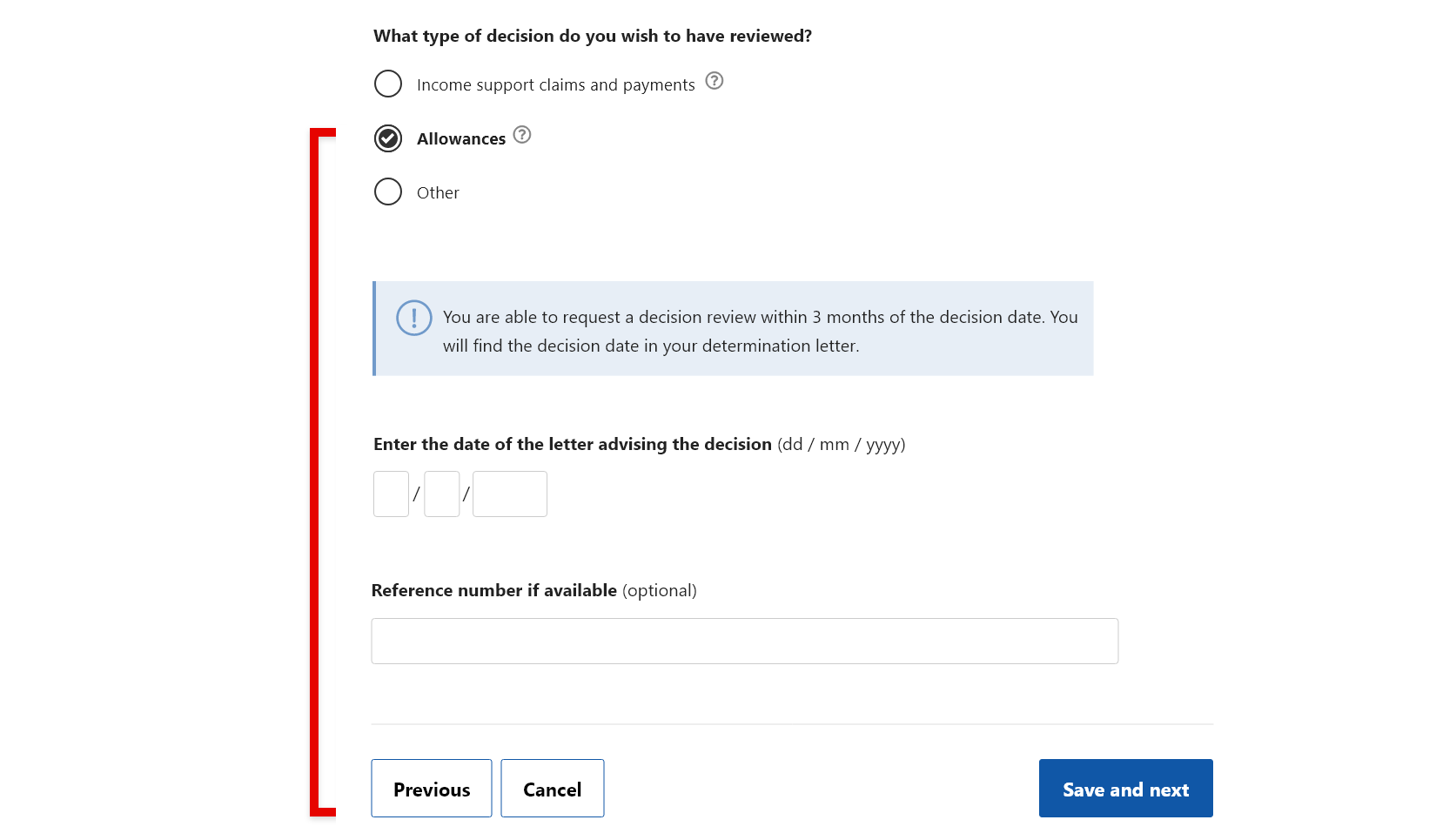
Select the decision type you would like reviewed.
The options available are:
- Income support claims and payments - this includes service pension, Commonwealth Seniors Health Card, qualifying service, income and assets updates, veteran payment and others.
- Allowances - this includes attendant allowance, clothing allowance, decoration allowance, Victoria Cross allowance, loss of earning allowance and recreational transport allowance.
Enter the date of the letter advising of the decision and provide the reference number if you have it.
Select Save and next and go to Step 4.
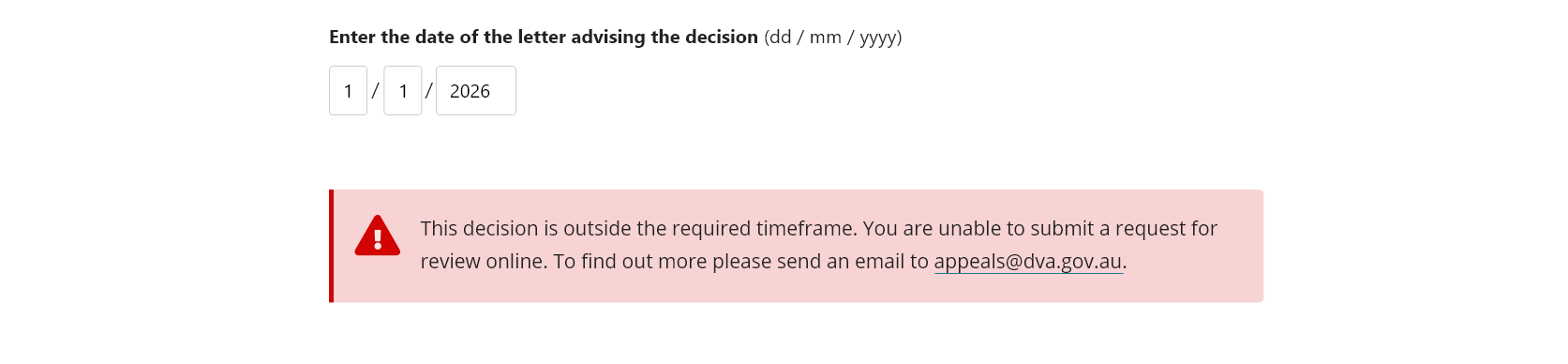
Note: If your decision is outside the required timeframe, you will receive an error message outlining the required process for your decision.
In some instances, where the decision body is DVA, you can email appeals@dva.gov.au.
‘Other’ decision type
If you are unsure how to proceed from the listed options and your determination letter states that a review can be submitted to DVA, you can select the decision type Other.
Provide a brief description of the decision and your reason for appealing.
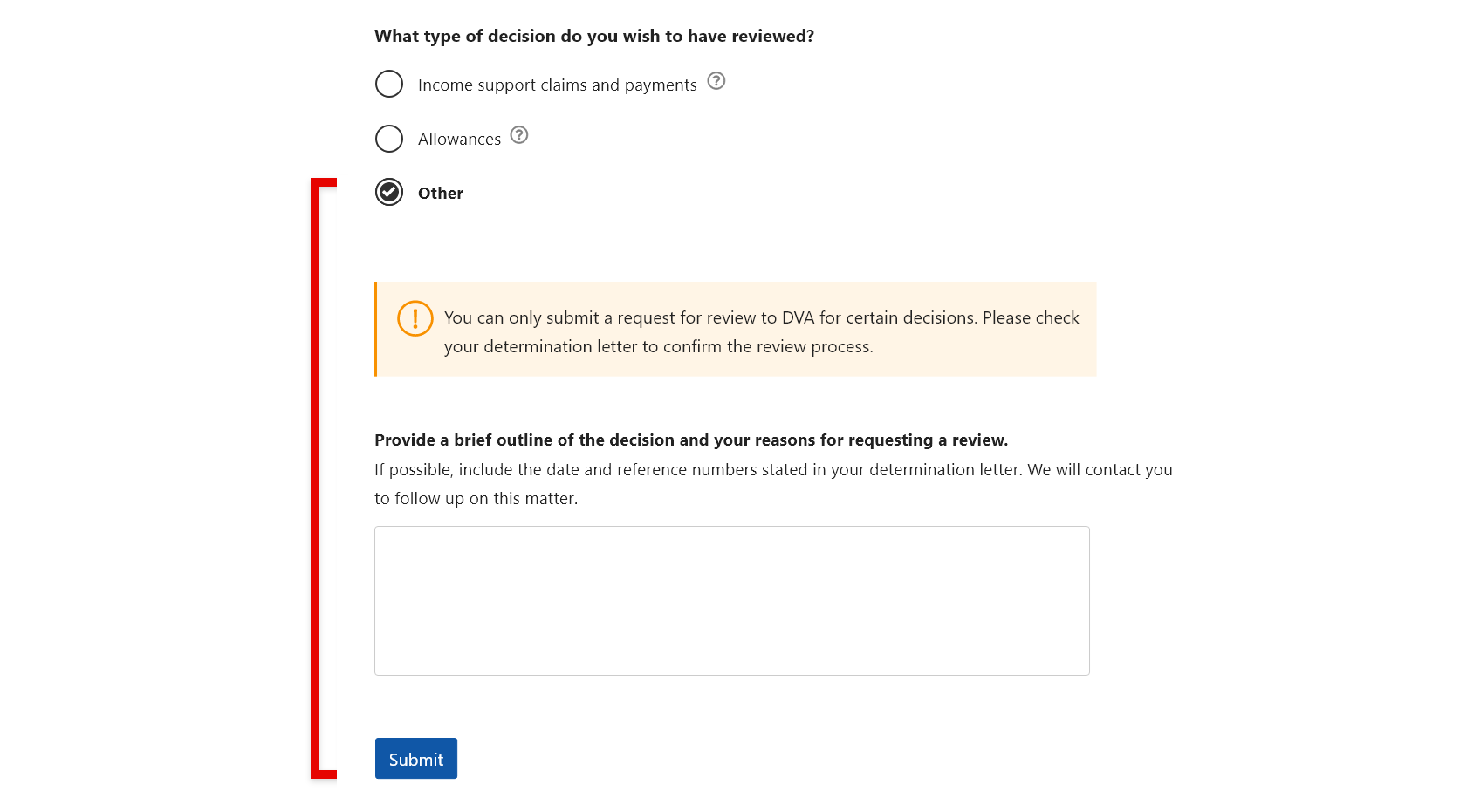
Select Submit.
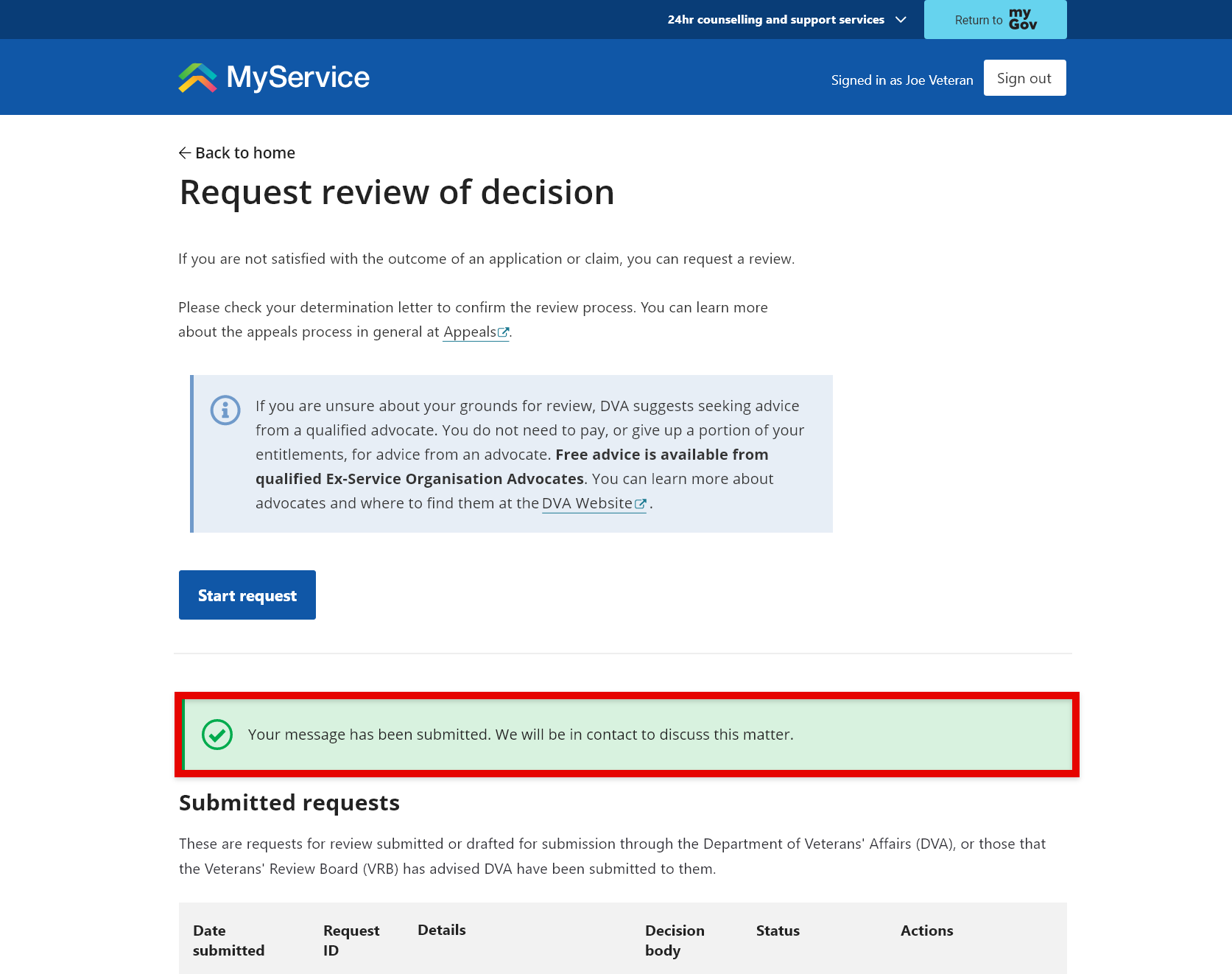
A confirmation message will indicate that your request has been submitted. We will be in contact with you for more information.
Other submissions will not appear in your Submitted requests.
Step 4 – Enter your reasons for requesting a review and upload supporting evidence
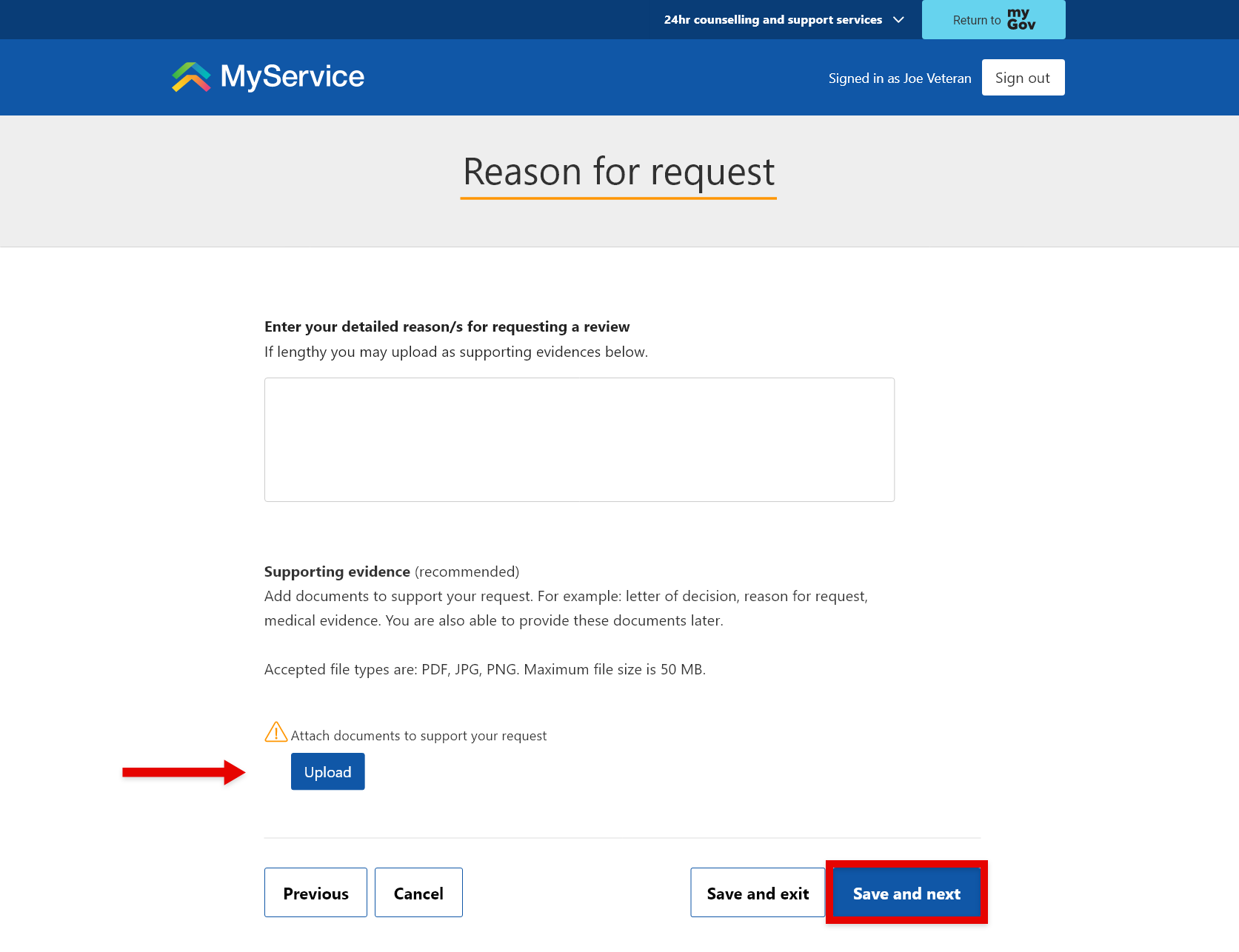
Enter your reasons for requesting a review. Include enough detail to support your request.
If you have supporting documents, you can add them by selecting Upload. Although you can submit your request without them, we recommend you include any supporting documents or additional evidence as they are likely to assist your case.
You can also add documents after you’ve submitted your request.
Select Save and next.
Step 5 – Enter representative details (optional)
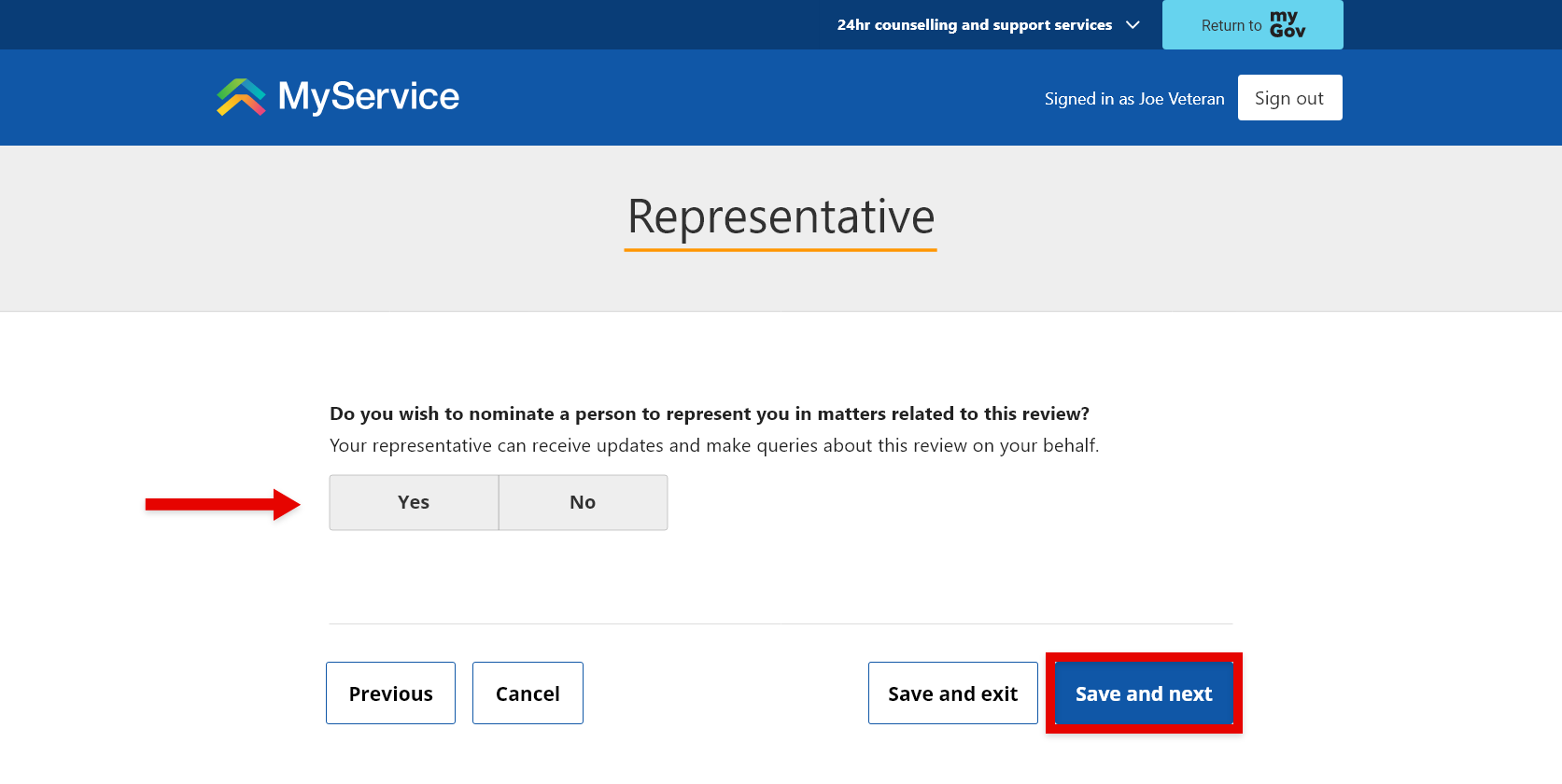
If you’d like to nominate a person to represent you in this request, select Yes and add their details. Otherwise, select No.
Select Save and next.
Step 6 – Review and submit
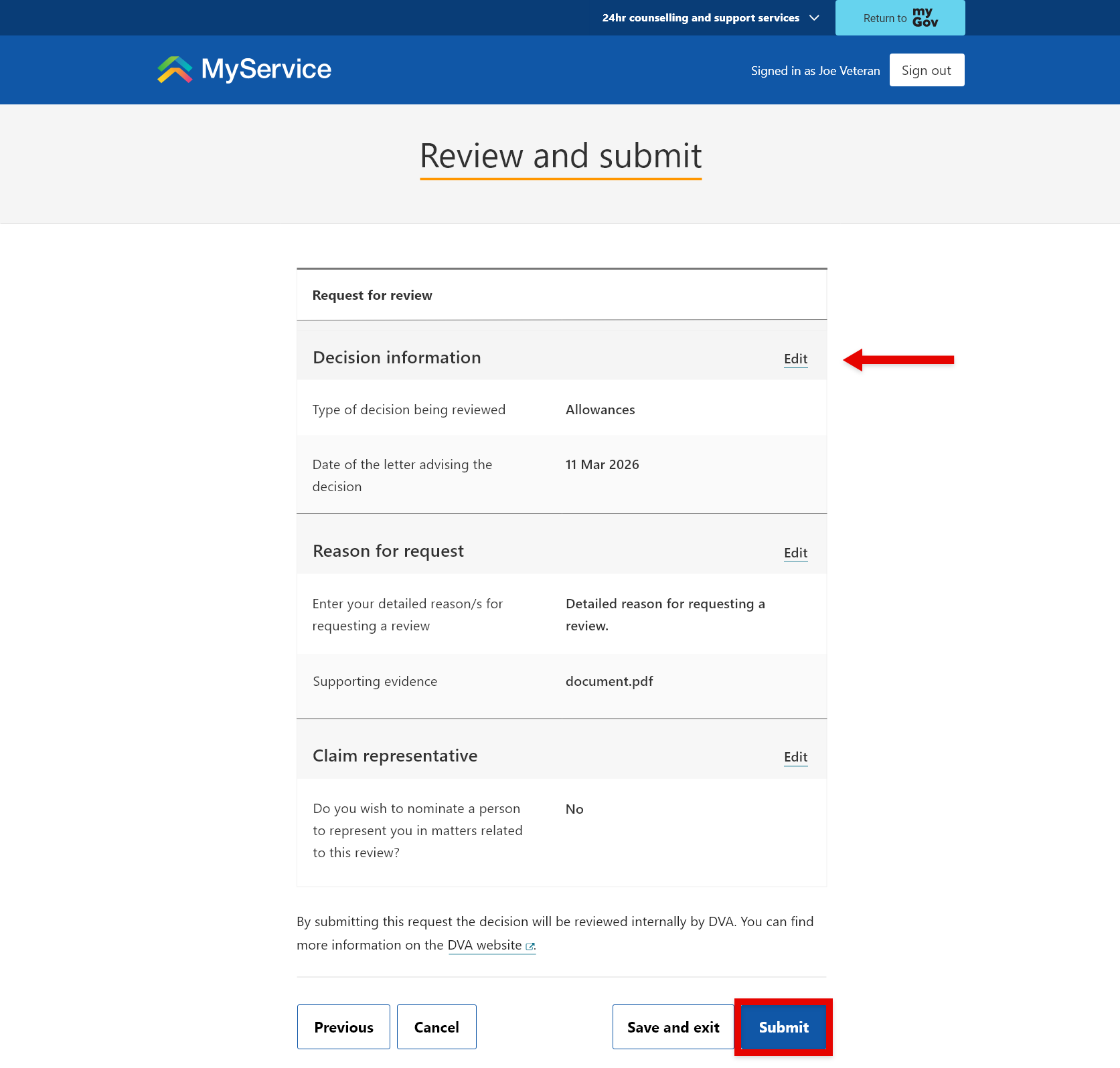
Before you submit, review the details you have entered. To make changes if needed, you can select Edit.
When you’re ready, select Submit.
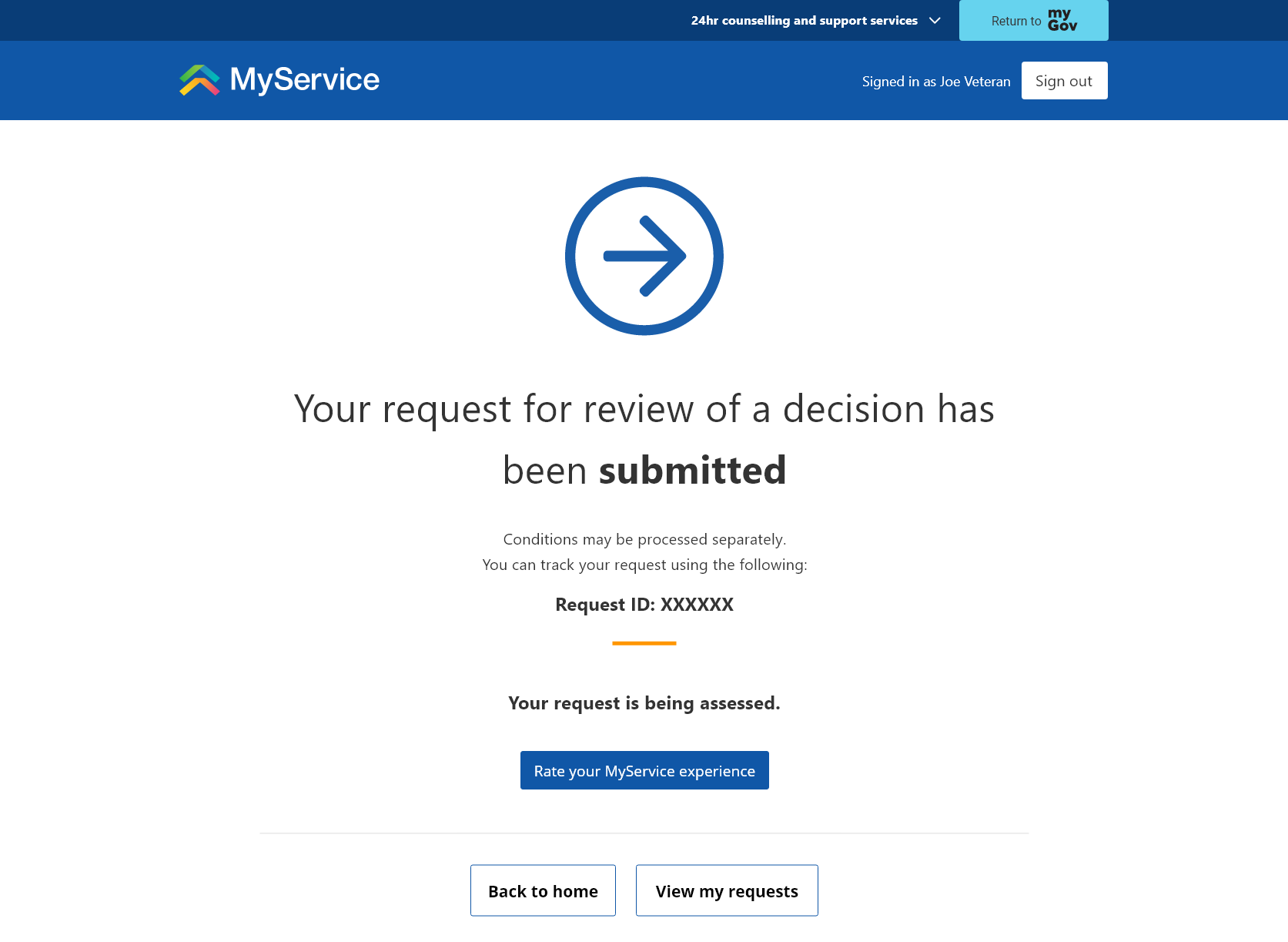
MyService will display a message to tell you your submission was successful.
You can select View my requests to return to the Request review of decision screen.
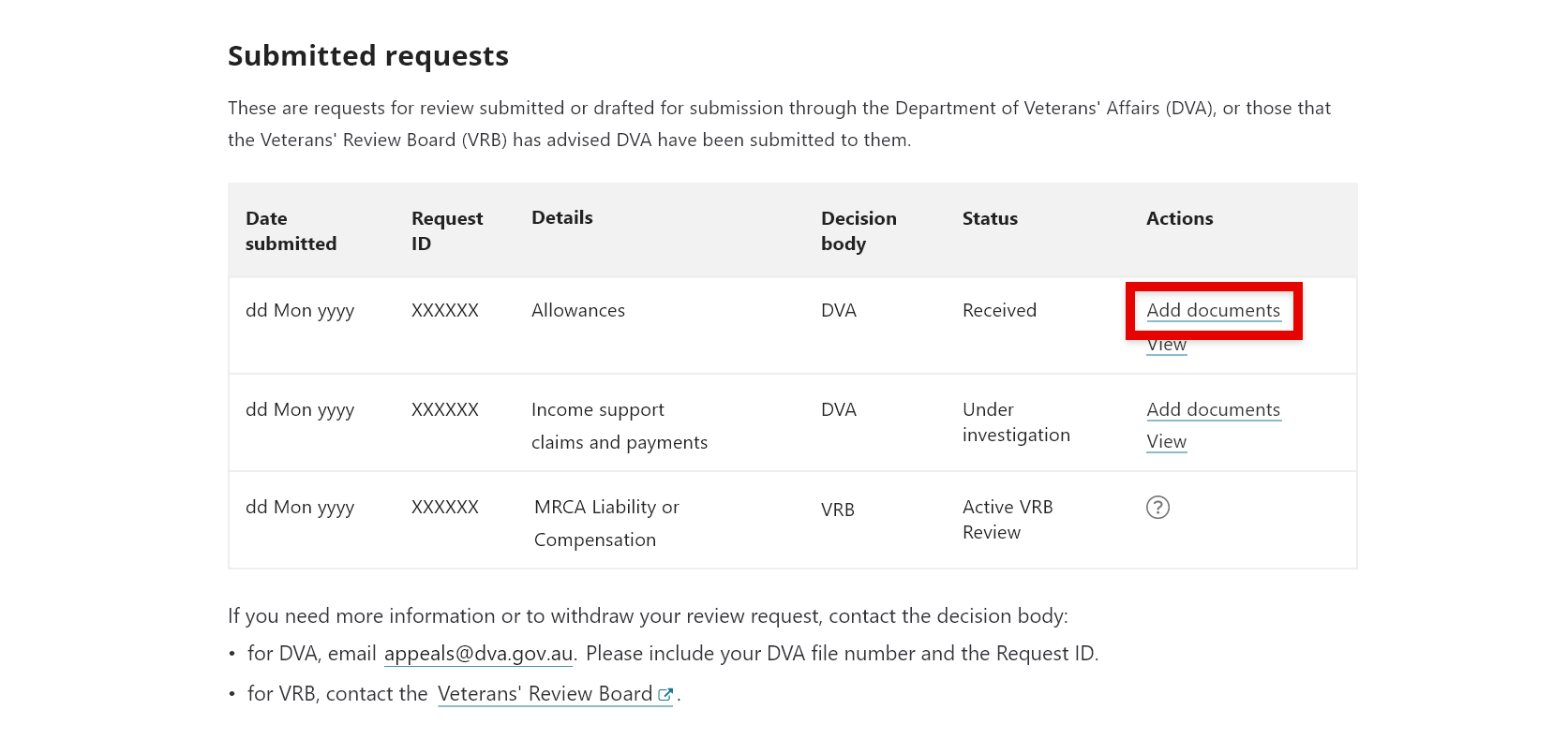
Once submitted, your request will appear in the Submitted requests table. Requests submitted to the VRB may also display here, but you cannot upload documents to these requests in MyService. If you need to provide documents where the VRB is the decision body, contact the VRB.
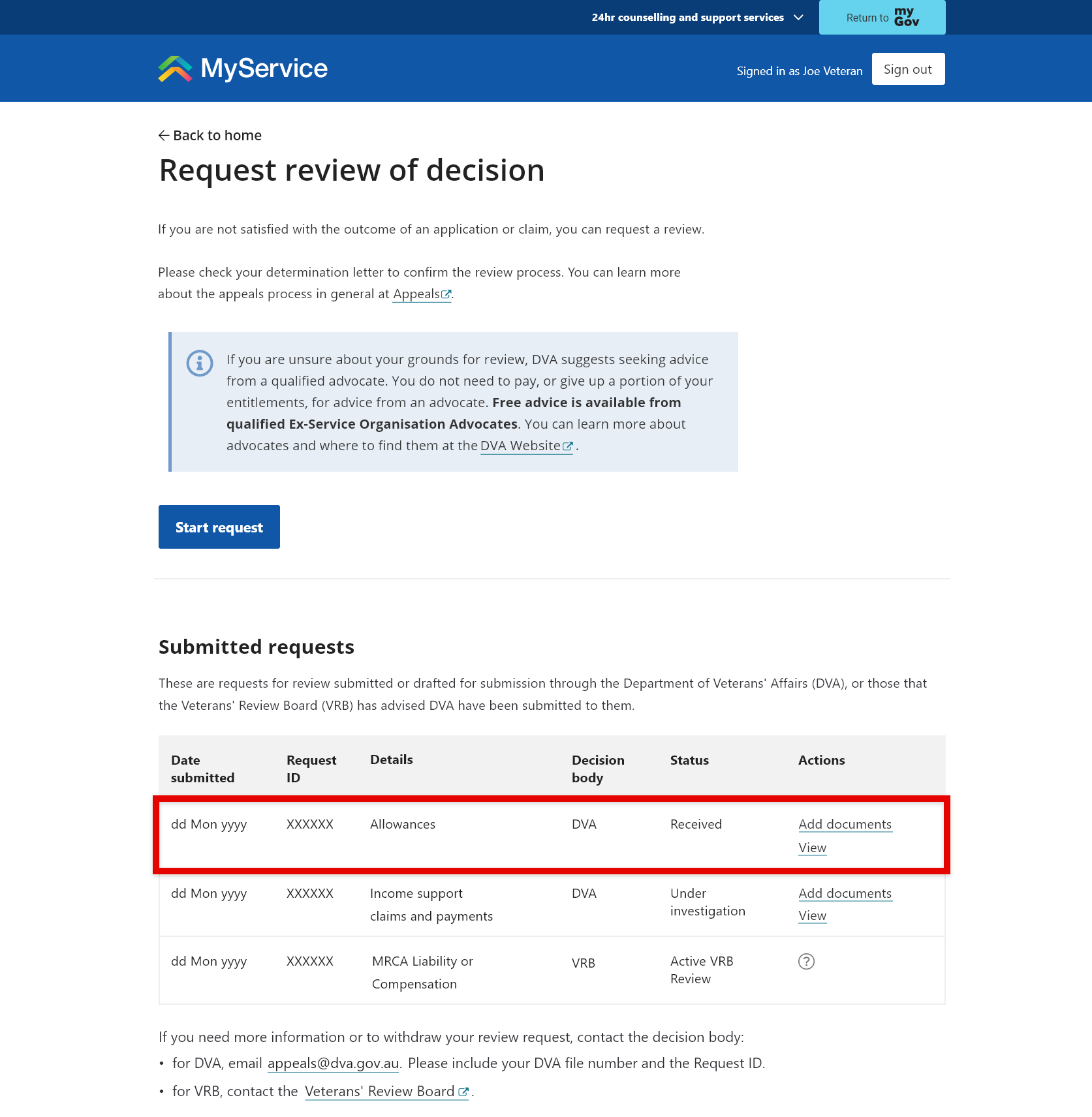
Step 7 – Upload a document after you’ve submitted your request (if needed)
For reviews submitted through MyService, you can add documents to submitted requests by selecting Add documents.