How to apply for Initial Liability in MyService
Initial Liability is the first step in the compensation process. Liability is where we establish whether the Commonwealth is legally responsible, or liable, for an injury, illness or death because it is related to service in the Australian Defence Force.
If you are a current or former serving member of the Australian Defence Force (ADF), you can lodge your claim using MyService.
Once DVA has accepted your service-related condition, you can access supports and services and receive treatment. MyService provides a list of all accepted conditions covered by your Veteran Card. Go to How to find your accepted conditions and check your legislation in MyService.
In some cases, we cover the cost of your treatment before your claim is finalised.
More information is available at Making a claim for a service-related condition.
Getting started
Before you get started, you will need:
- details of your service, along with proof of service documentation the first time you submit a claim. You do not need to provide this if you have a PMKeys number, as DVA already has your service history
- a medical diagnosis and proof of that diagnosis, such as a report from a GP or specialist. This can include documents from defence.
- any documents that help establish your injury or condition is a result of your service
- details of your medical provider.
If you don't have a MyService account, find instructions at How to set up a MyService account.
This guide includes images of sample screens. The screens do not contain information about any real DVA clients.
Back to topStep 1 – Select Apply now and Initial Liability
Sign in to MyService.
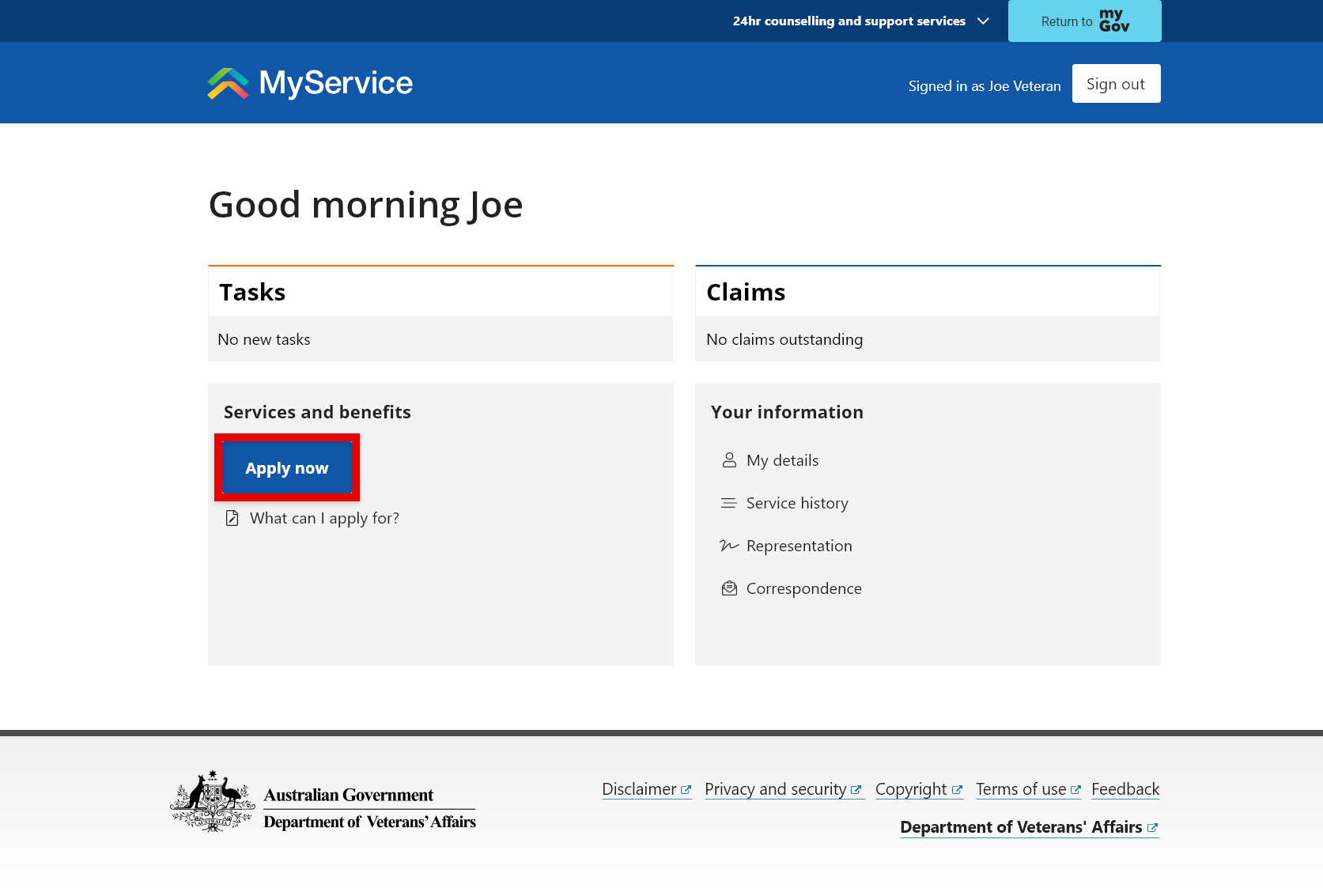
From the home page find Services and benefits and select Apply now.
From the Claims and applications screen, select the Initial Liability tile.
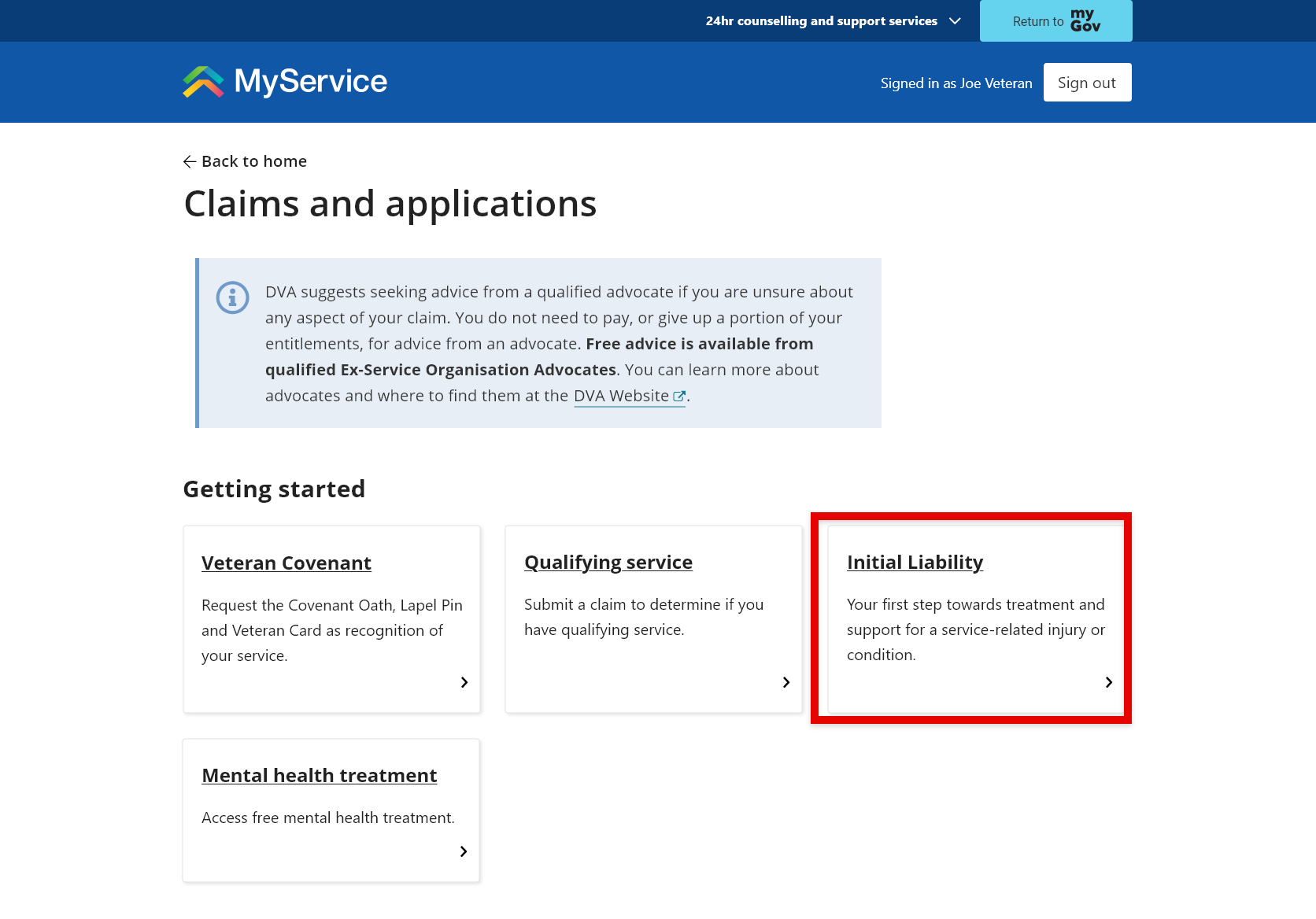
Note: In MyService you can only submit an Initial Liability claim for one condition at a time. If you have more than one condition, you will need to submit multiple claims.
Back to topStep 2 – Provide claim details
Prepare for this claim
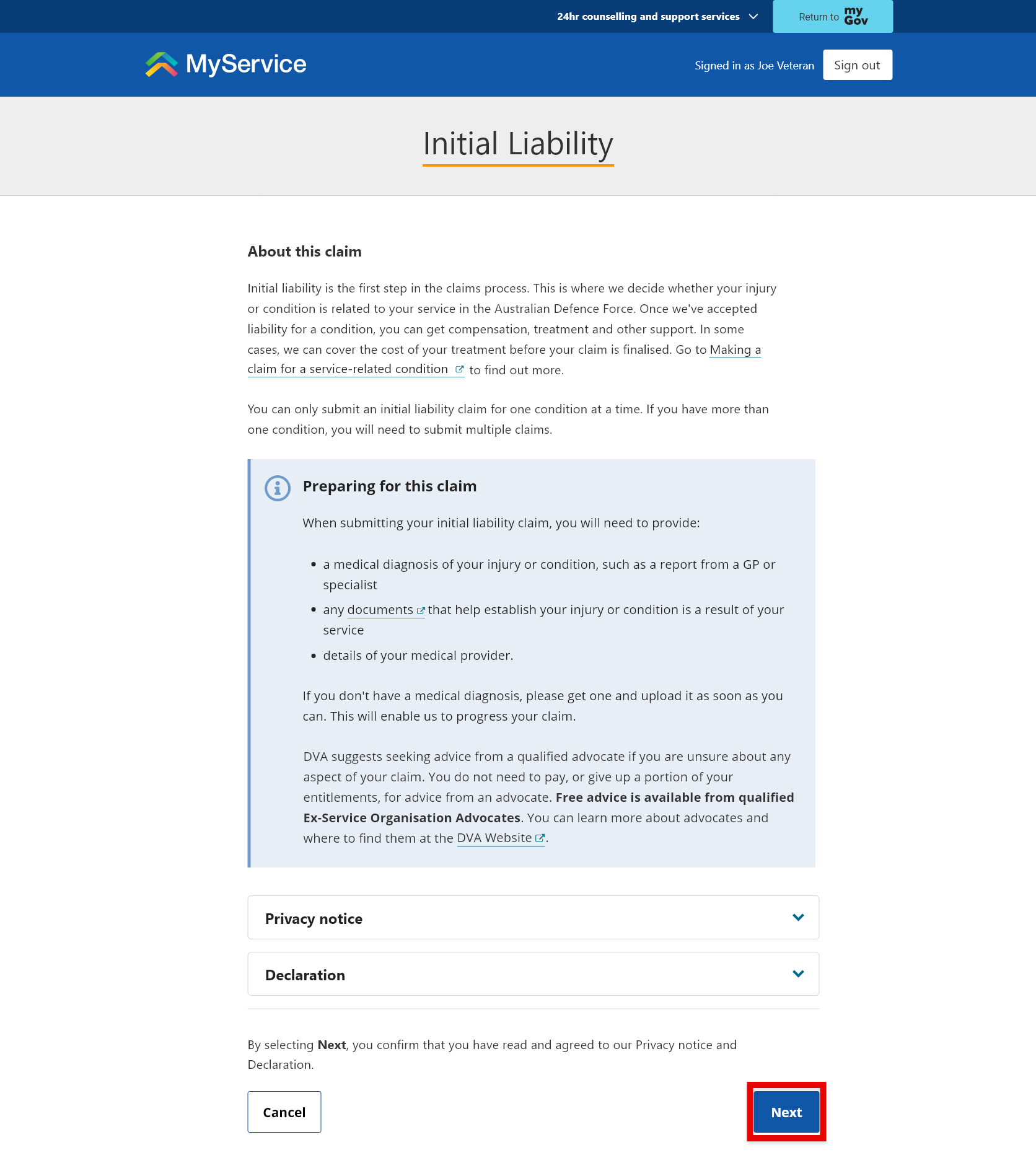
The Initial Liability screen outlines what Initial Liability is and what you need to submit a complete claim.
You will also find our Privacy notice and Declaration.
To agree to the terms in our Privacy notice and Declaration and begin your claim, select Next.
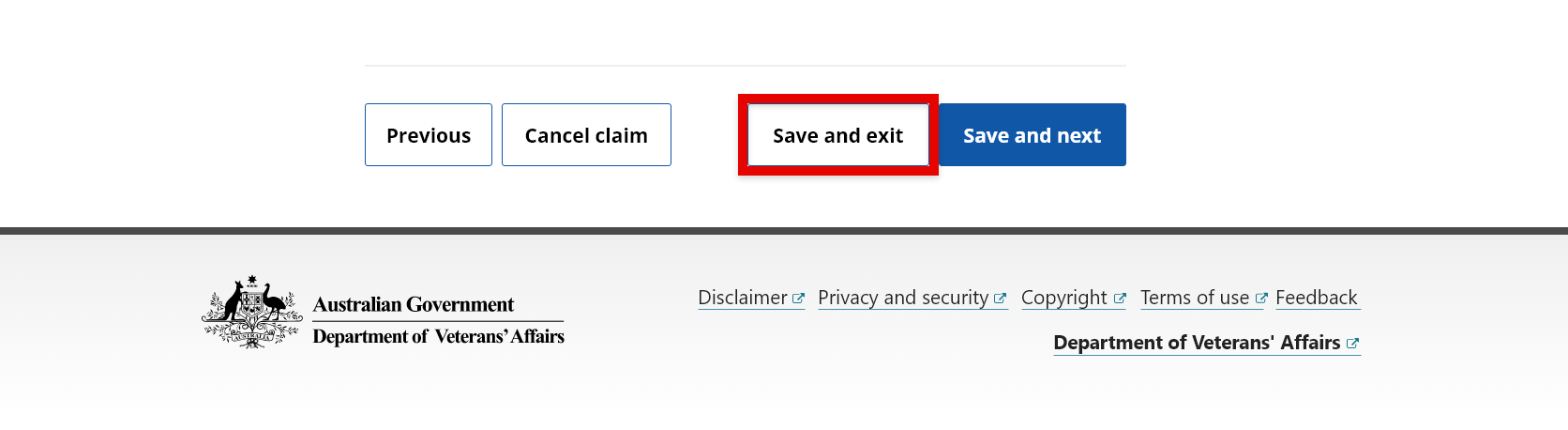
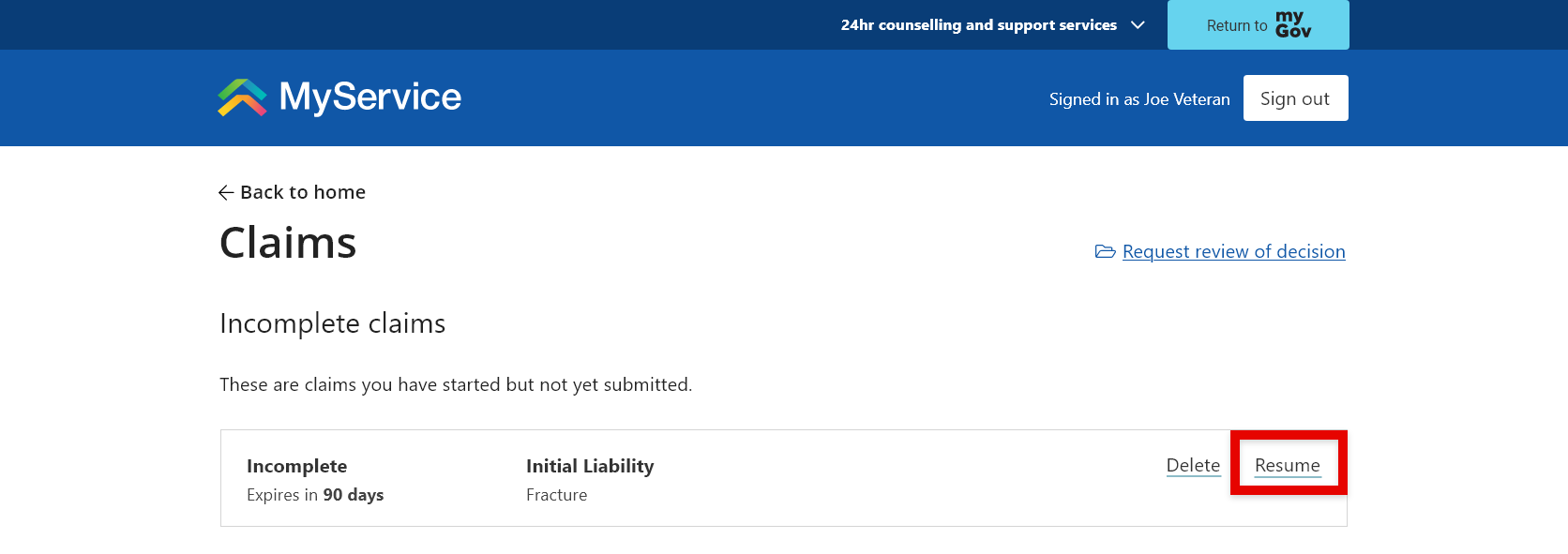
At any stage of the process, you can save an incomplete claim by selecting Save and exit. You can access incomplete claims in your Claims list.
The Resume button allows you to pick up where you left off with the incomplete claim. If you do not submit the claim within 90 days, it will be automatically removed from MyService and you will have to start again.
If you Resume the claim and save it again, the 90-day expiry timeframe will restart from the date you last saved it.
Enter your diagnosis
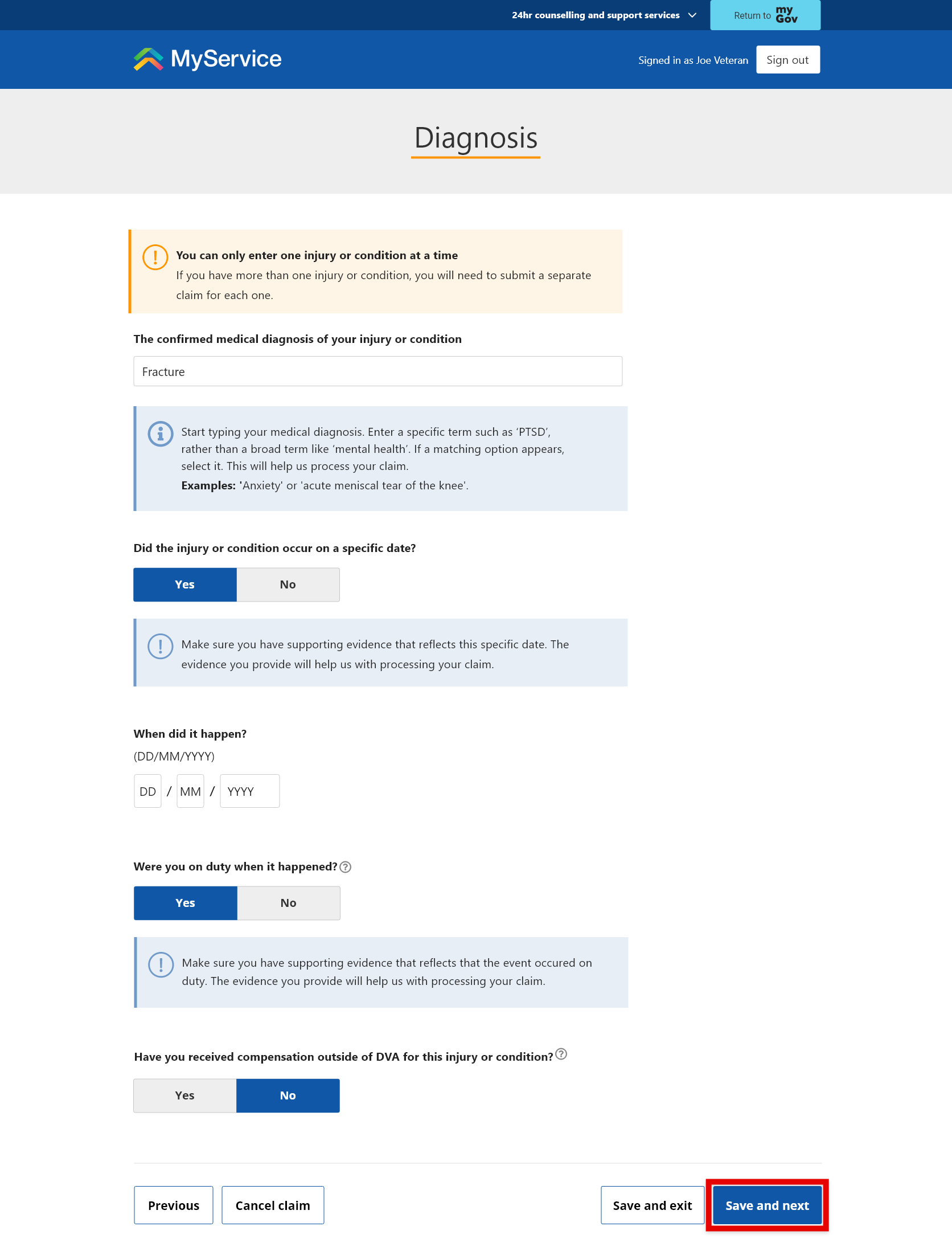
To enter your medical diagnosis, start typing the medical term and then, if possible, select from the options presented. For example, enter a specific condition such as ‘Post traumatic stress disorder’ rather than a broad term like ‘Mental health’.
If no suggestions match, you can type the diagnosis in full. Please enter the medical condition only. Do not include any identifying information, such as your name or your doctor’s name.
If you know the specific date the condition occurred, please provide it. Otherwise, provide the month and year. If you cannot remember the exact date, just use your judgement.
In some cases, an injury can be accepted if it happened while you were on duty as a Defence member, even if the injury was not caused by your service (for example, a leg fracture that occurred while you were on duty).
If you were on duty at the time of your injury, please let us know. Make sure you have supporting evidence that reflects these details. The evidence you provide will enable us to process your claim.
If you have received compensation outside of DVA for the injury or condition, select Yes.
Select Save and next.
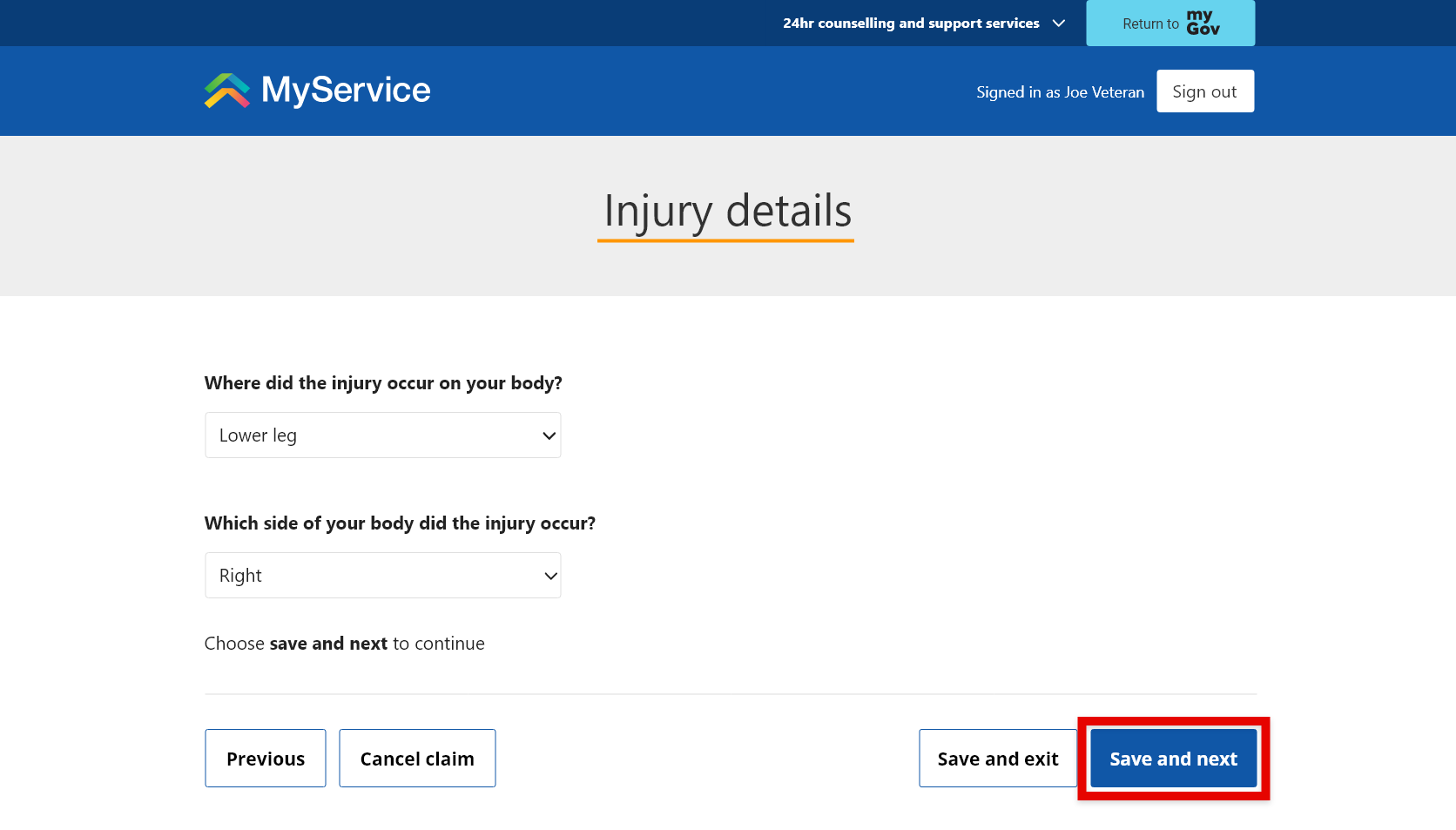
For certain conditions we may ask for more specific details about which area of your body is affected by the injury.
Provide your medical practitioner details
If you have a General Practitioner (GP) for your condition, select Yes and enter your GP’s details. If you don’t have a GP, select No.
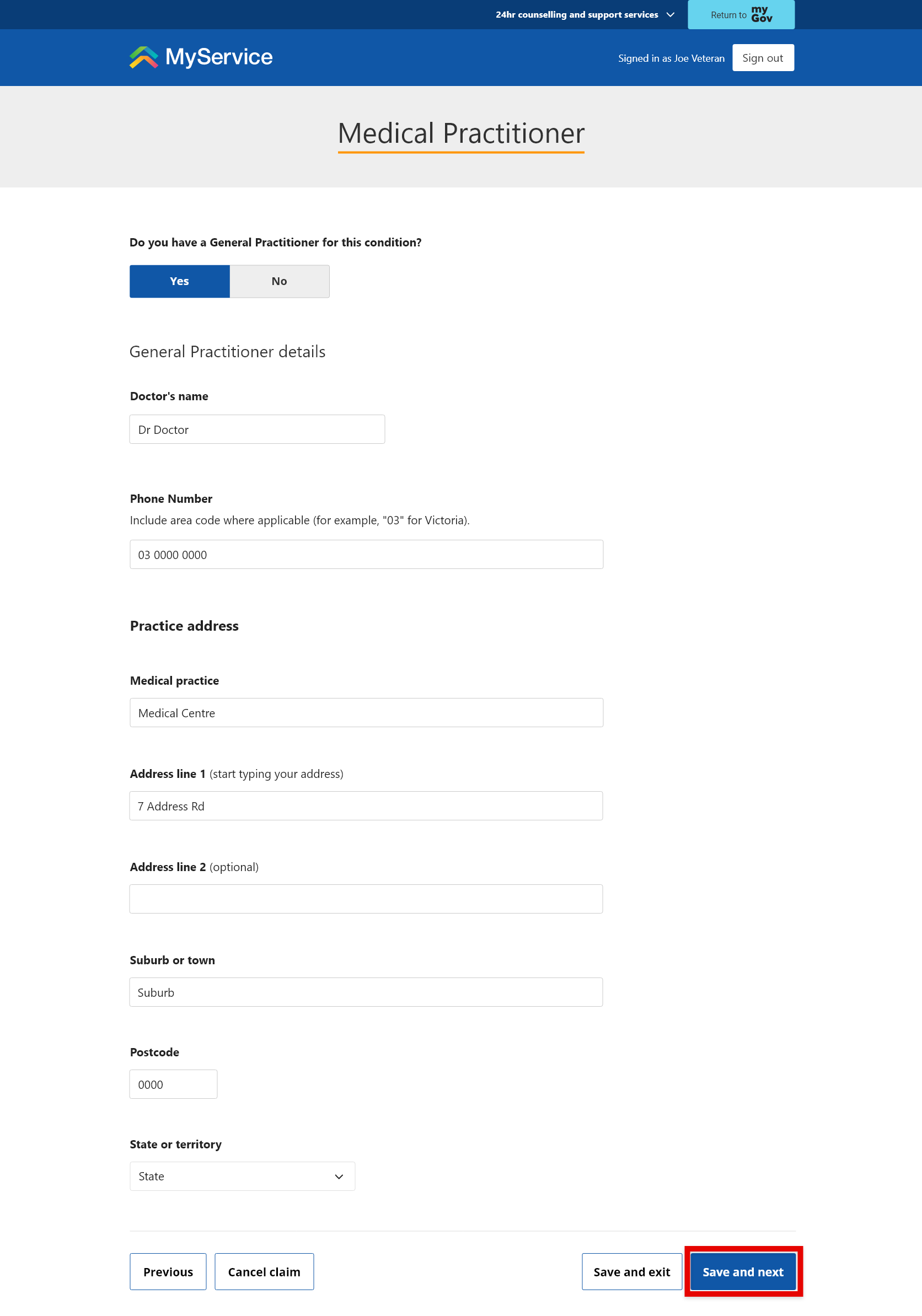
Select Save and next.
Upload your medical evidence
In order to assess your claim, we need evidence of a medical diagnosis.
To process your claim, we need at least one supporting document. You can submit it without documents, but we will contact you later to ask for them. Your claim is likely to take longer to process.
Supporting documents may include:
- medical imaging and/or reports (X-rays and MRIs)
- test results
- other medical reports.
Depending on your diagnosis, your Add documents screen may look a little different. In all instances, examples of the types of documents you can provide will be displayed, along with a button to Upload.
Select Upload and choose the file from your device. This may be a scanned paper document or a digital file.
On a computer, select the file from your device. On a mobile or tablet, choose the file from your device or photos.
If you have more than one document, select Add another. If you need to delete a document, select Remove.
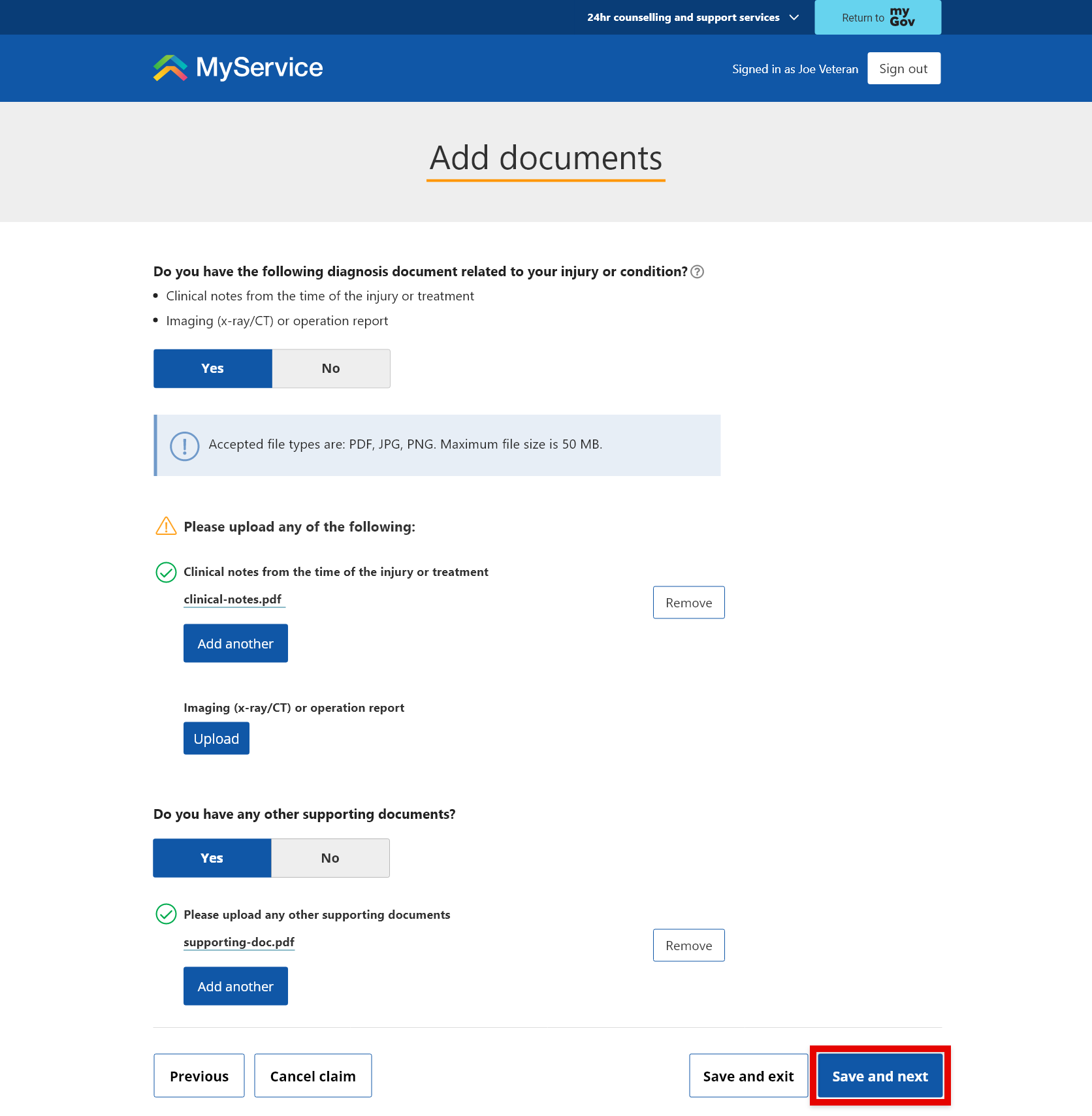
Accepted file types are PDF, JPG and PNG. The maximum file size is 50 MB.
Note: You can submit your claim without uploading any documents, but we will need them before we can process your claim. Step 4 outlines how to upload documents after you have submitted your claim.
Upload your service history
If we do not have details of your service, you will be prompted to provide them.
Enter your service details. We recommend uploading your service record documents if you have them.
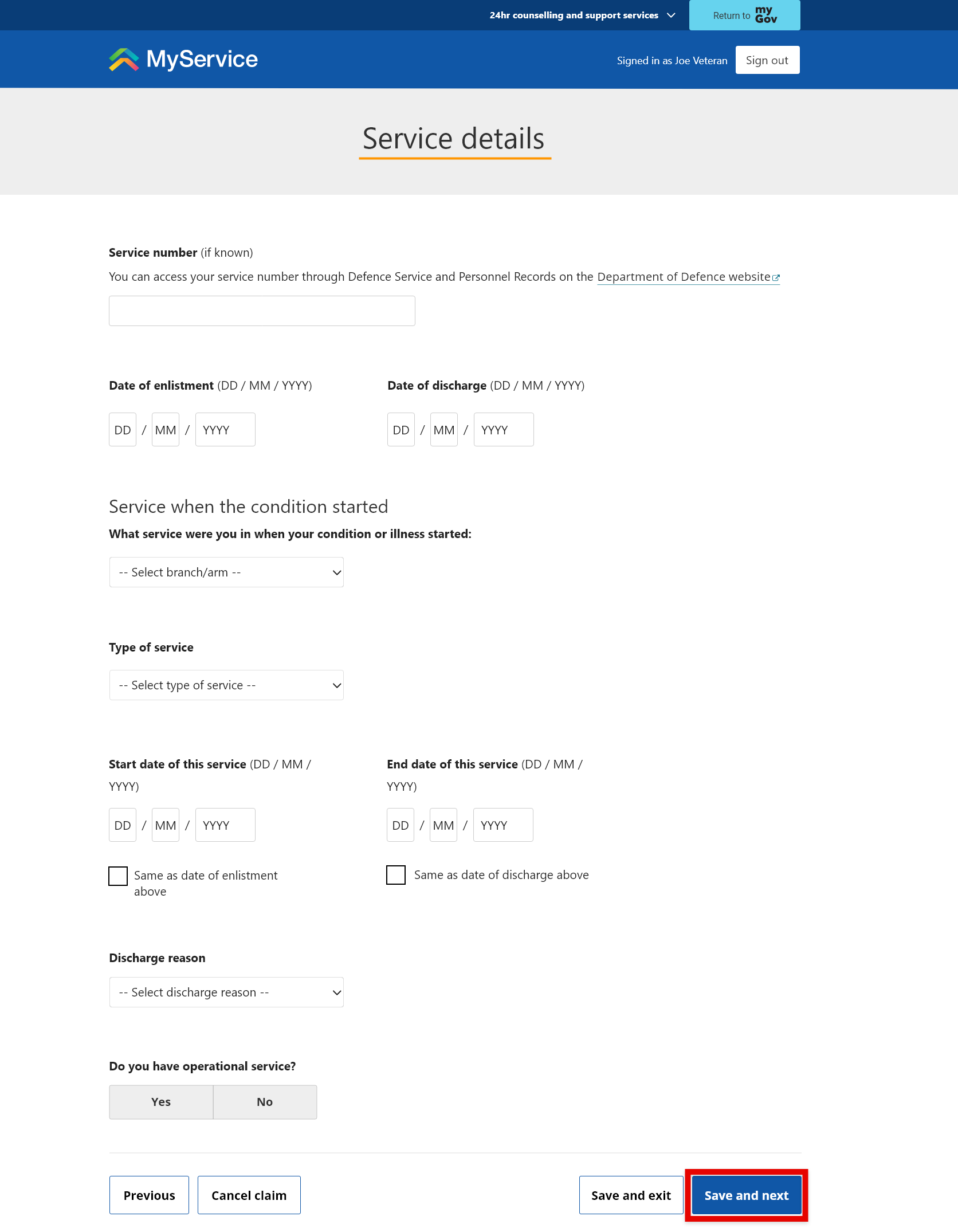
Select Save and next.
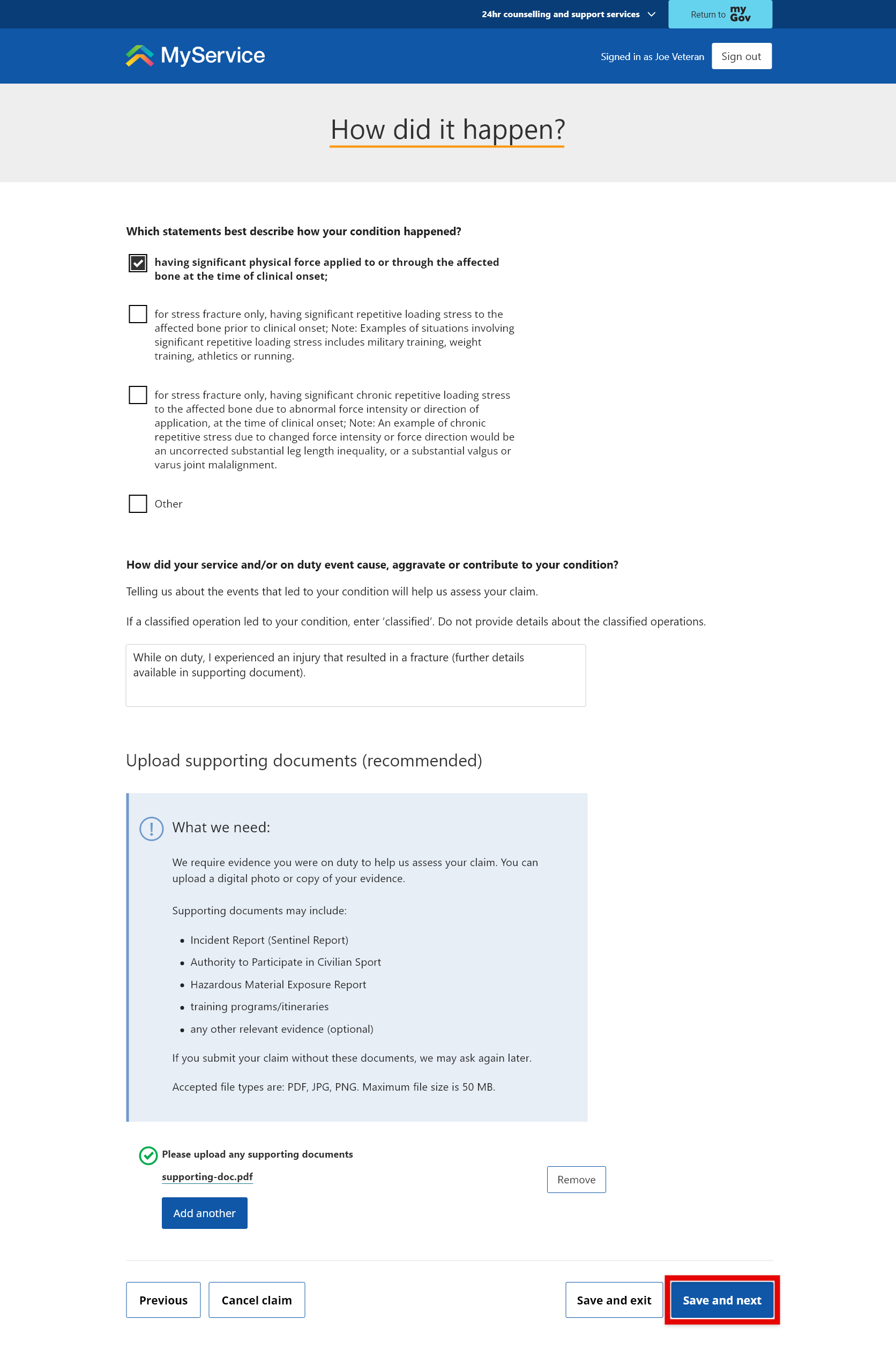
Enter details about how the condition happened
Tell us about how your service caused, aggravated or contributed to the condition you are claiming.
You can also provide details of an injury that occurred while you were on duty as a Defence member (for example, a leg fracture that occurred while you were on duty), even if the injury was not caused by your service.
Enter ‘classified’ if the condition was caused by a classified operation.
Please upload any relevant documents that may assist us, including:
- Incident reports
- Authority to Participate in Civilian Sport
- Hazardous Material Exposure Report
- training programs/itineraries.
If you indicated that you were on duty when the injury occurred, we will need supporting evidence to help us assess your claim.
You can submit your claim without these documents, but we may contact you to request them. This may delay how long your claim takes to process.
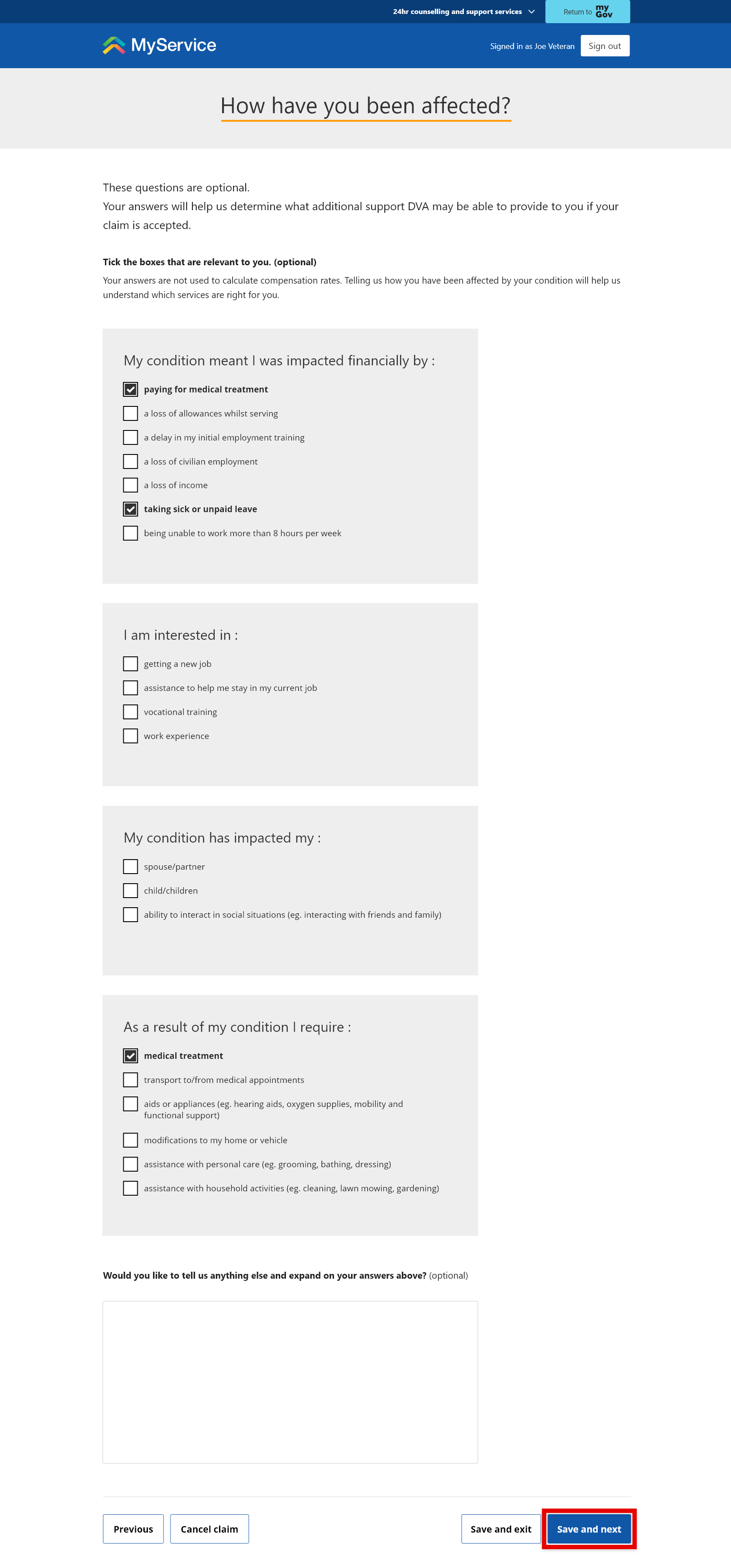
Tell us how this condition has affected you
Responding to the questions on this screen is optional, however, it will help us to determine what additional support DVA may be able to provide if your claim is accepted.
Select the areas of your life that have been affected by your condition.
You may add any further details if you wish.
Select Save and next.
Provide details of your claim representative
If you have a claim representative or advocate for your condition, select Yes and enter your claim representative’s details. If you don’t have a claim representative, select No.
If you want your representative to access your claim online, they need to apply for representation in MyService (if they haven’t already).
Learn how to apply for representation in MyService.
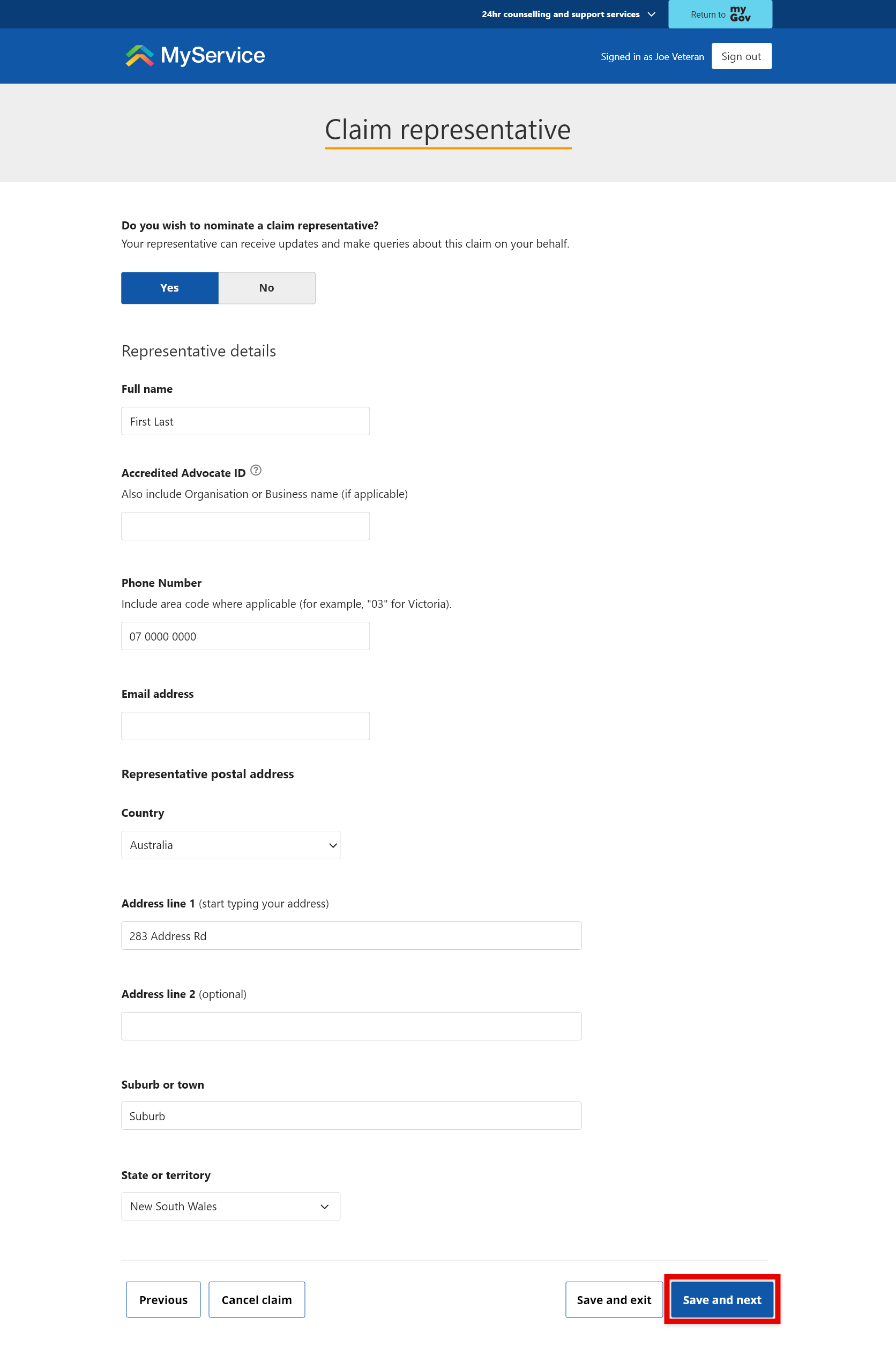
Select Save and next.
Provide details for Veteran Payment (if applicable)
If you are claiming for a mental health condition and you meet certain eligibility criteria, you will be asked if your condition prevents you from working more than 8 hours per week. If this is the case, you will be able to apply for interim financial support, known as Veteran Payment.
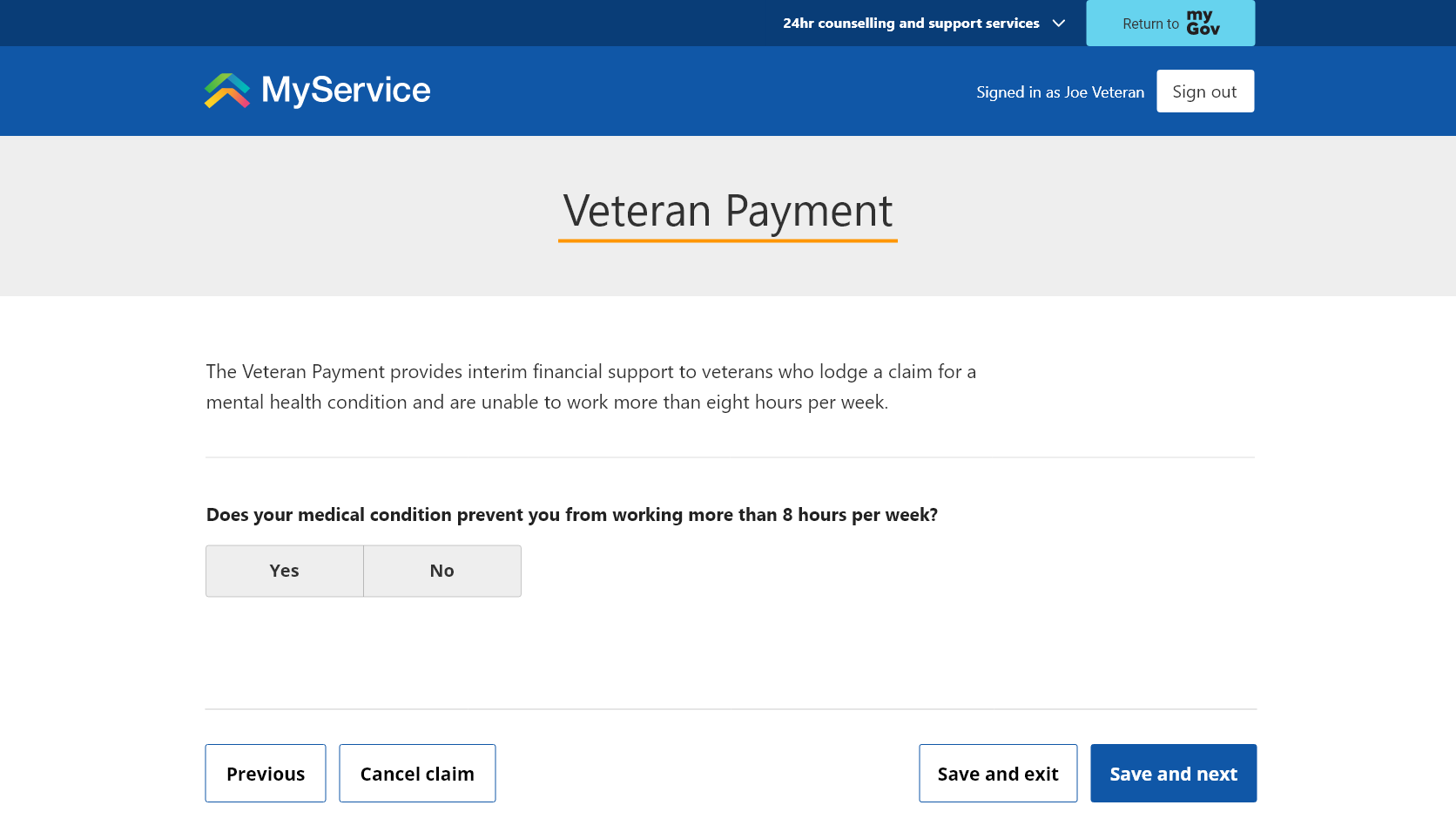
If you select Yes, once you have submitted your Initial Liability claim, you will be able to submit a claim for Veteran Payment from your Claims and applications screen.
Note: This screen, along with the ability to apply for Veteran Payment in MyService, will only display if you meet the eligibility requirements and have selected a mental health condition from the drop-down list on the Diagnosis screen of your claim. You can learn more at Veteran Payment.
Back to topStep 3 – Review and submit
Before you submit, review the details you have provided to confirm they are true and accurate. To make any changes, select Change.
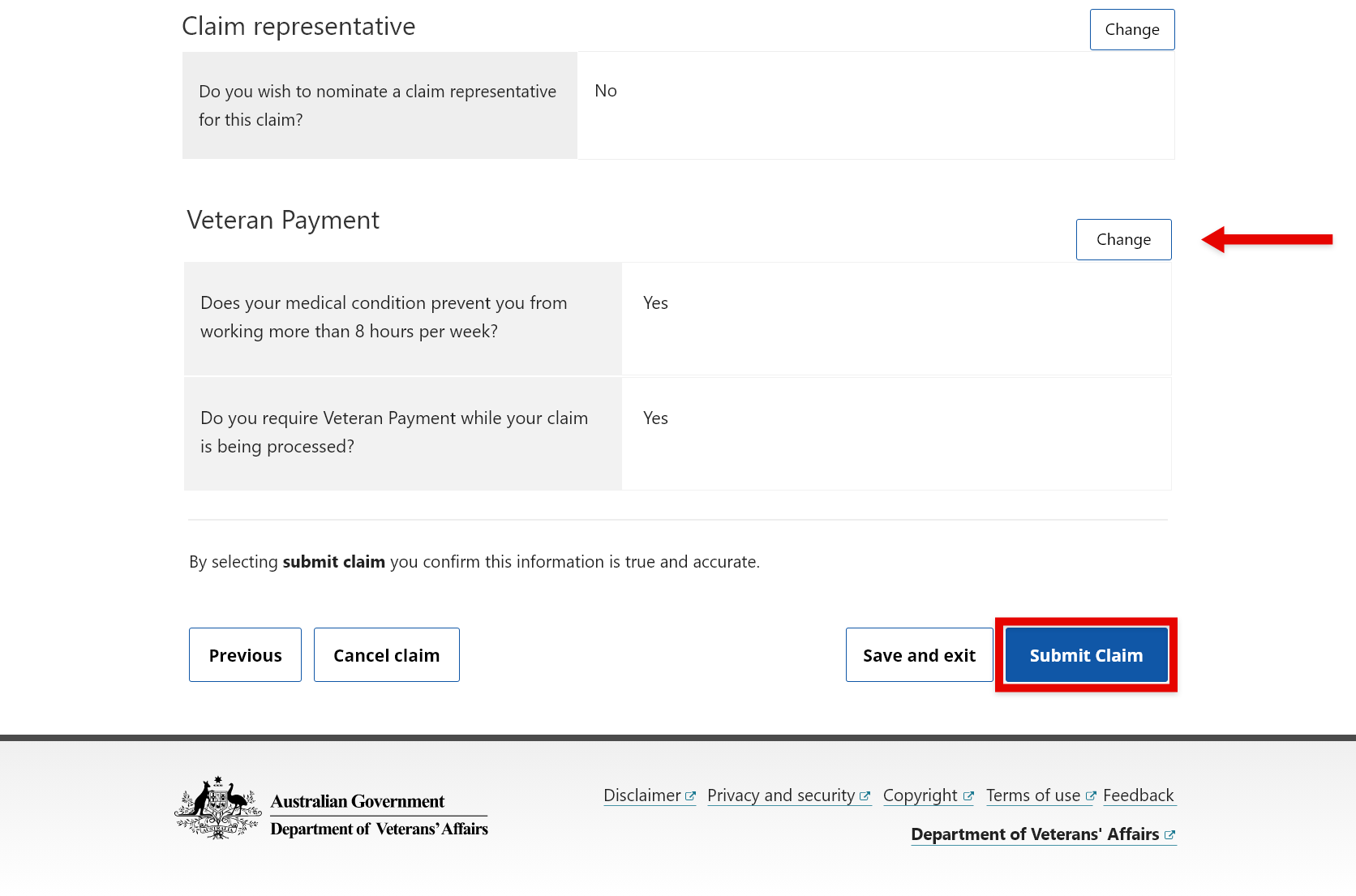
If you are still serving, you may be asked to acknowledge that information provided in the claim and the determination will be shared with the Department of Defence.
Take note of any documents you may still need to upload. When you’re ready, select Submit Claim.
Your claim has now been submitted.
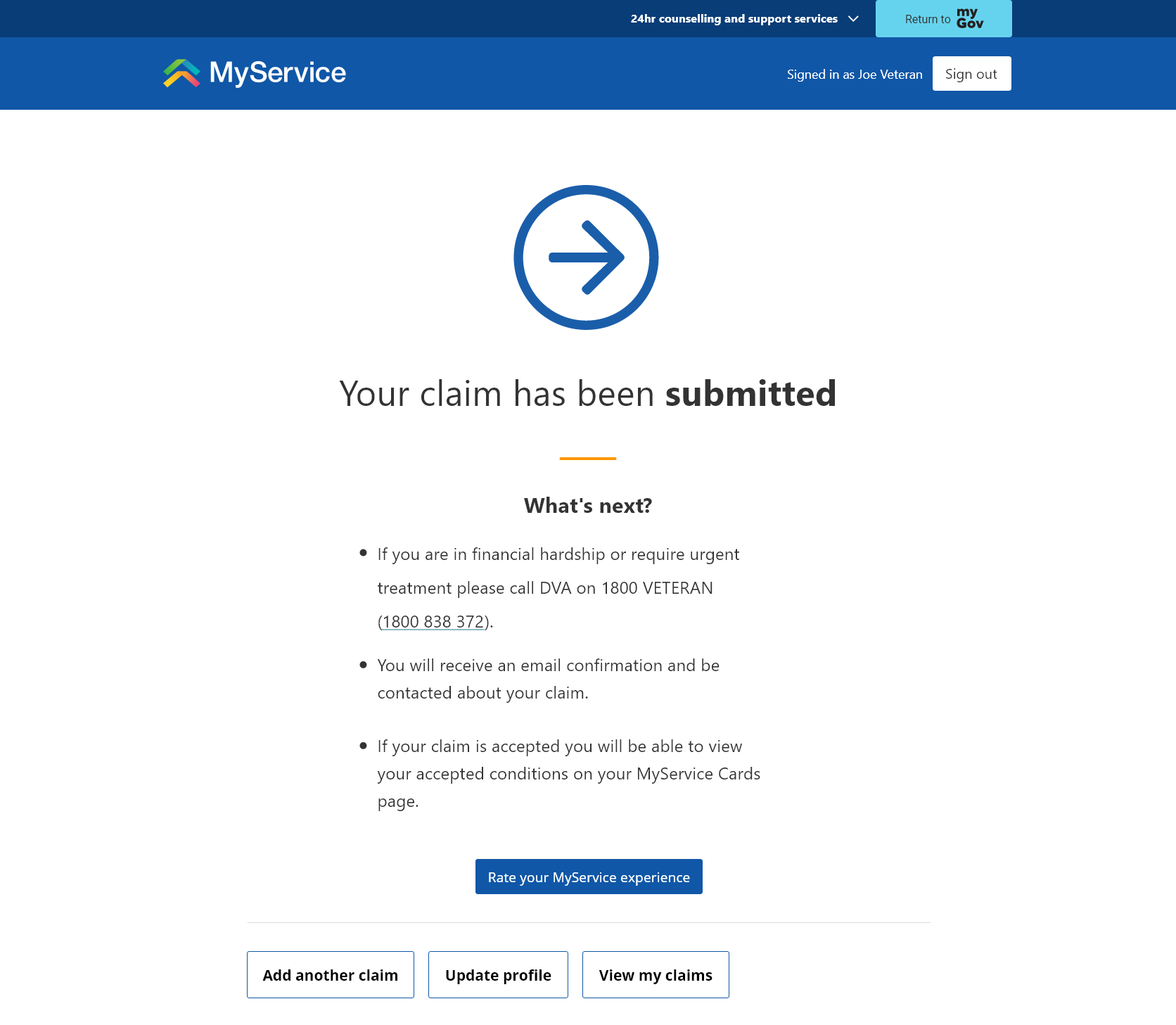
We recommend you check that your contact details are up to date. To do this, select Update profile. To share your experience and help us improve, you can also Rate your MyService experience.
Initial Liability claims submitted on the same day will be bundled together for processing.
If you need to upload documents later, refer to Step 4.
Back to topStep 4 – Add documents after you’ve submitted your claim (if needed)
If you’ve already submitted your claim, don’t worry. You can still provide additional documents. The sooner you provide them, the sooner we’ll be able to finalise your claim.
Note: This step is only required if you submitted your claim without uploading all the required documents.
From your MyService home page, select the Claims tile.
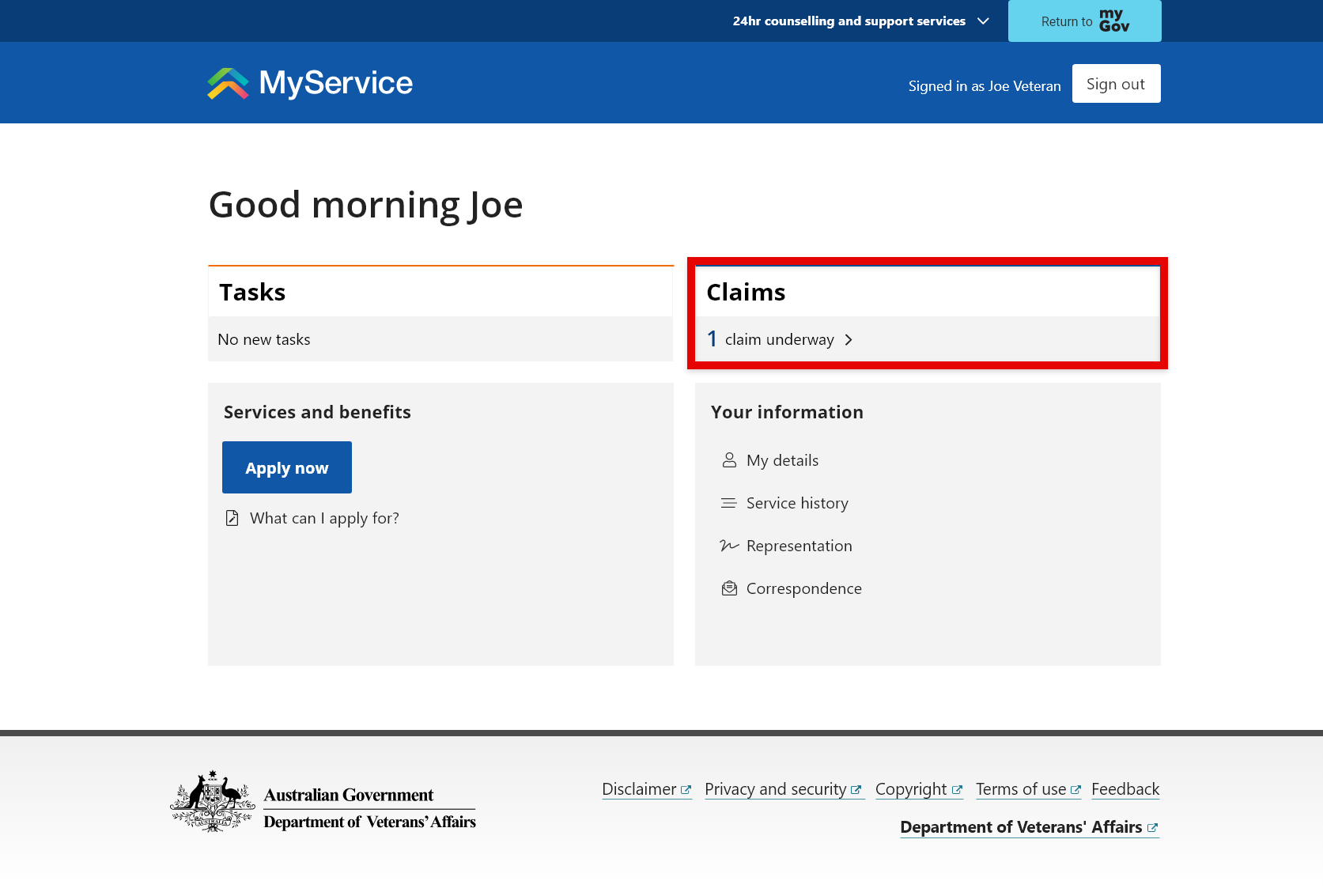
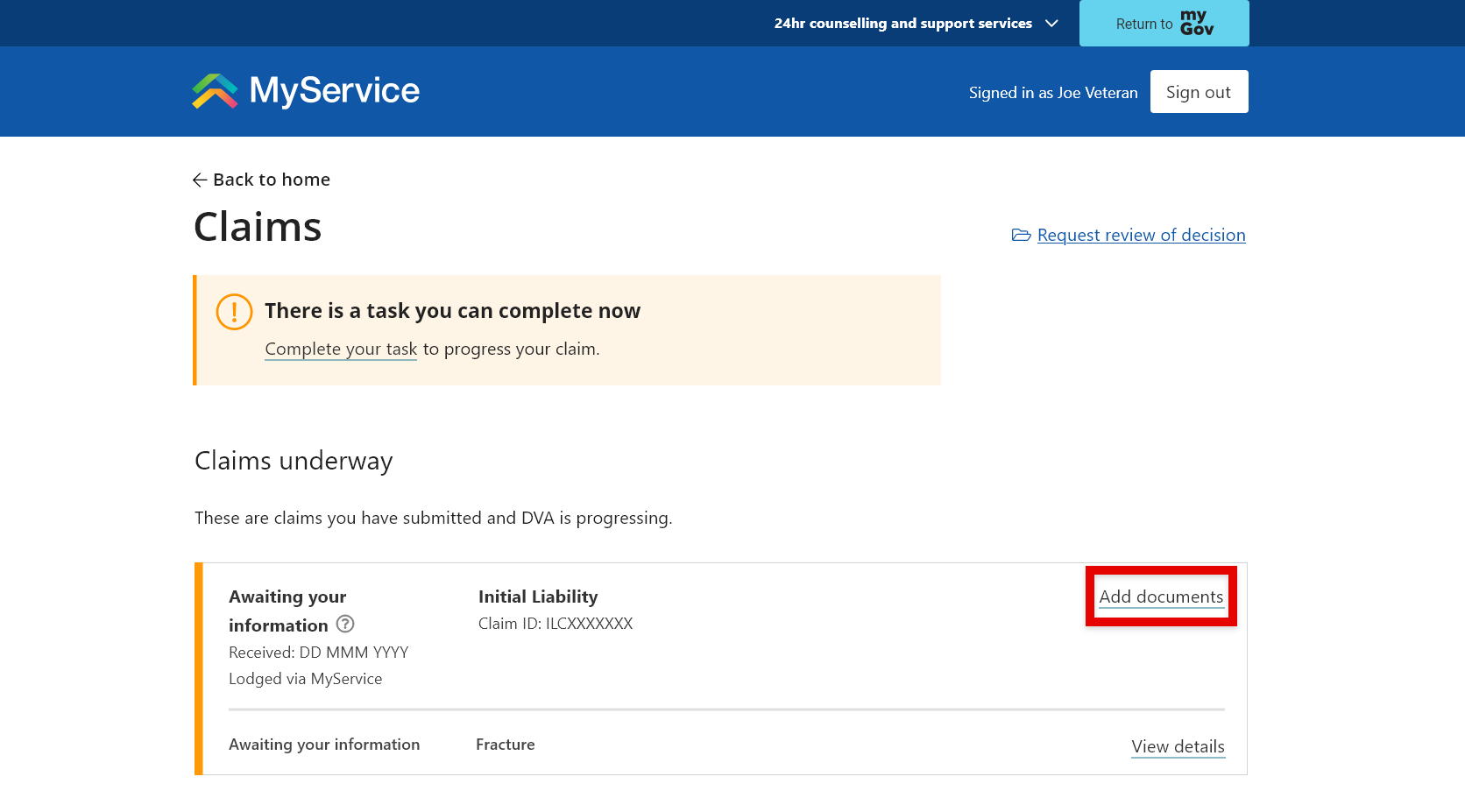
Within the Claims underway list, find the Initial Liability claim for the relevant condition.
- If we have identified there are required documents that need to be added to your claim, it will have a status of Awaiting your information and you will receive a Required documents task.
- You can however also add any document at any time to your claims while they are underway, up until the claim is determined.
Select Add documents.
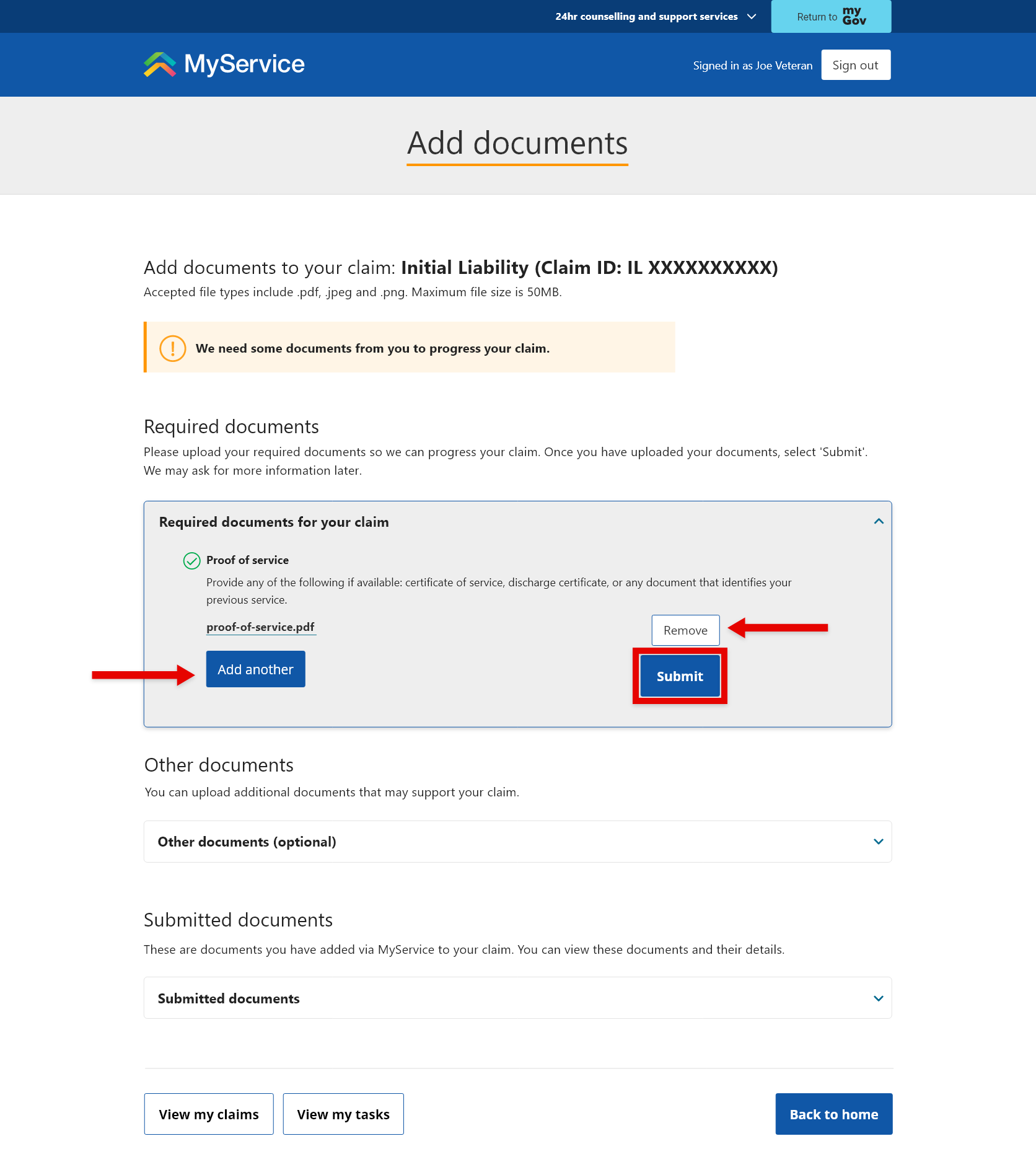
To add documents, select Upload.
If you have more than one document, select Add another to upload it.
If you need to delete a document, select Remove.
When you’re ready, select Submit.
Related videos
Transcript of How to submit a DVA claim online
Back to top