How to find your accepted conditions and check your legislation in MyService
You can access a list of all accepted conditions covered by your Veteran Card. You can refer to and share this list with providers when seeking treatment and services.
Given the Veterans' Legislation Reform, you may want to review what legislation your conditions have been accepted under.
Back to topStep 1 – Set up a MyService account (if needed)
If you don’t already have one, you first need to set up a MyService account.
You do this through myGov with an activation code, also known as a linking code.
You can follow instructions at How to set up a MyService account.
Back to topStep 2 – Sign in and navigate to your Cards screen
Sign in to your MyService account.
Note: The display of the MyService homepage varies based on your personal circumstances and eligibilities.
On the homepage, find either:
- Your information and select Accepted conditions, or
- Your card and select View card details.
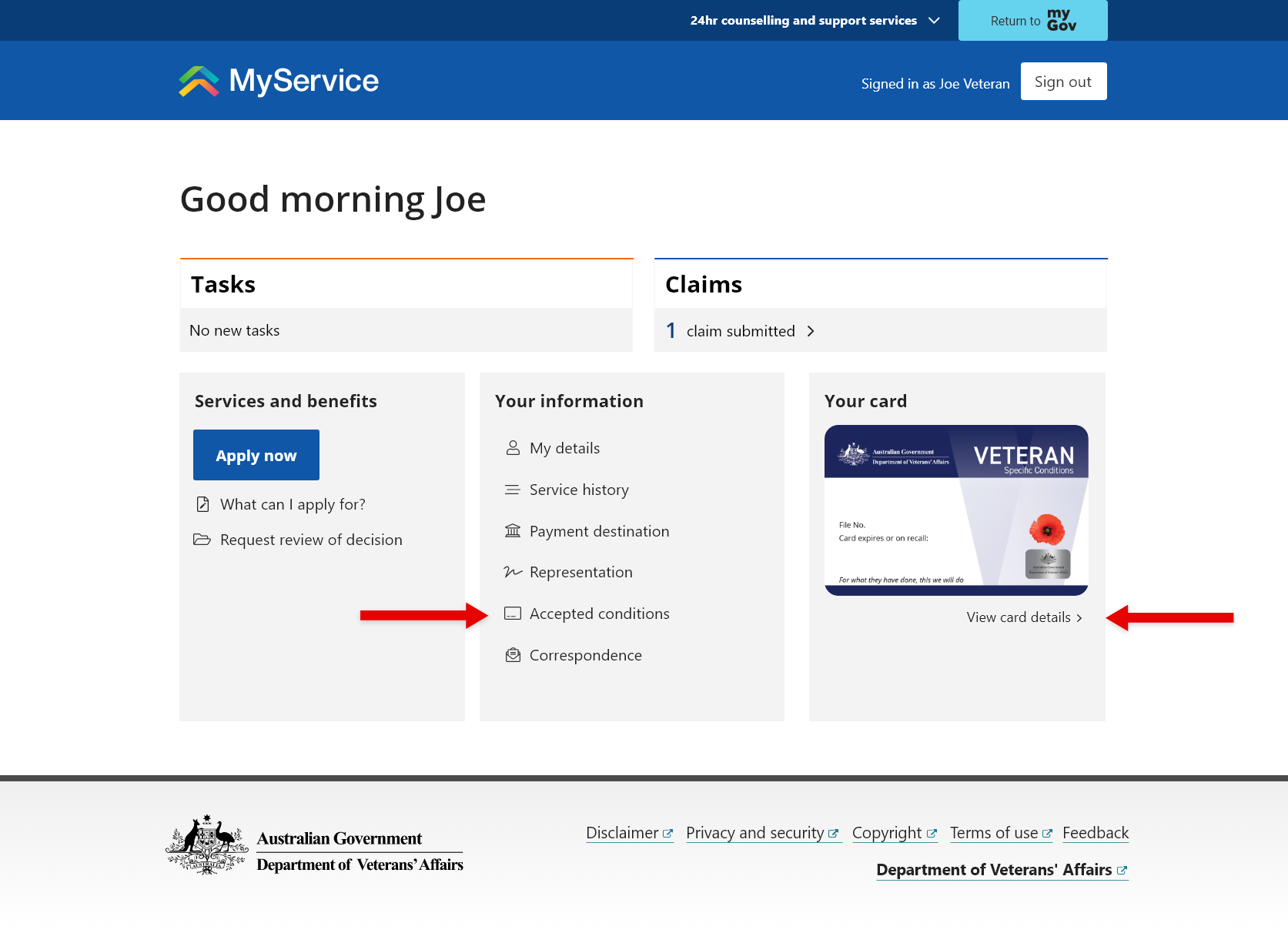
Note: You may also have your Veteran Card in your myGov wallet. While the myGov wallet will not display your conditions, from there you can select manage your card, which will take you to the MyService Cards screen.
For more information, go to Frequently asked questions - Veteran Card in myGov app.
Back to topStep 3 – Find your list of accepted conditions
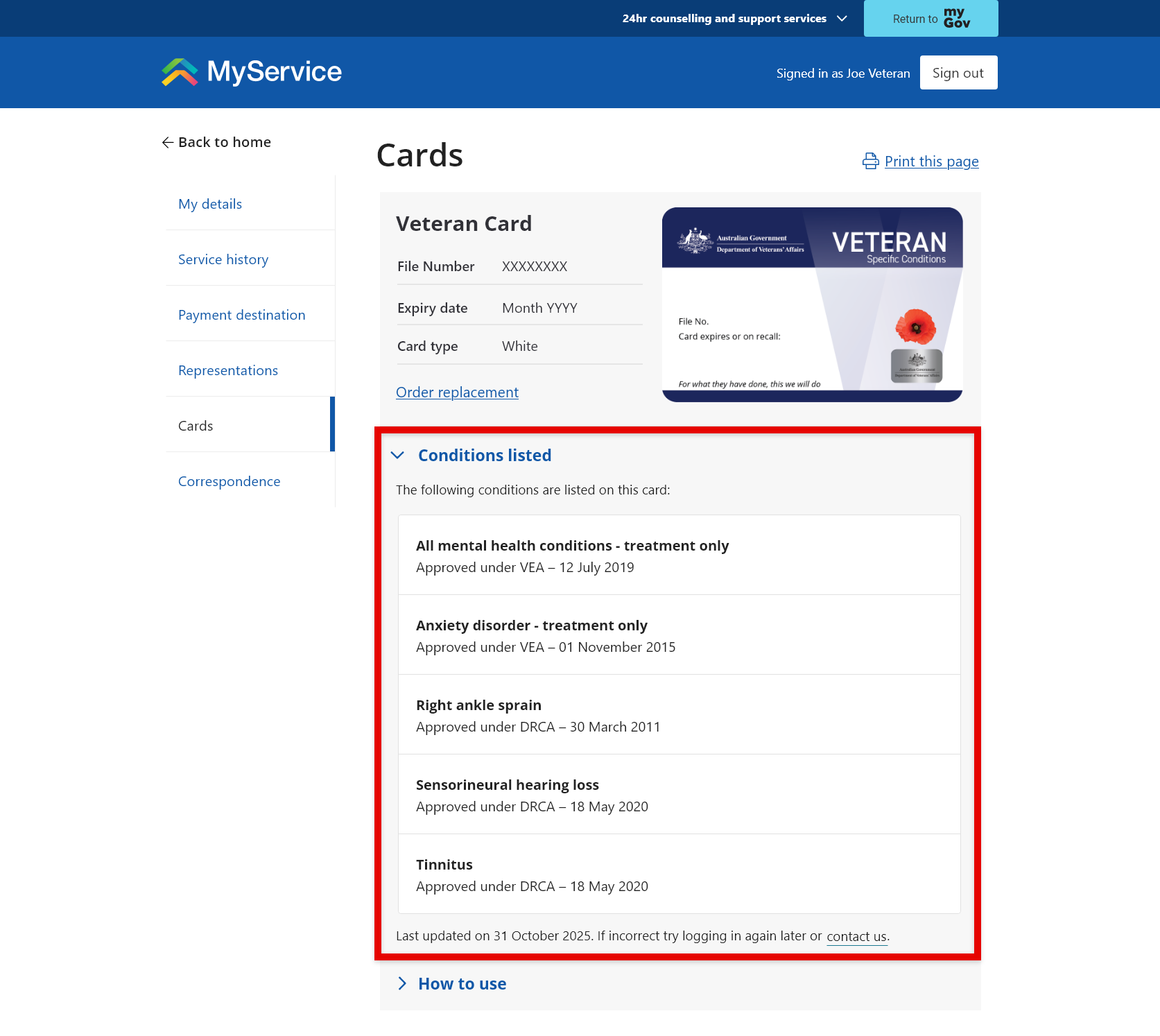
Once on the Cards screen, you will find your accepted conditions listed within the Conditions listed section.
Each condition is shown, including the legislation it was accepted under and date of effect. There is also the date the list was last updated and an option to contact DVA if there are any issues.
Share your list of conditions
White Card holders can share this list with providers as a way of confirming that specific conditions are covered for treatment and services.
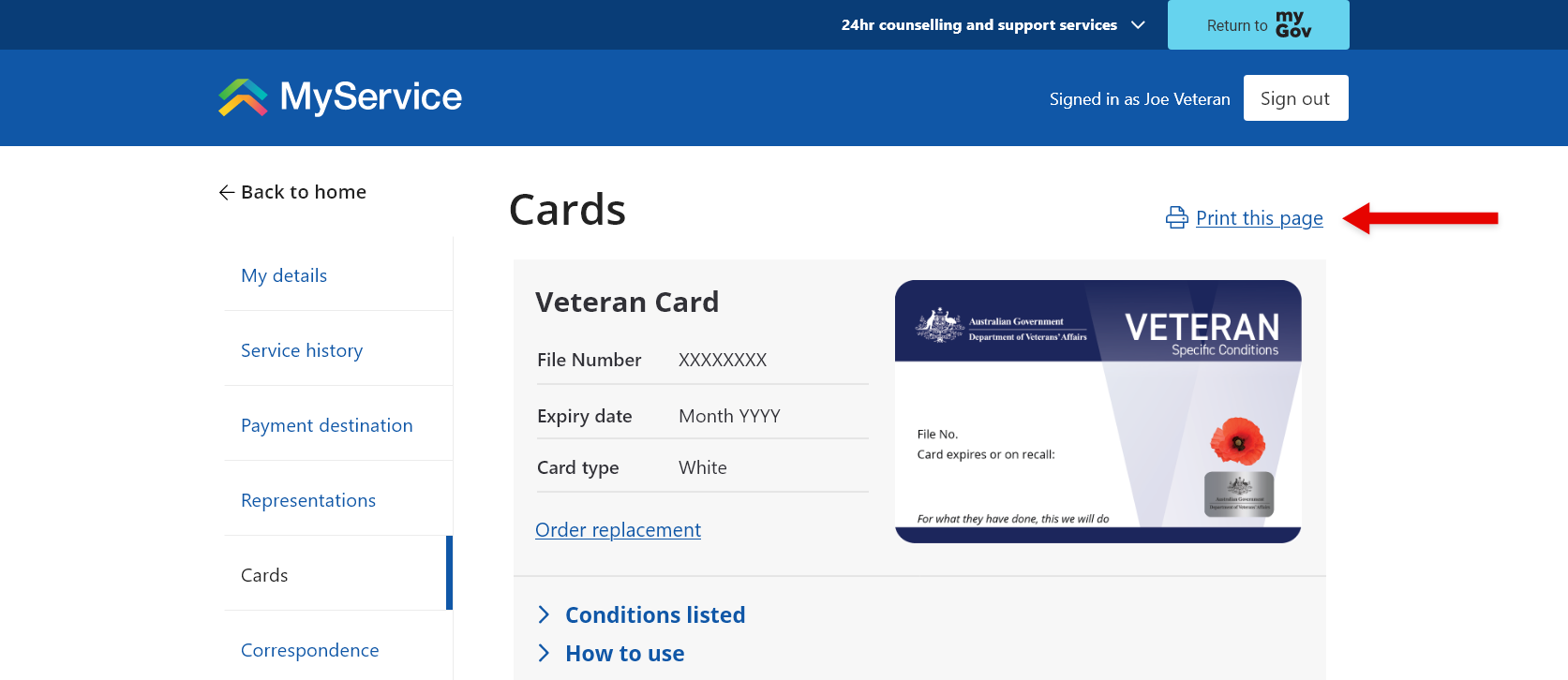
To save or print a copy of this list, select Print this page.
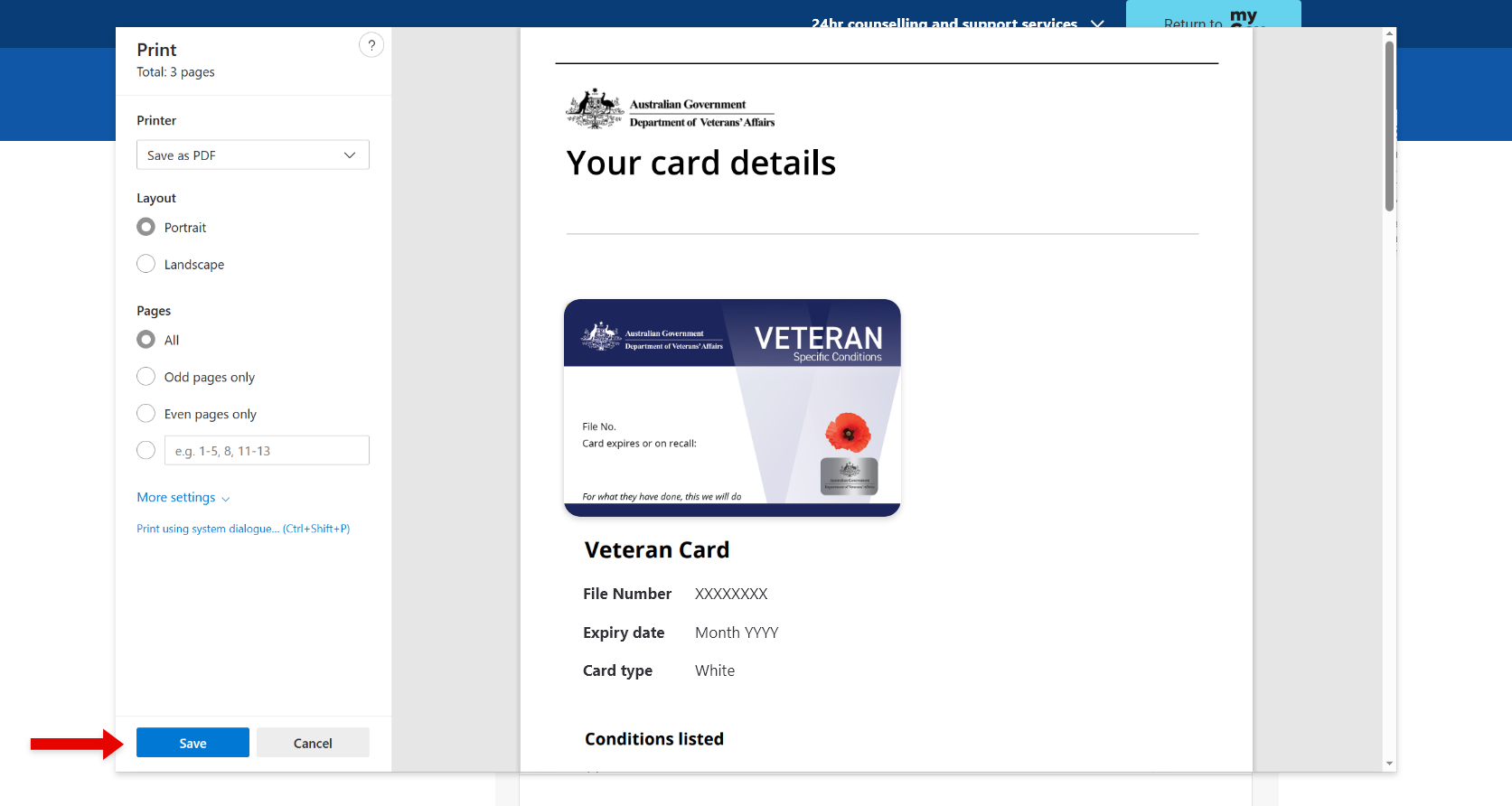
Then follow the relevant prompts on your device to Save as PDF or Print a physical copy.
You can then either email the PDF or provide the physical copy to your provider. If they don’t require a copy and you are using a mobile or other portable device, you can simply show them the list on your screen.
Note: If you are unable to access MyService, you can request a Veteran Card – List of Covered Conditions letter from our Veterans’ Access Network (VAN) team. To do this, call us on 1800 VETERAN (1800 838 372) or email generalenquiries@dva.gov.au.
Back to topRelated videos
Transcript of How to find your accepted conditions in MyService
Back to top