How to troubleshoot common errors in MyService
When using MyService, you may experience errors that you can resolve yourself.
The following instructions can support you if you are:
- experiencing errors when registering for MyService
- experiencing errors when submitting claims
- having trouble accessing MyService
If you cannot resolve the issue yourself, contact us.
If you are having trouble accessing MyService through myGov, refer to myGov sign in help | myGov
Back to topPart A: Errors when registering for MyService
Step 1: Only register if you are new to DVA
When setting up a MyService account, if you are new to DVA we recommend you complete the online registration to get an activation code.
If you have a DVA record (e.g. if you’ve previously submitted a claim with us), call us at 1800 VETERAN (1800 838 372) to get an activation code. If you have a record and attempt to complete the online registration, you are likely to experience errors. If you encounter these errors, contact us.
Step 2: Ensure your identity documents match the details you’ve entered
If you are new to DVA and are completing the online registration, ensure the proof of identity documents you provide are an exact match to the personal details you enter. This includes details like your:
- surname – if you have changed your name ensure you provide up to date identity documents that reflect this
- middle name – if you have one, ensure the identity documents you provide contain your full middle name and not just the initial
- address – if using an identity document that contains your address (e.g. driver license), ensure it is up to date.
For step-by-step instructions, go to How to set up a MyService account.
Back to topPart B: Errors when submitting claims
Step 1 – Check the information you have entered is valid
If the error you are experiencing is occurring while you are attempting to complete an action in MyService, check the information you have entered is valid:
Date fields
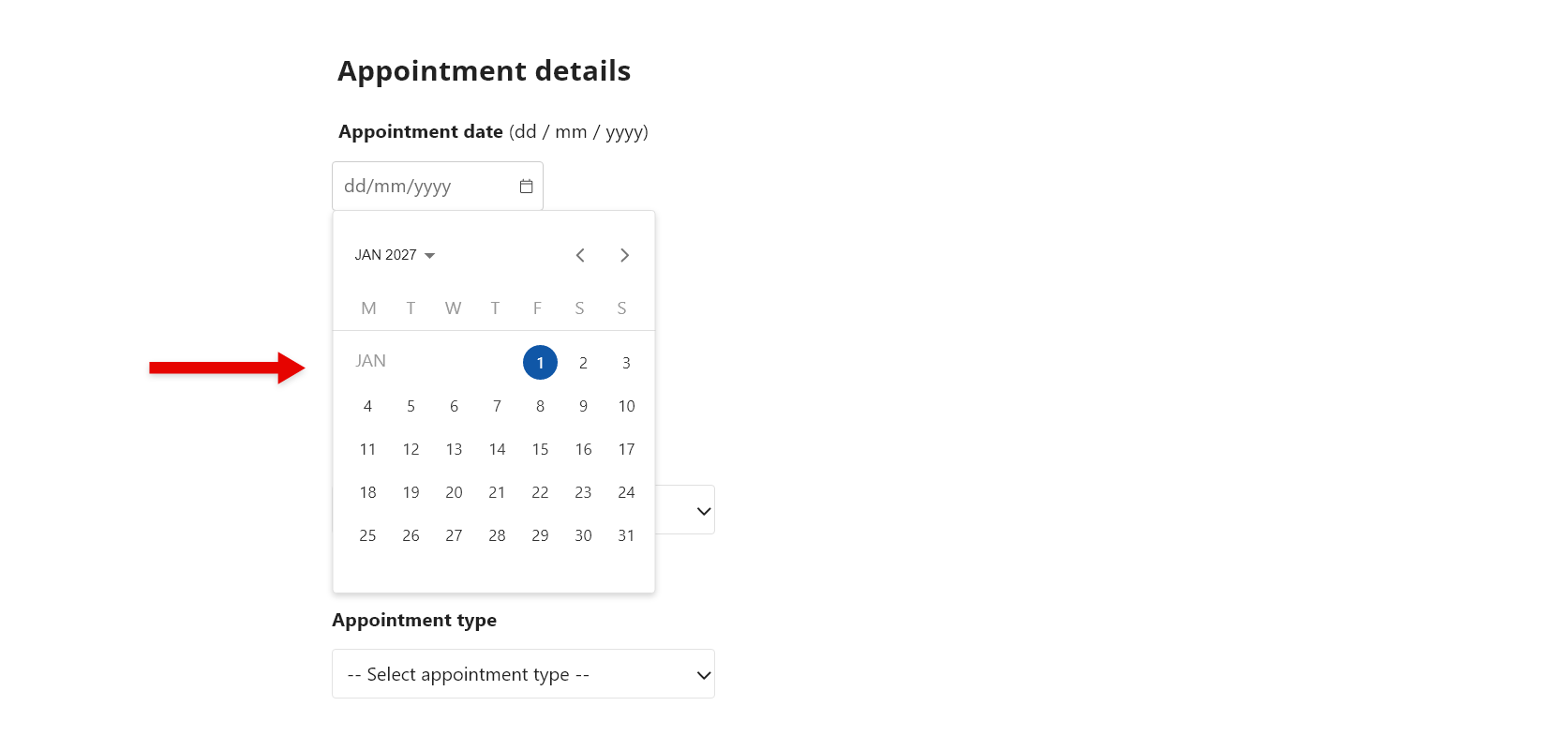
Ensure you use the date format dd/mm/yyyy.
Where available, select the date from the calendar. Entering the date manually in these fields can cause errors.
Phone number fields
Ensure only numbers are entered.
Use the phone number format 0400 000 000 (mobile) or 03 0000 0000 (landline).
- For landline numbers, include the area code.
- Do not include brackets, dashes or other characters.
Text fields
Ensure only valid characters are entered.
- If possible, type your text in a single paragraph without using the return key.
- Do not exceed the allowable limit of characters.
- If you copy and paste any information into a text field, check and remove any hidden characters which may have copied over. This includes carriage returns, paragraph markers or trailing spaces at the end of the text. Otherwise, type directly into the text box.
- Check for special characters like brackets, slashes, hashtags and @ symbols, as these may create errors in some fields. Generally, standard punctuation, like full stops and commas are fine.
If you continue to experience an issue and you are submitting a claim, you may like to type the information into a separate document and upload this as an attachment to your claim.
- In the text box, please reference the uploaded document using the title.
- Once you have submitted your claim, find it in your Claims list and select Add documents. Upload your document in the Other field.
- Please note that MyService only accepts PDF, JPEG and PNG file types, and a maximum file size of 50MB. Note: other file types can generally be converted to PDFs by exporting / saving / printing to PDF and then uploaded in the PDF format.
Using autofill
Certain fields, particularly address fields, may offer the option to autofill your details. If you use your browser's autofill feature, check that all details are correct before you continue.
Browser autofill may not fill in every MyService field correctly, particularly postcode fields. If an error occurs, re-enter the information manually.
Back to topPart C: Trouble accessing MyService
Step 1 – Check for scheduled outages
If you are unable to access MyService, it may be because of a scheduled upgrade causing a temporary outage.
We try to schedule these outages overnight to avoid disruptions. Check for outages listed on:
- About MyService
- DVA's social media channels:
Step 2 – Check your browser and device
If the error states you are unable to access MyService yet there is no scheduled outage, check your browser and device.
Clear your browsing history and cache
Issues can arise when browsing history and cache are full. Clear your history and cache based on instructions relevant to your default browser:
- Microsoft Edge - Microsoft Support
- Safari browser - Apple Support
- Firefox browser - Firefox Help
- Google Chrome - Google Account Help
Ensure your browser is up to date
Browser issues can occur if your browser is not up to date. While most default settings have updates set to occur automatically, you can check for manual updates in your browser settings:
- Microsoft Edge update settings - Microsoft Support
- Update to the latest version of Safari - Apple Support
- Update Firefox to the latest release - Firefox Help
- Update Google Chrome - Google Chrome Help
Change browser
Use a different web browser.
Turn off VPN
If you use a Virtual Private Network (VPN), turn it off while accessing MyService.
Change device
If possible, sign in to MyService using a different device.
Step 3 - Check for access banners
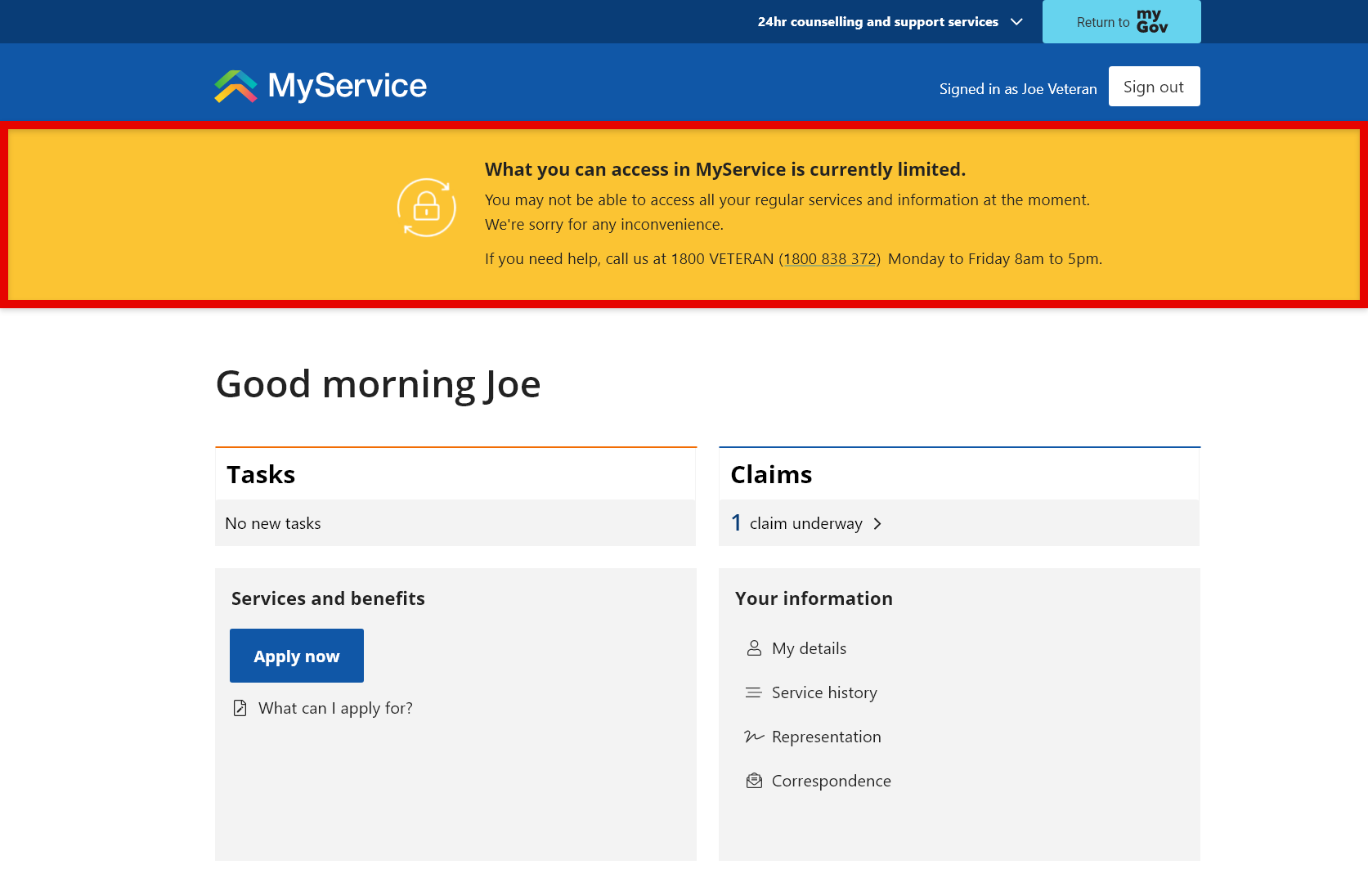
If you can access MyService but find a banner displayed, some information or features may be unavailable.
Common banners
- Your account is not quite ready
- You may find this banner if you have recently registered for a MyService account and we are still gathering the information needed to set up your profile.
- Some of your personal information may not be available yet.
- You can still submit claims while we complete your profile setup.
- Some features in MyService are temporarily unavailable
- This banner usually means there is a broader issue affecting MyService rather than an issue with your individual profile.
- Some information or features, including your personal details, may be temporarily unavailable.
- What you can access in MyService is currently limited
- This banner usually appears because of a system issue and should disappear automatically within a day or two.
- While this banner is displayed, you will not be able to submit claims.
- If the banner continues to appear, we may need to manually correct the issue.
To notify us of a persistent banner or if you wish to perform an action in MyService while your profile access is limited, contact us.
Step 4 - Be mindful of automatic sign out due to inactivity
When using MyService, errors can occur or your information can be lost if you are signed out of MyService before you can save your progress.
To protect your privacy and data, MyService automatically signs you out of your account after:
- 60 minutes of inactivity when accessed through myGov
- 30 minutes of inactivity when accessed through PRODA and MyOrg.
Five minutes prior to reaching the time limit, a pop-up message will appear with a countdown timer. This alerts you that you will be signed out once the timer is up, unless you select to either Stay signed in or Sign out.
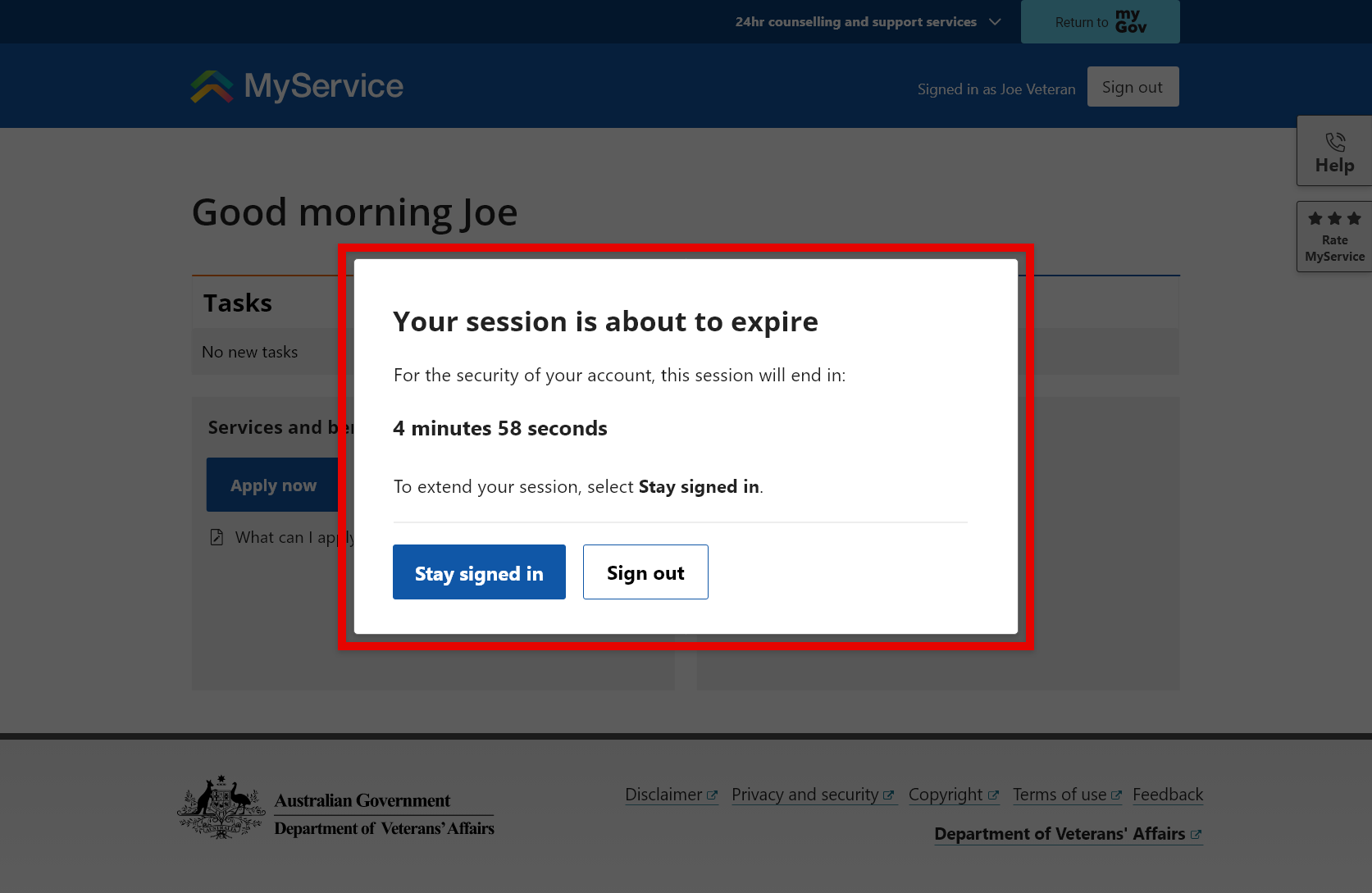
Taking an action in MyService such as selecting Save and next or Previous will reset the sign out timeframe.
Back to topPart D: Contact us about the error or issue
If you have worked through these troubleshooting options and are still experiencing an error or issue in MyService, contact us.
You can:
- Call us on 1800 VETERAN (1800 838 372)
- Use the Help feature in MyService to send us a message or request a call
- This is located on the right side of every MyService screen, in the top corner for desktops and the bottom corner for mobiles
- Complete a contact form at General enquiries
Be sure to state the date, time, frequency and location of the error. Provide a screenshot, if possible.