How to apply for representation in MyService
On this page
- Before you start
- What you need
- Step 1 – Set up a MyService account (if needed)
- Step 2 – Sign in and select Representation
- Step 3 – Select your representation type
- Step 4 – Provide personal and contact details
- Step 5 – Specify the representation role
- Step 6 – Upload documents
- Step 7 – Review and submit
- Step 8 – Access MyService as a representative (if applicable)
- Step 9 – Edit or cease representation (if needed)
Before you start
The following instructions are for:
- DVA clients nominating someone to represent them
- individuals requesting to represent clients, noting:
- individual advocates are to use MyService directly
- advocate organisations are to register through PRODA and access MyService through MyOrg.
For more information, go to:
Back to topWhat you need
To register either for a representative or as a representative, you must provide a copy of the D9325 form – Appointing a third party to represent a DVA client signed by both parties.
The form can be downloaded:
- pre-filled with the information entered during the MyService Representation application. We recommend this option to avoid providing the same information twice – details are provided in Step 6; or
- as a blank form from the DVA website for manual completion – if you prefer this method, we recommend you download and complete this form before beginning your representation application in MyService.
This guide shows images of sample screens. The screens do not contain information about any real DVA clients.
Back to topStep 1 – Set up a MyService account (if needed)
If you don’t already have one, you first need to set up a MyService account.
You do this through myGov with an activation code, also known as a linking code.
You can follow instructions at: How to set up a MyService account.
Back to topStep 2 – Sign in and select Representation
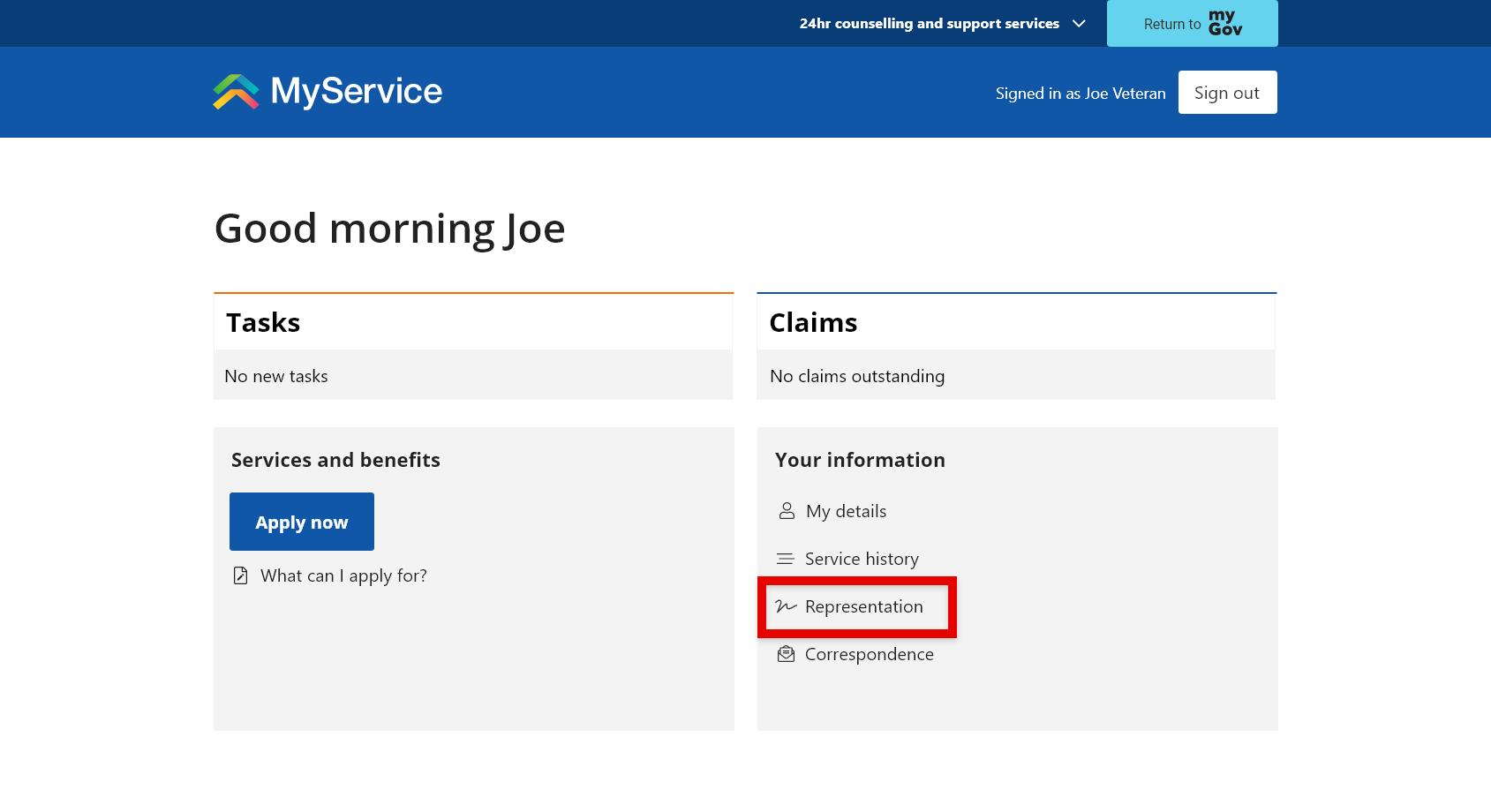
Sign in to your MyService account. On the homepage find the Your information section and select Representation.
Step 3 – Select your representation type
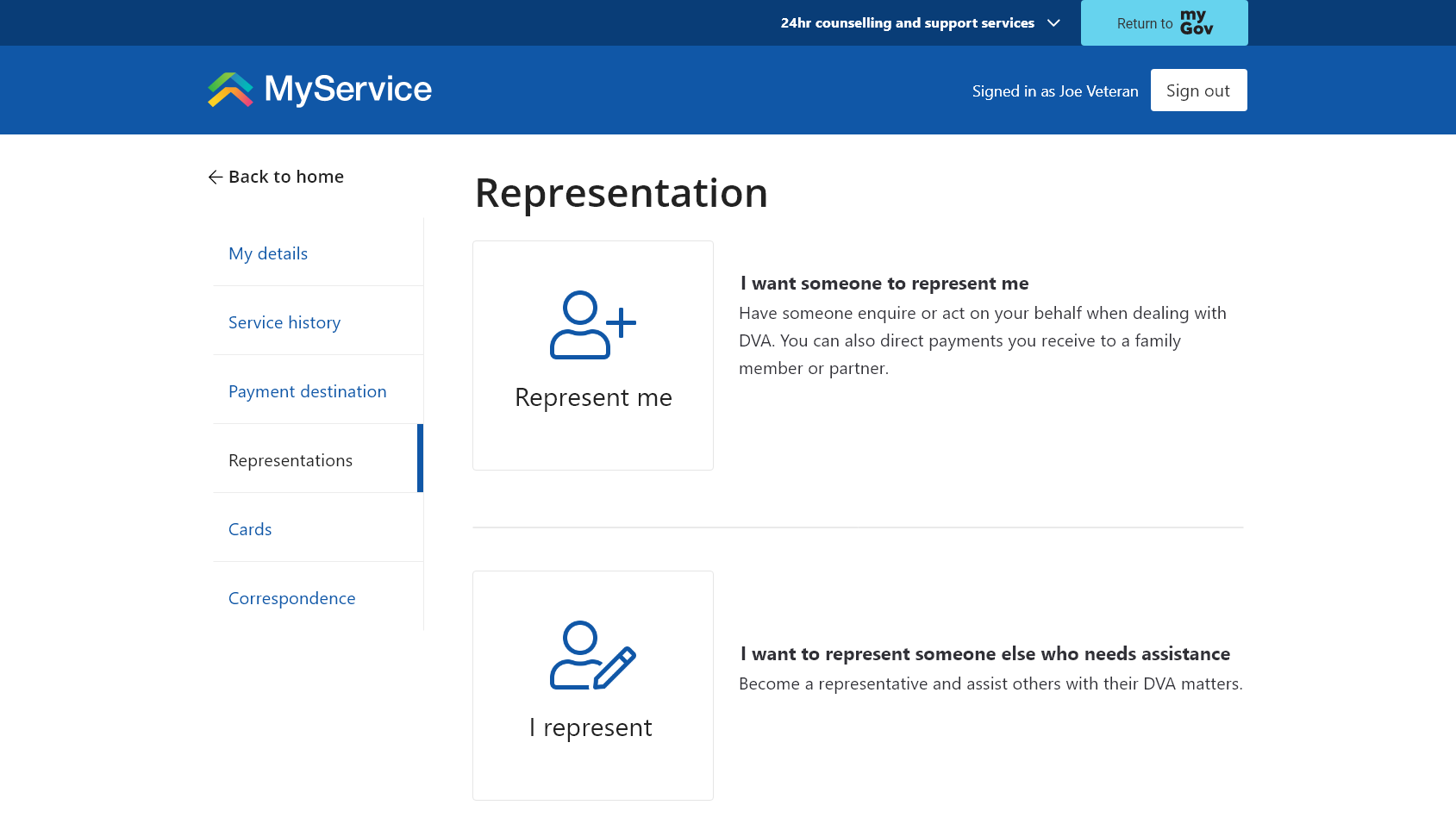
On the Representation screen, select the option relevant to you:
- To have someone represent you, select Represent me.
- To represent a client, select I represent.
Step 4 – Provide personal and contact details
You will be prompted to provide personal and contact details based on your representation type:
- If applying for someone to represent you, provide your representative’s details.
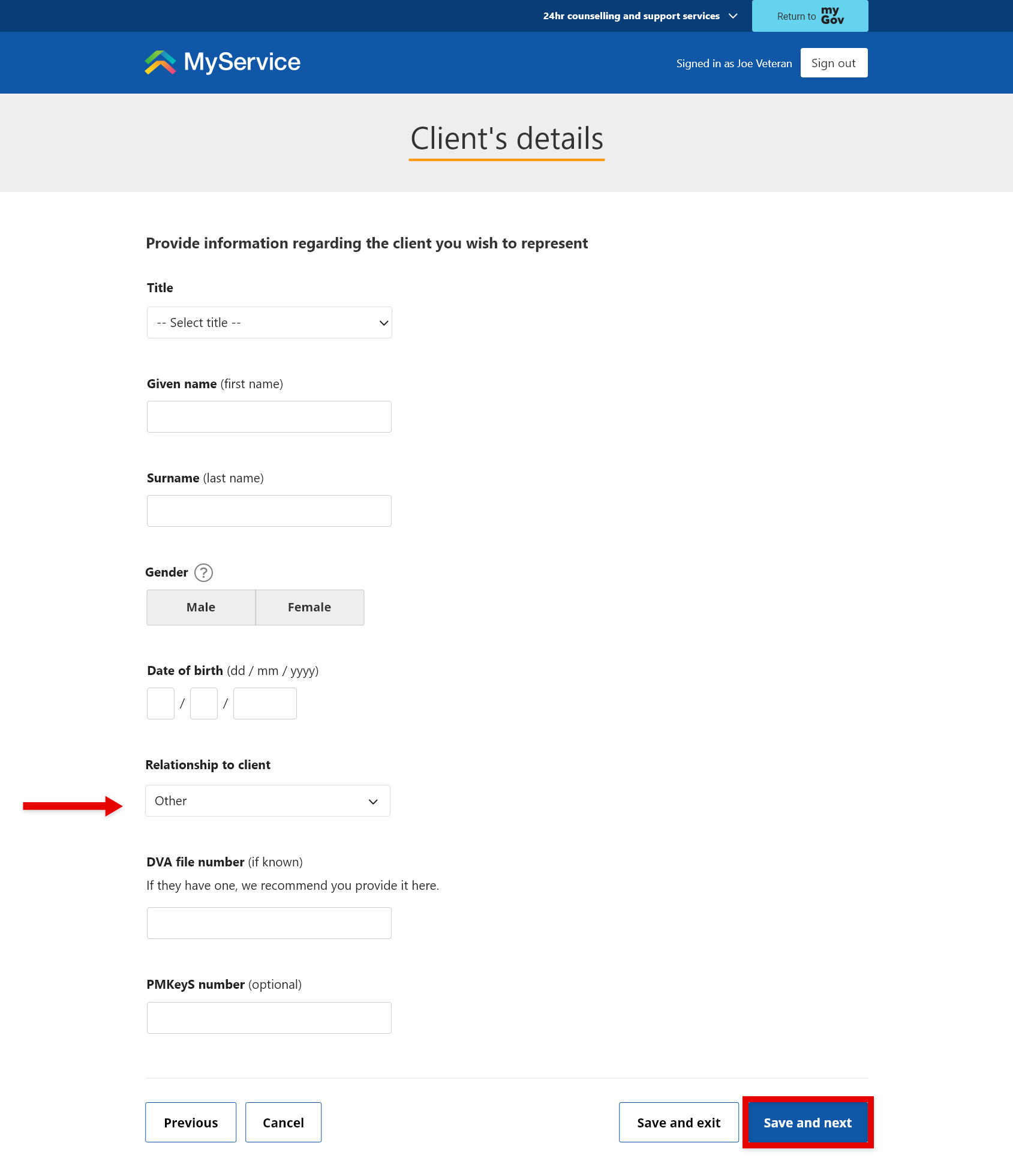
- If applying to represent a client, provide the client’s details.
To continue, select Save and next.
Note: Advocates applying to represent a client are to select the relationship option Other.
Save a draft (if needed)
You can return to this application at a later stage by selecting Save and exit to save a draft.
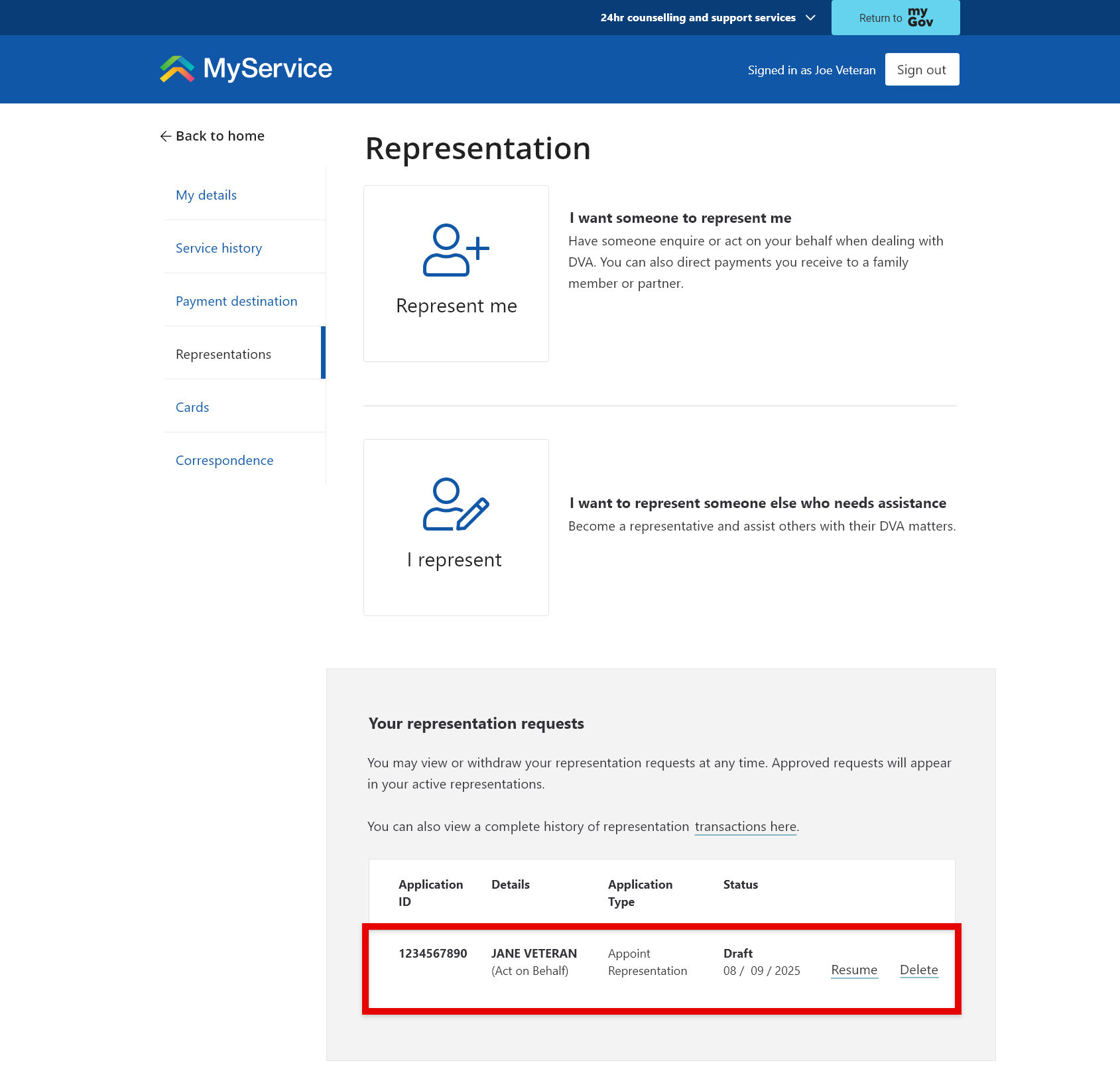
You can then find this application on the Representation screen within the Your representation requests list, with a status of Draft. It will remain saved in MyService for 90 days.
To pick up where you left off, select Resume. To remove, select Delete.
Step 5 – Specify the representation role
Depending on your application type, you will be prompted to specify either your representative’s role or your representation role. You do this by selecting from the options of:
- Enquire on behalf
- Act on behalf
- Receive payments.
For each option, the screen will expand with a few follow up questions.
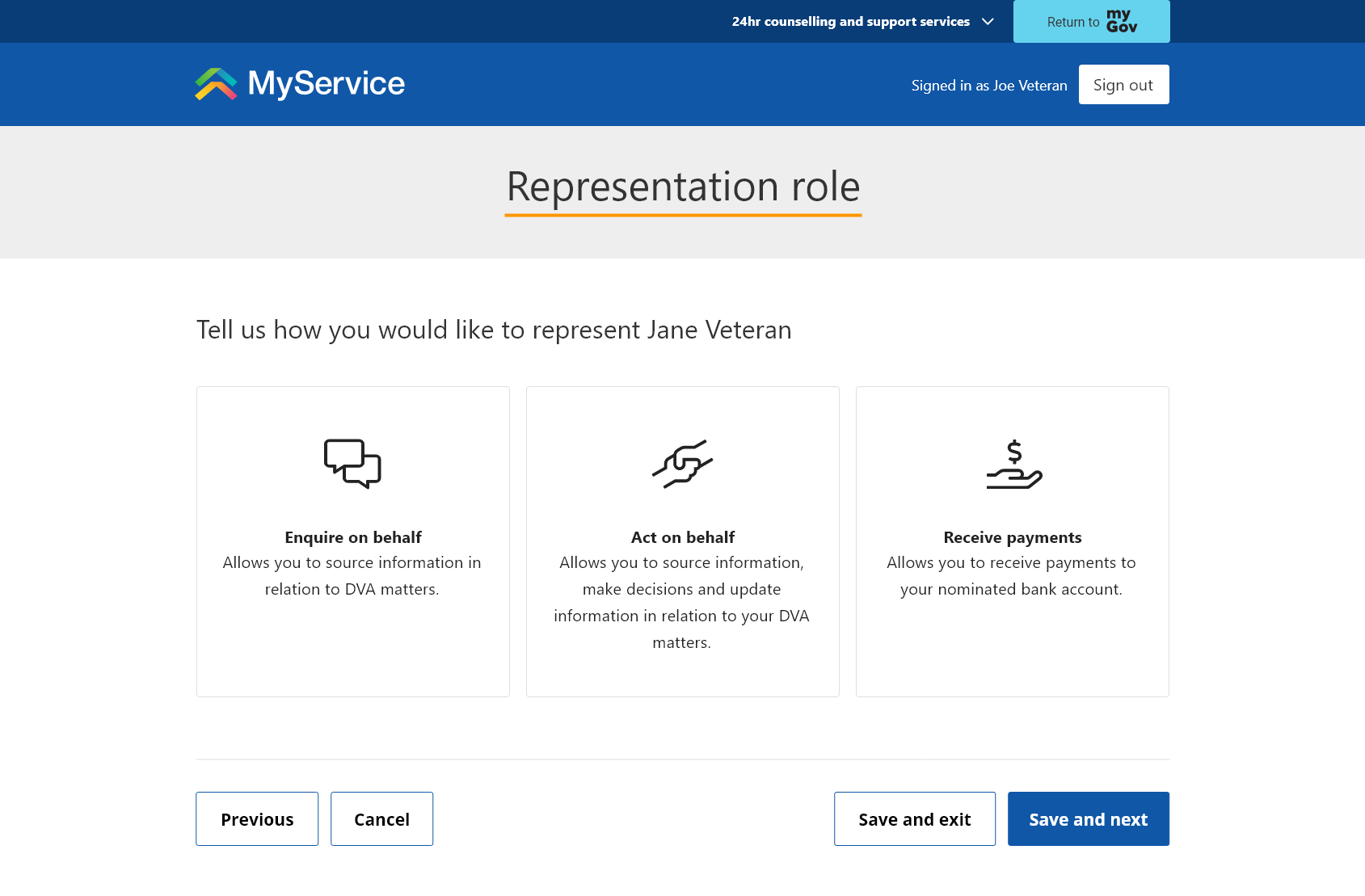
Note: Advocates are to select Act on behalf - All DVA matters to submit claims on behalf of clients.
For more information about the available options, go to What is a representative? | DVA (dva.gov.au)
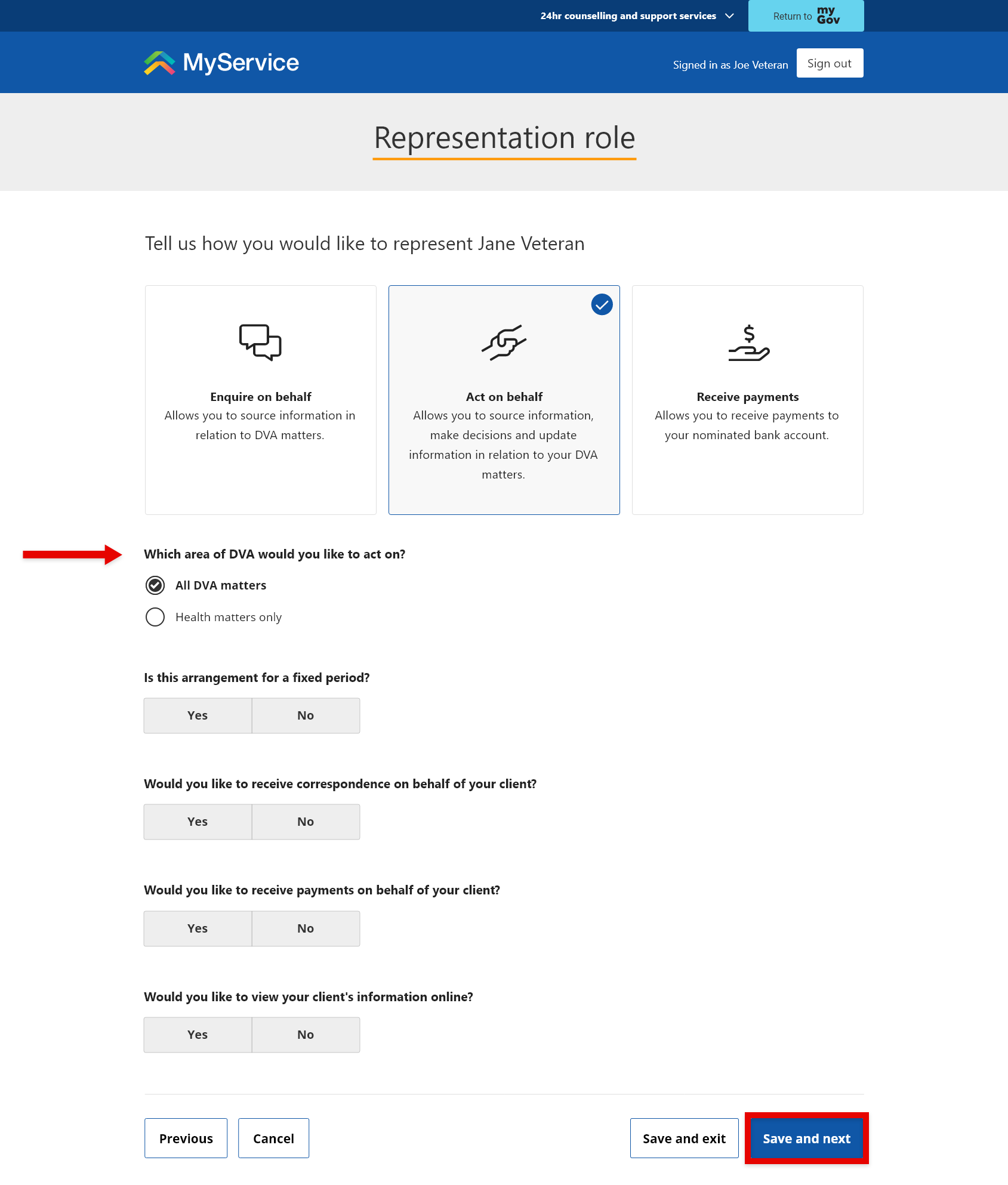
Select Yes to allow the representatives to view information online – this refers to information on MyService.
To continue, select Save and next.
Back to topStep 6 – Upload documents
Add your completed and signed D9325 form by selecting Upload and attaching the file.
Uploading this form is mandatory to submit this application.
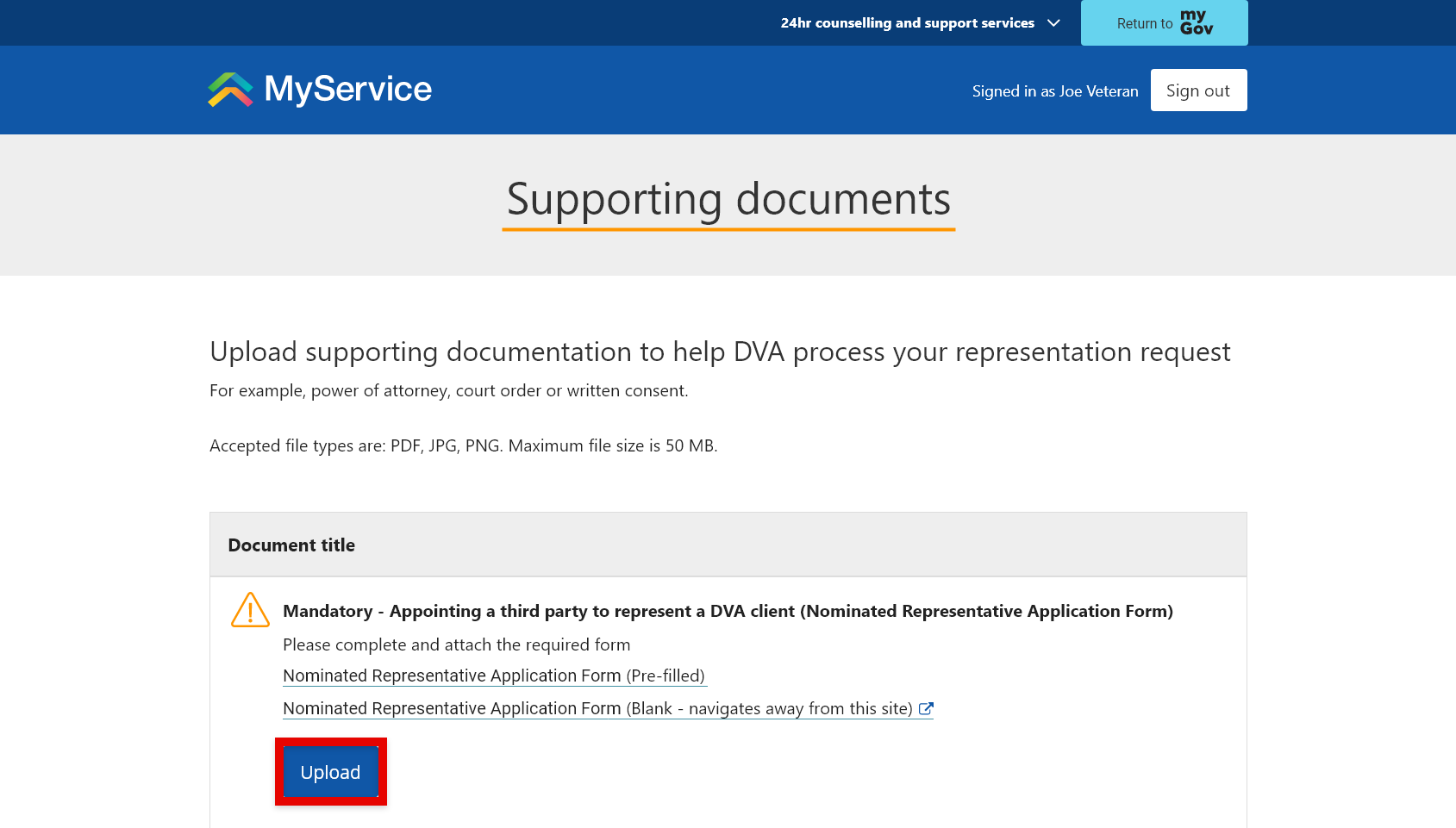
If you need time to obtain this signed form, select Save and exit.
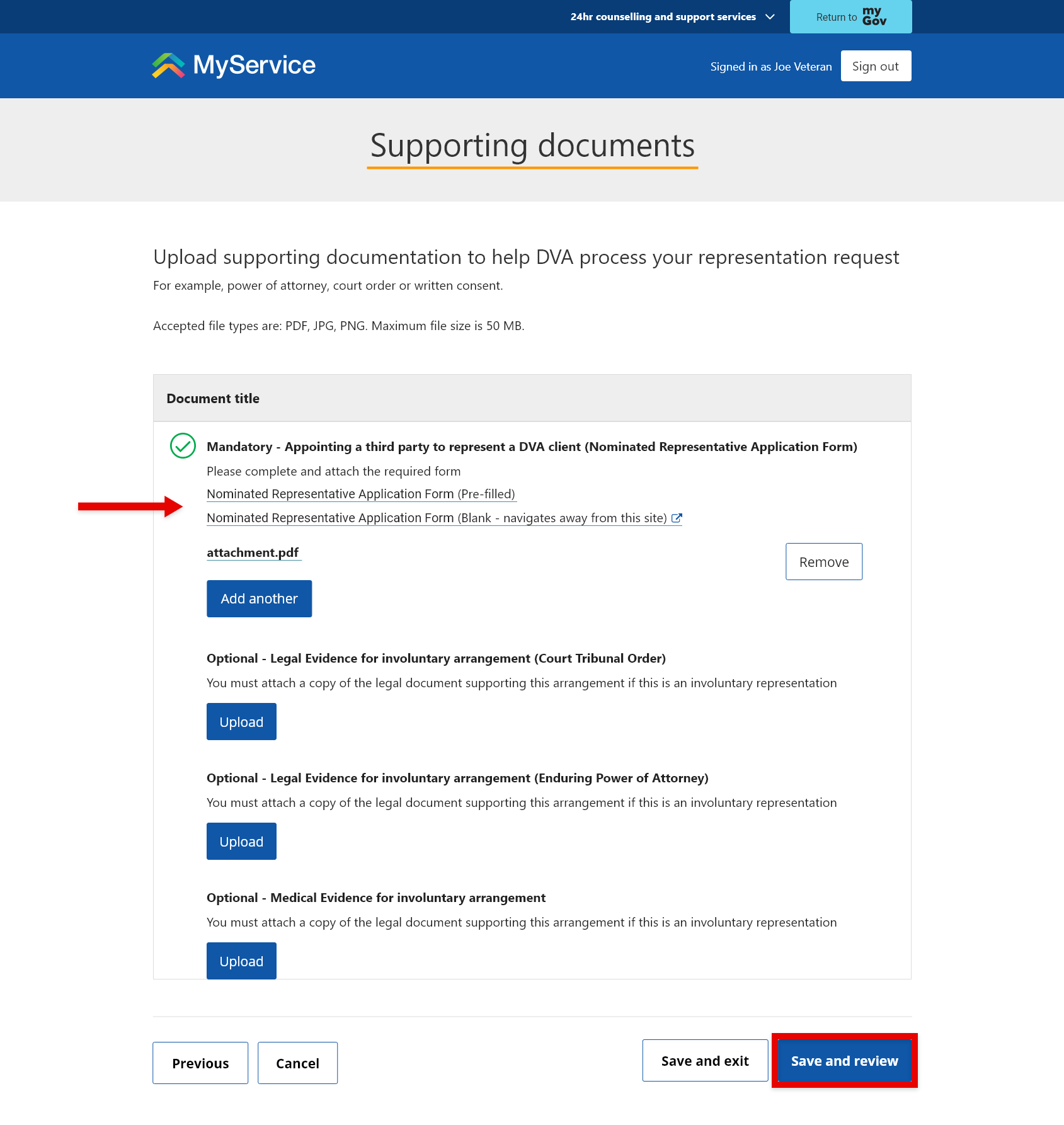
After uploading the D9325 form, and any other supporting documents if needed, select Save and review.
Back to topStep 7 – Review and submit
Before you submit, review the details you have provided to confirm they are true and accurate. To make changes, select Edit.
When you’re ready, select Submit application.
Your application has now been submitted. Once DVA has actioned the representation request, the details will be listed on the Representation screen of both the client and the representative’s MyService accounts.
Back to topStep 8 – Access MyService as a representative (if applicable)
Individuals authorised to enquire or act on behalf of a client will be granted access to the client’s MyService information once DVA has actioned the representation request. This will be accessible from the header of the representative’s MyService homepage, where a yellow bar will display with the label Select client.
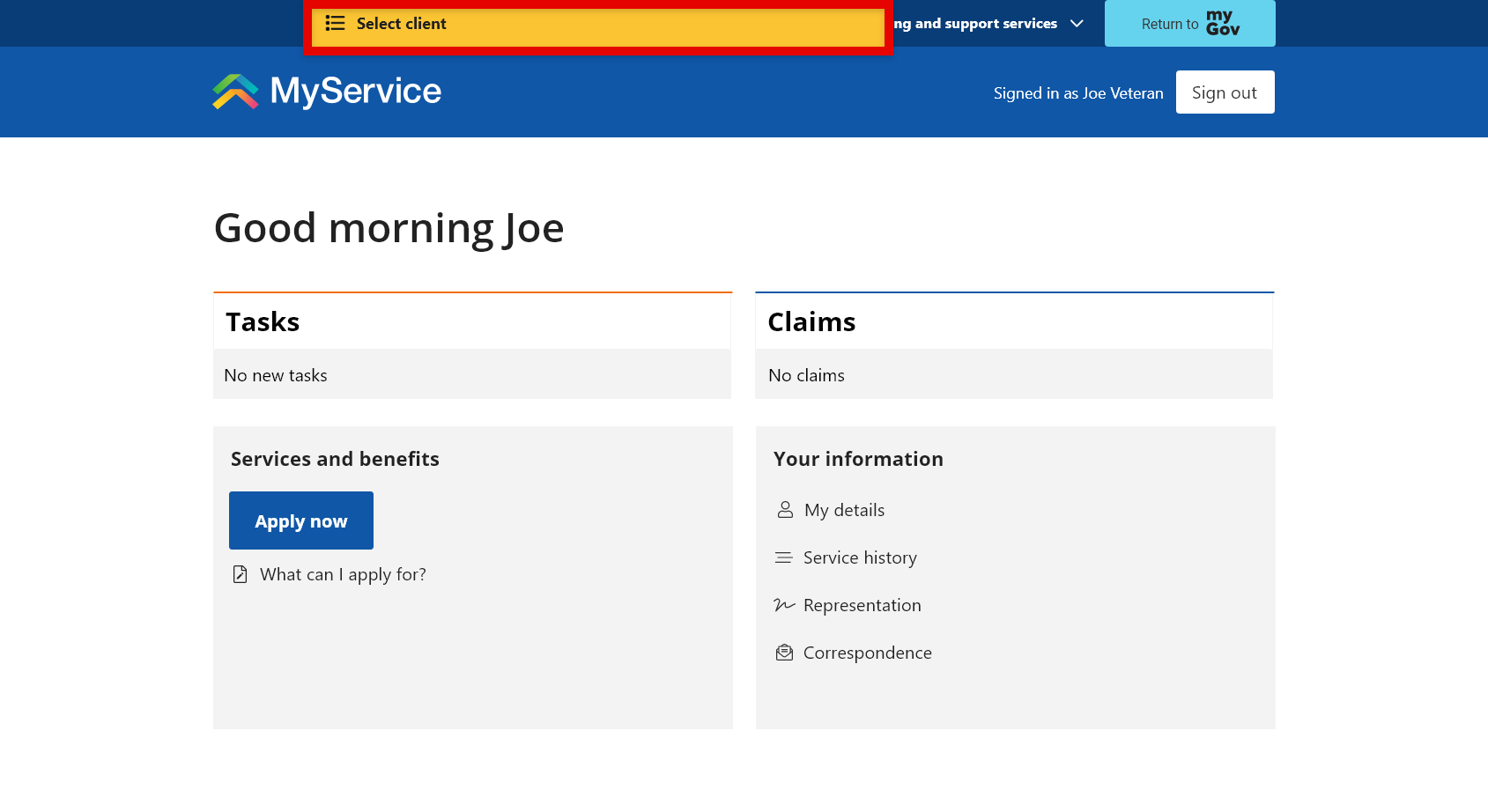
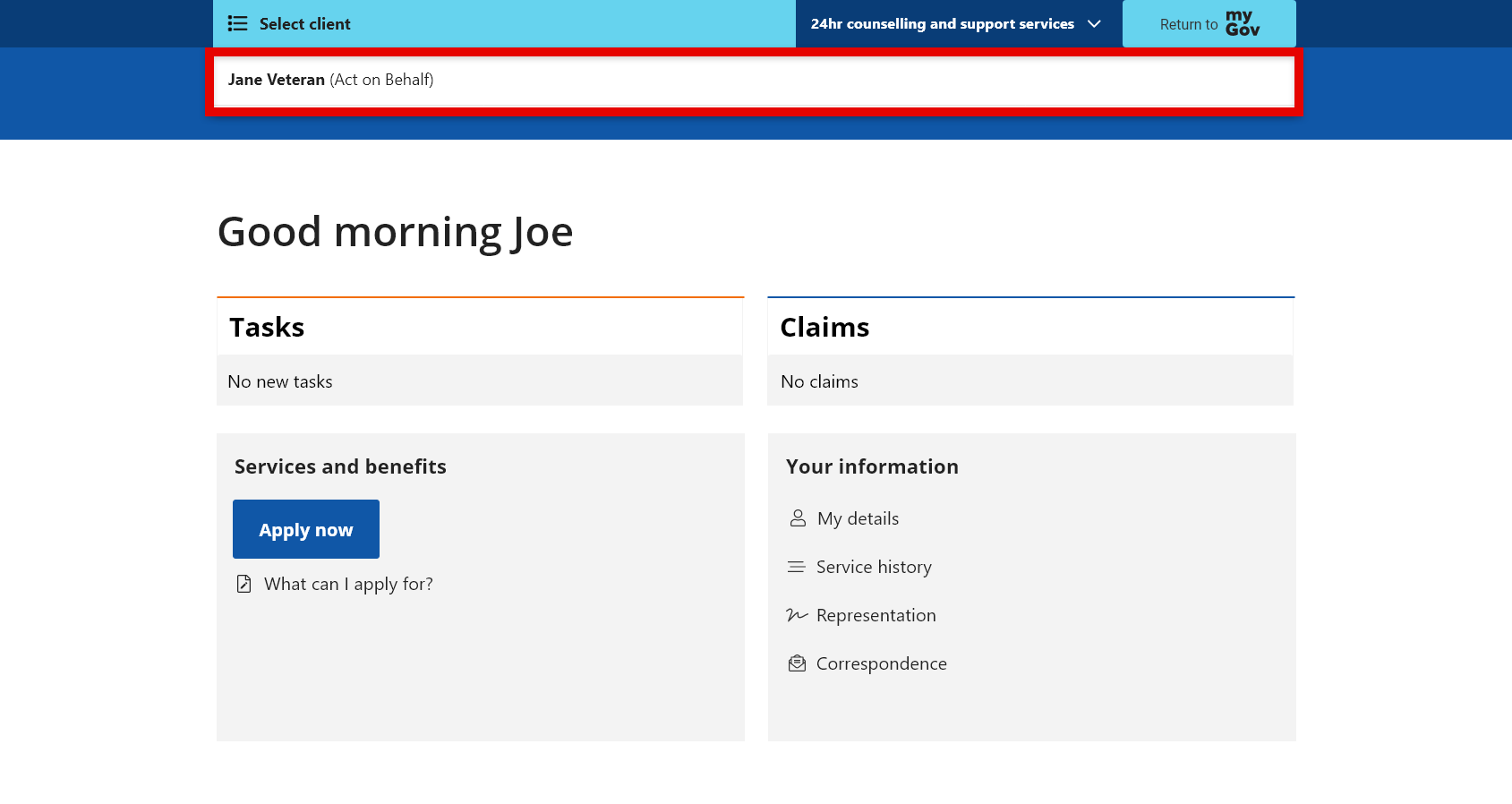
Selecting this bar will display a list of all the clients the representative can represent. It will also state whether their representation role is to enquire or act on behalf of.
When a client is selected, the representative will be taken into that client’s MyService profile. A banner will appear advising the representative is accessing the client’s record on their behalf and to act as though you are the client.
They are then able to complete the actions they are authorised to perform.
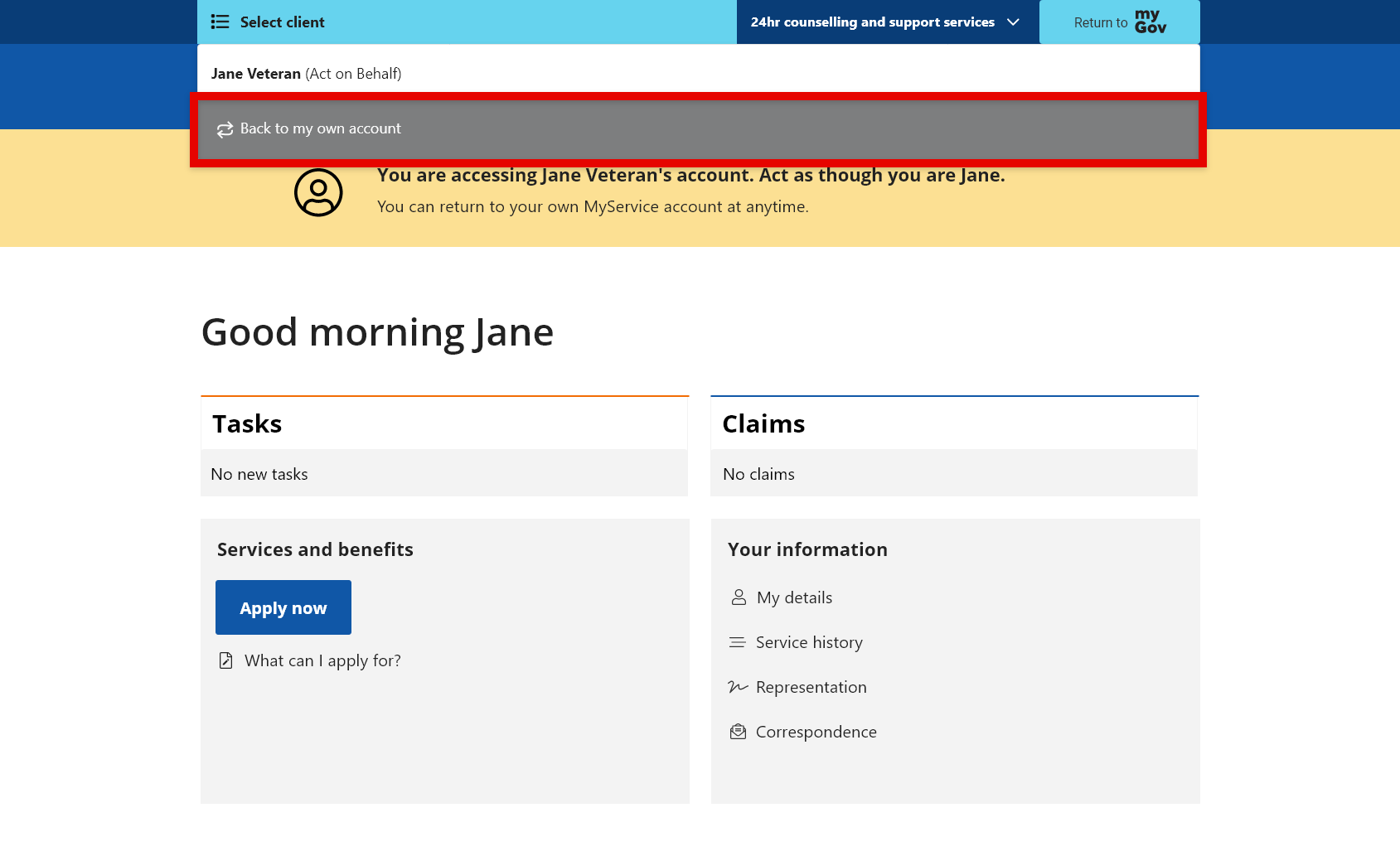
To return to their own MyService account the representative can select the Select client bar and Back to my own account.
Back to topStep 9 – Edit or cease representation (if needed)
From the MyService home page, find the Your information section and select Representation.
Find the representation arrangement in your list and select Manage.
The Representation role screen will display your current arrangements. You can either update these arrangements or select Cease representation, followed by Save and next and the prompts that follow.
Back to top