How to apply for Veteran Payment in MyService
If you’re not able to work because of a mental health condition, you may be able to receive Veteran Payment. This payment can provide temporary financial support while we assess your claim.
If you don't have a MyService account, find instructions at How to set up a MyService account.
Back to topBefore you can apply
To apply for Veteran Payment in MyService, you need to:
- have submitted an Initial Liability claim for a mental health condition*
Follow step-by-step instructions to apply for Initial Liability in MyService.- During this process, we recommend selecting your mental health condition from the condition drop-down list on the Diagnosis screen, as this triggers the Veteran Payment process later in MyService.
- be under Age Pension age when you submit that claim.
*All conditions listed in the Diagnostic and Statistical Manual of Mental Disorders, Fifth Edition (DSM-5) are considered a mental health condition. A diagnosis is not required in order to determine eligibility for Veteran Payment. All that is required is that the claimed condition is one that could be diagnosed under DSM-5.
If you meet these requirements, a Veteran Payment tile will appear in MyService.
If you submitted your Initial Liability claim using a channel other than MyService (e.g. via a paper form), or the Veteran Payment tile does not appear in MyService but you believe you’re eligible, you can apply using the D9333 Application for Veteran Payment.
Back to topBefore you start
You don’t need to gather everything at once, but it can help to have the following ready if you’re able:
- a medical certificate that says you cannot work more than 8 hours per week
- your GP can provide this
- you have up to 4 weeks to provide this after Veteran Payment starts
- your tax file number
- your Centrelink Customer Reference Number (CRN), if you have one
- your visa details, if this applies to you.
If you’re also applying for your partner, you may need:
- your partner’s proof of identity documents (only if DVA doesn’t already have them)
- your partner’s tax file number and CRN (if applicable).
You can upload documents later if you need to. We’ll let you know if anything is missing.
Back to topStep 1 – Select apply now
From the homepage select apply now in the Veteran Payment message.
Otherwise find Services and benefits, select Apply now, then from the Claims and applications screen select the Veteran Payment tile.
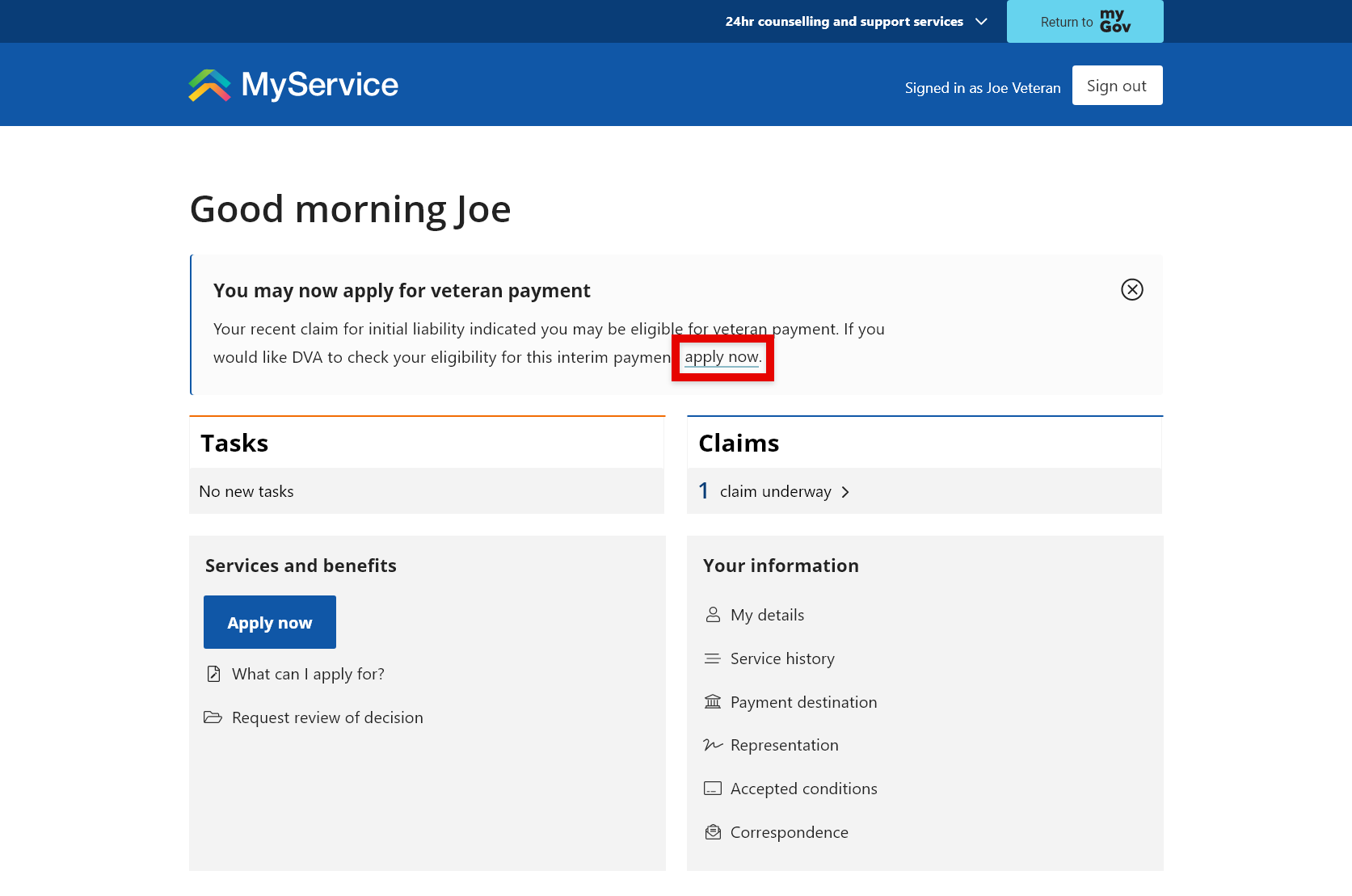
Please note: The Veteran Payment tile appears automatically in MyService only after an IL claim for a mental health condition is submitted in MyService, and only where all eligibility criteria are met.
Back to topStep 2 – Provide claim details
You’ll be guided through a series of screens asking about things like:
- your ability to work
- your relationship status
- dependent children
- residency and visa details
- living arrangements
- income and assets
- payment details.
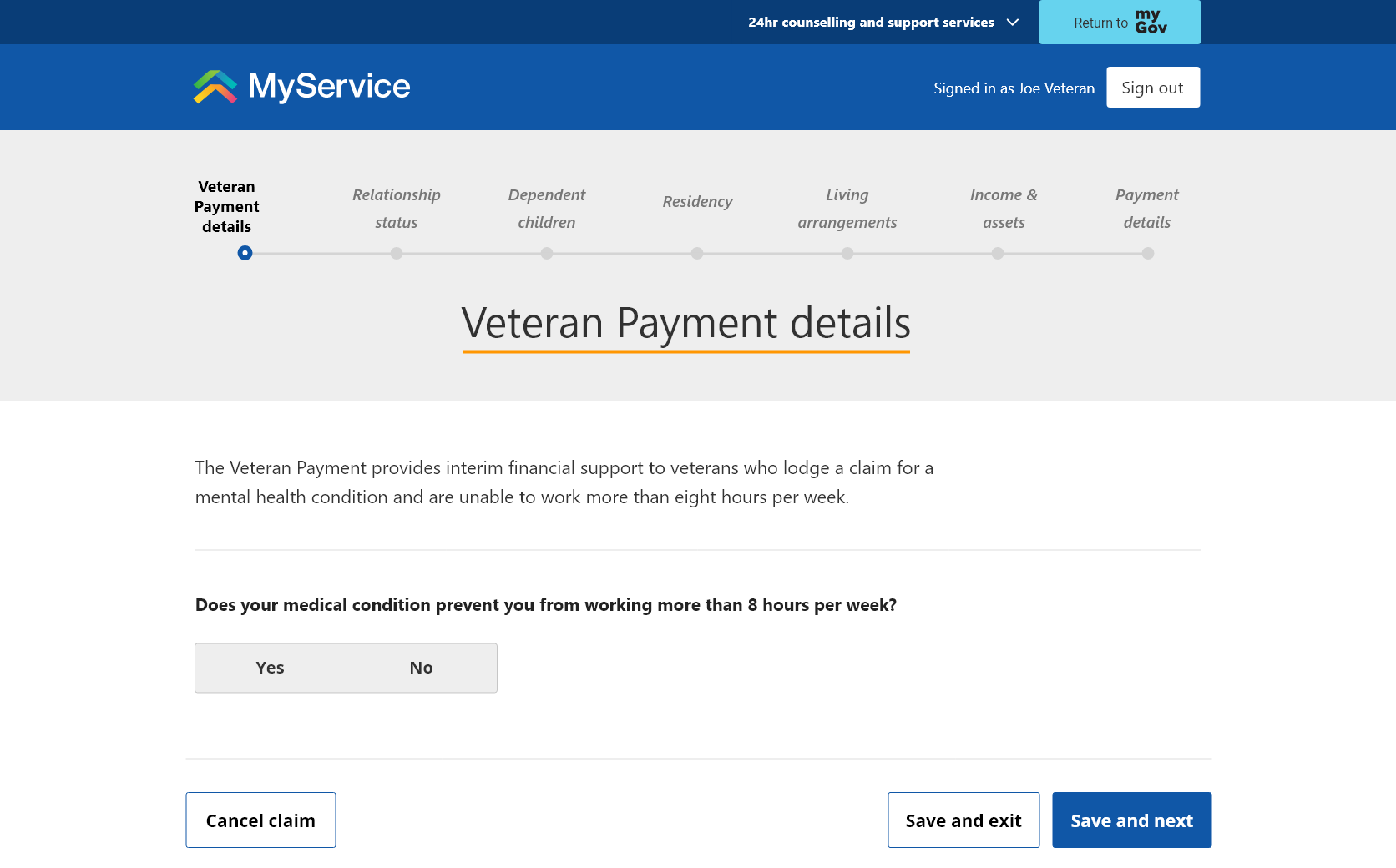
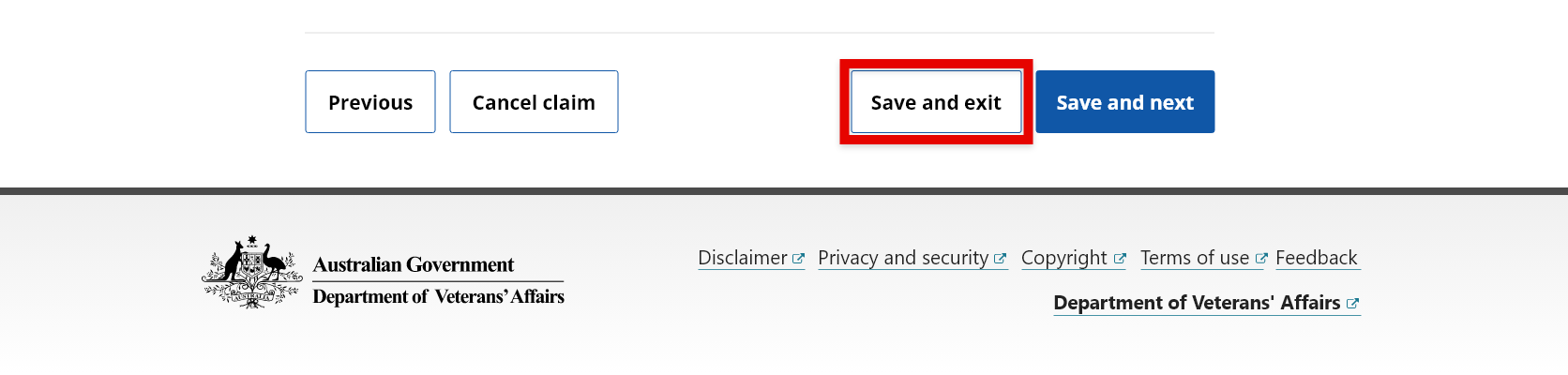
You can save an incomplete claim at any stage by selecting Save and exit.
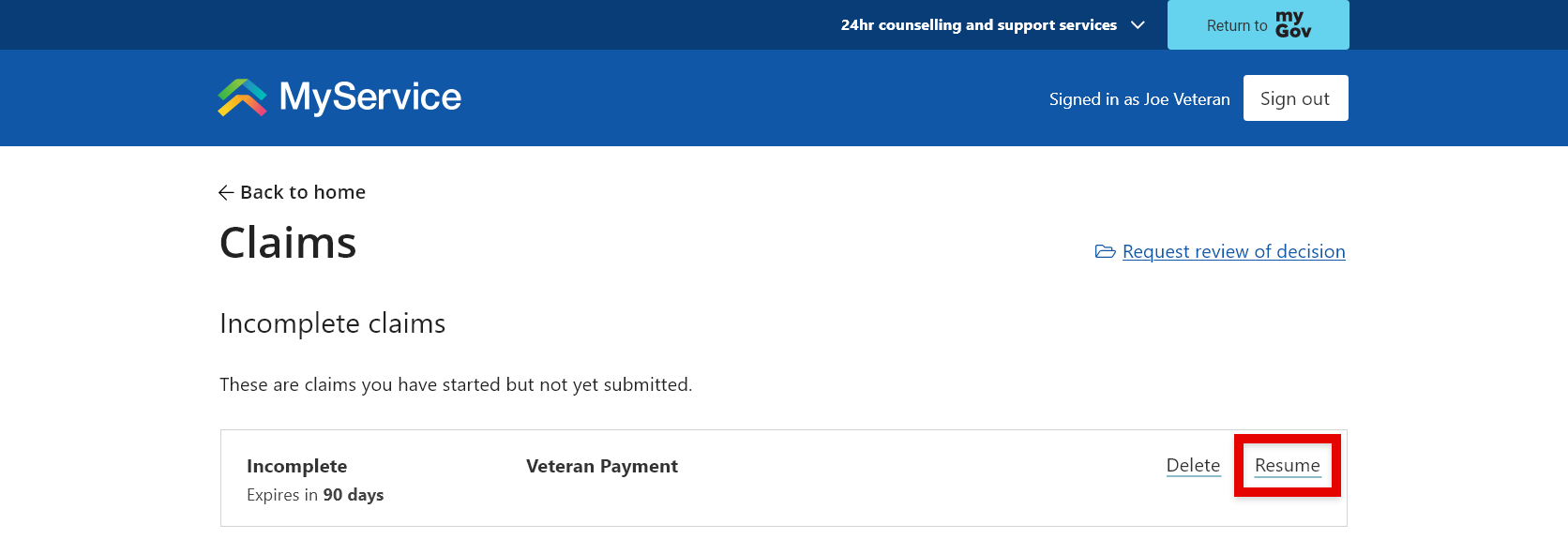
You can access incomplete claims in your Claims list. Incomplete claims stay in MyService for 90 days.
Back to top
Step 3 – Upload documents and submit
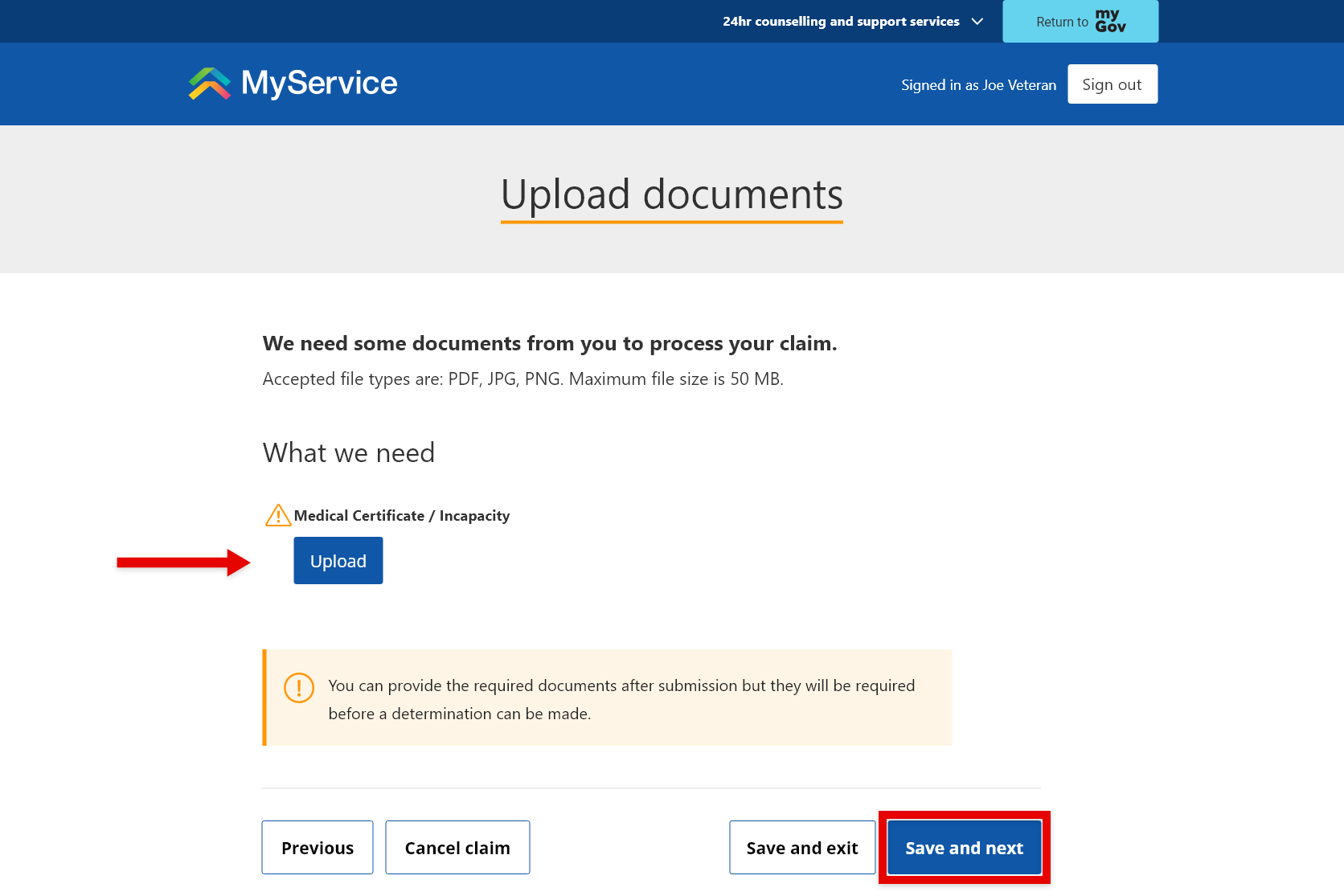
Toward the end of the claim, you’ll be asked to upload documents to help us assess your claim.
This usually includes your medical certificate.
If you’re not ready to upload everything:
- you can submit your claim first
- you can add documents later if needed.
Select Save and next
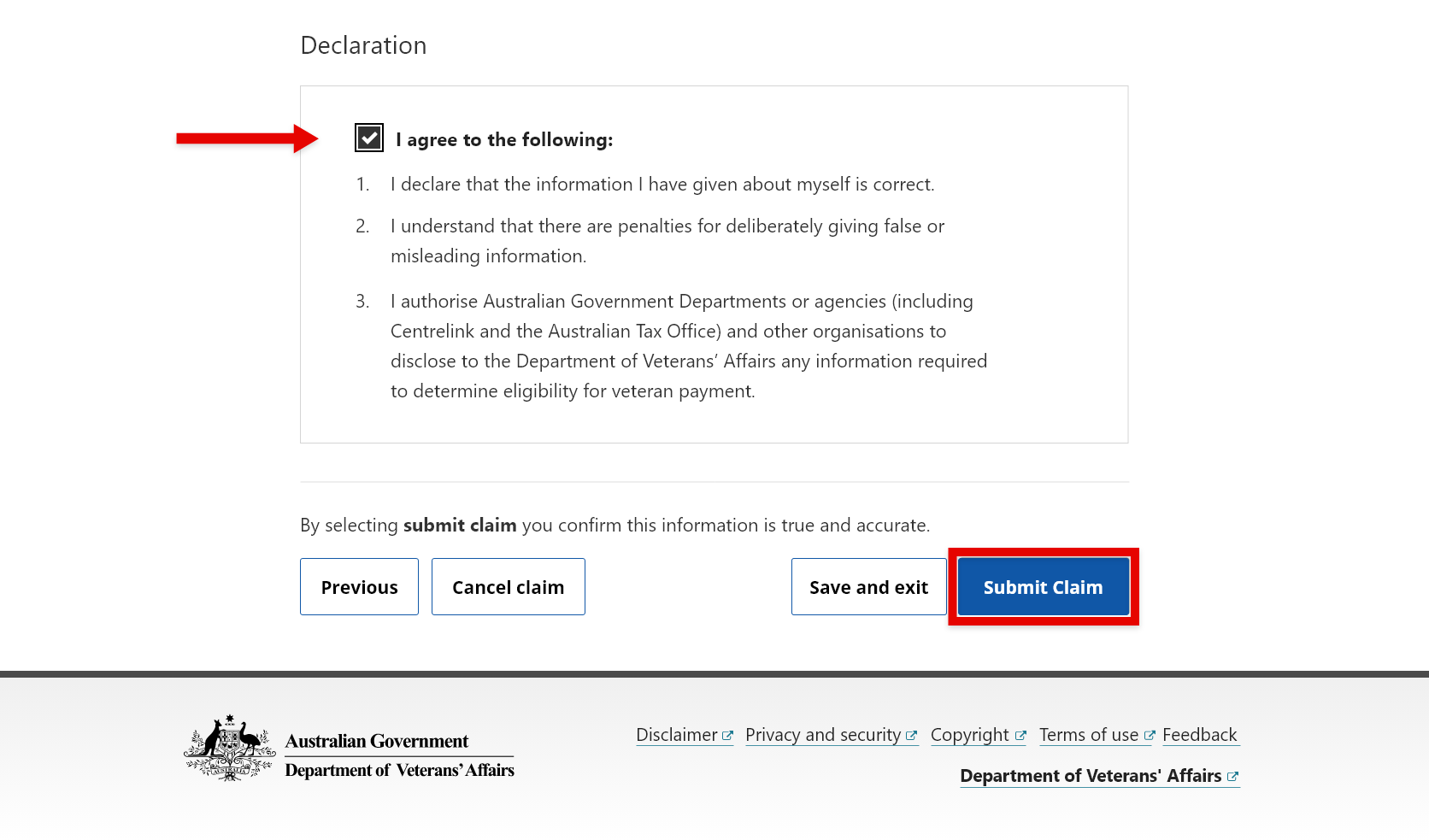
Before you submit:
- review the details you’ve provided
- confirm they are correct
- read and accept the declaration.
When you’re ready, select Submit claim.
After you submit:
- you’ll see a confirmation screen and claim number
- you may receive an email confirmation
- we’ll contact you if we need more information.
If we need documents after you submit, a task will appear in MyService under your claim. You can add documents at any time while your claim is being processed.
If you’re experiencing financial hardship or need urgent support, you can contact DVA on 1800 VETERAN (1800 838 372).
Back to topStep 4 – Add documents after you’ve submitted (if needed)
Note: This step is only required if you submitted your claim before uploading all the required documents.
From your MyService homepage, select the Claims tile.
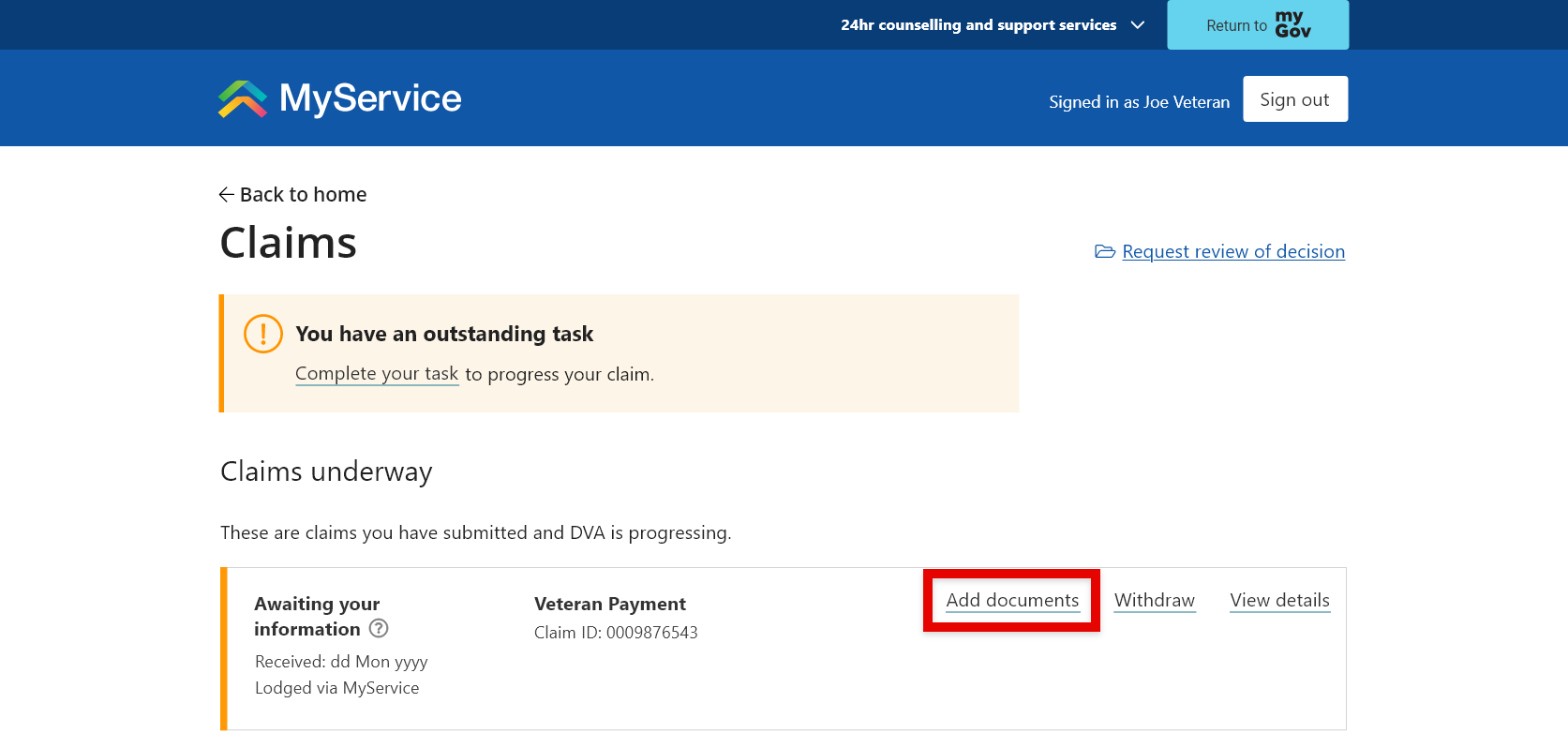
Within the Claims underway list, find Veteran Payment.
Select Add documents.
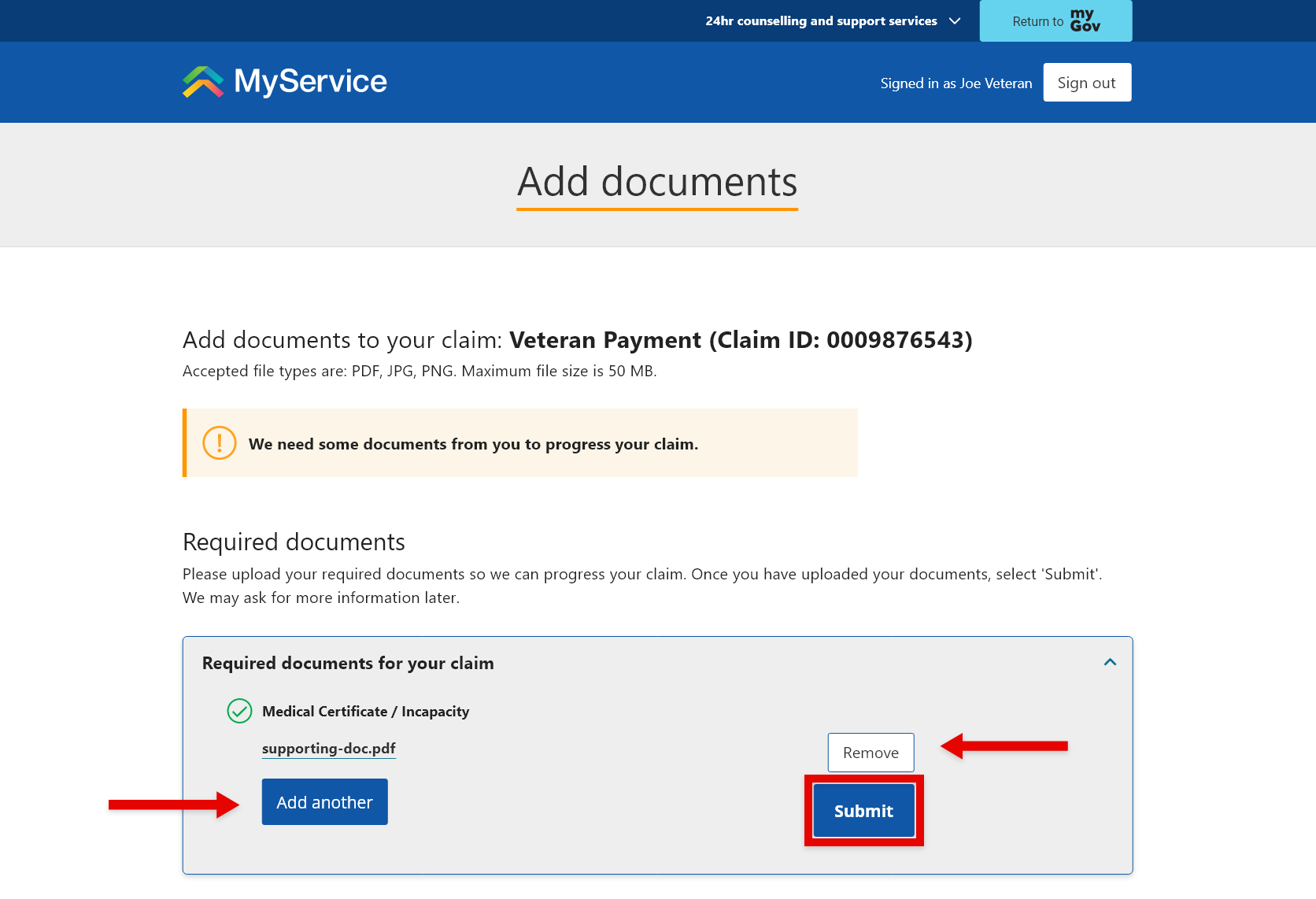
To add documents, select Upload.
If you have more than one document, select Add another to upload it.
To delete a document if you need to, select Remove.
When you’re ready, select Submit.
Back to top